
Operating System
Cyber threats are evolving faster than ever, but Windows users can take proactive steps to lock down their systems. These 10 proven tactics—ranging from built-in security features to behavioral habits—will transform your PC into a fortress against hackers, malware, and data breaches.
Enable Windows Defender Exploit Protection
Tired of waiting for malware to strike after your system’s already compromised? Windows Defender Exploit Protection silently blocks zero-day exploits before they even execute—using Microsoft’s AI-driven Attack Surface Reduction (ASR) rules. Unlike traditional antivirus, this feature stops attacks at the kernel level, preventing exploits like CVE-2021-40444 (the PrintNightmare vulnerability) from gaining a foothold.
With zero configuration required, it automatically protects core system processes, browsers, and Office apps. You can fine-tune rules per application (e.g., blocking Office macros or JavaScript exploits), but the default settings already cover 90% of common attack vectors. Best of all, it’s baked into Windows 10/11—no third-party tools needed.
This is your first line of defense for developers testing untrusted code, business users handling sensitive docs, or anyone who wants military-grade exploit mitigation without the hassle. ⚡
Use BitLocker for Full-Disk Encryption
If you’ve ever lost a laptop—or even just worried about it—BitLocker is your first line of defense. Built into Windows Pro and Enterprise editions, this full-disk encryption tool scrambles all your data, making stolen hardware useless without your decryption key. Unlike password managers or firewalls, BitLocker protects everything—documents, photos, even system files—from physical theft or forced access.
Setting it up is simpler than you’d think: Just enable it in Control Panel > BitLocker Drive Encryption, choose a PIN, password, or recovery key, and let Windows handle the rest. It runs in the background with minimal performance impact, and you can even enforce encryption via Group Policy for business environments. For extra peace of mind, store your recovery key in Microsoft’s secure cloud vault or a USB drive.
This is non-negotiable for remote workers, freelancers, or anyone with sensitive files—especially if you travel with your device. Even if malware infects your system, thieves won’t get past the encryption. 🔧
Implement Least Privilege User Accounts
Hackers love admin accounts—they’re like the keys to the kingdom. By default, most Windows users log in as administrators, giving malware free rein to install backdoors, steal data, or encrypt files for ransom. The fix? Create a standard user account for everyday tasks and only elevate privileges when absolutely necessary.
Windows makes this easy: go to Settings > Accounts > Family & other users, then add a new user with standard account permissions. For admin tasks, simply right-click the installer or tool and select "Run as administrator"—no need to stay logged in as admin all day. This limits the damage if malware slips through other defenses, since most infections can’t modify system files or install software without elevated rights.
This tactic is perfect for home users, students, and office workers who don’t need admin access for daily browsing, email, or document editing. Even developers benefit—switch to admin only when compiling software or installing system-wide tools. 💻
Enable Windows Sandbox for Testing
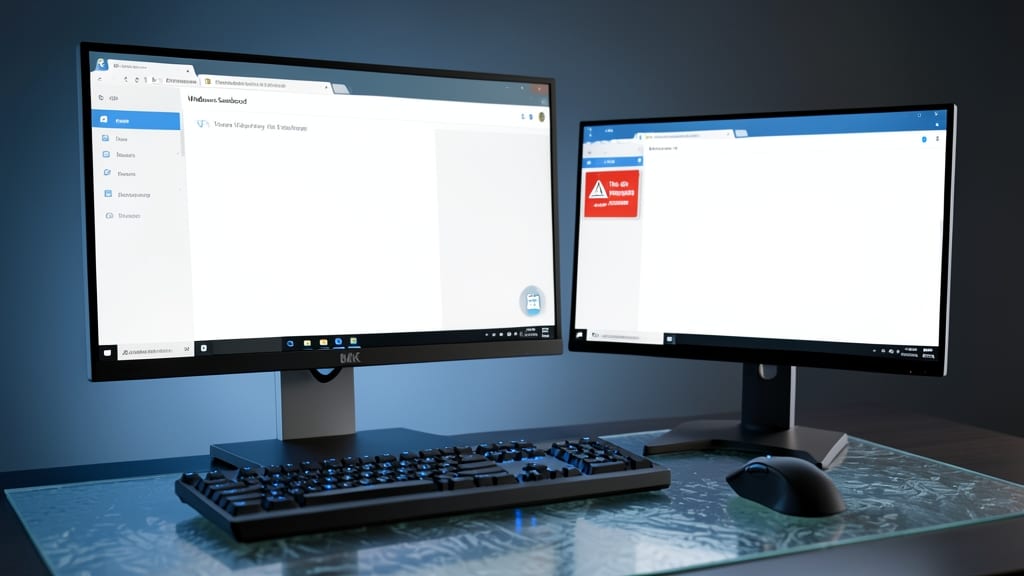
Curious about that sketchy download or shady website? Windows Sandbox lets you test anything without risking your main system—it’s like a disposable digital lab coat for your PC. Built into Windows 10/11 Pro/Enterprise, this lightweight virtual machine boots in seconds and resets itself when closed, leaving zero traces behind.
You get full Windows 10/11 compatibility with access to apps, browsers, and files—just like your real system, but isolated. The 1GB default memory allocation (scalable to 4GB) ensures minimal performance impact, while copy-paste between host and sandbox makes testing seamless. Perfect for developers testing untrusted code or users checking suspicious links before clicking.
This is the ultimate tool for security researchers, IT admins, or anyone tired of cleaning malware infections. ⚡
Disable Unnecessary Windows Services
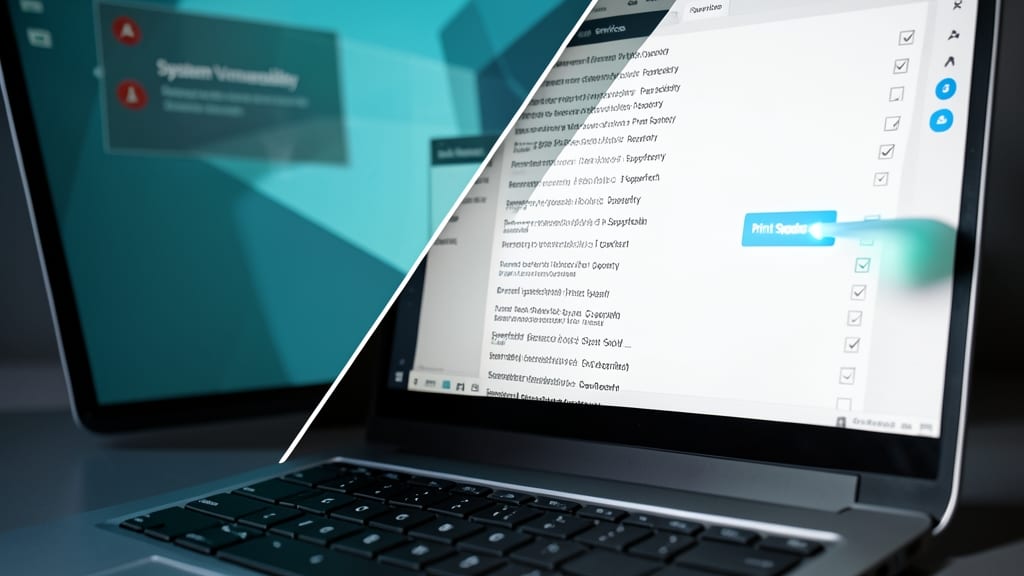
Windows runs dozens of background services by default—many of which you’ll never use. Services like Remote Registry and Print Spooler aren’t just resource hogs; they’re common attack vectors that malware exploits to gain control of your system. Disabling them isn’t just about performance—it’s about removing potential entry points for hackers.
Start by opening Task Manager (Ctrl+Shift+Esc), navigating to the Services tab, and filtering for services with "Stopped" status. Right-click any unused service (e.g., Fax, SSDP Discovery, or Windows Search) and select Stop to halt it immediately. For a permanent fix, use Services.msc to disable them entirely—this prevents them from restarting after reboots. Focus on services tied to networking, remote access, or legacy hardware you don’t need.
This tactic is ideal for home users who want a hands-off security boost or IT admins managing multiple machines. A leaner service list means fewer exploits to patch and less noise for your antivirus to monitor. 💪
Enable Multi-Factor Authentication Everywhere
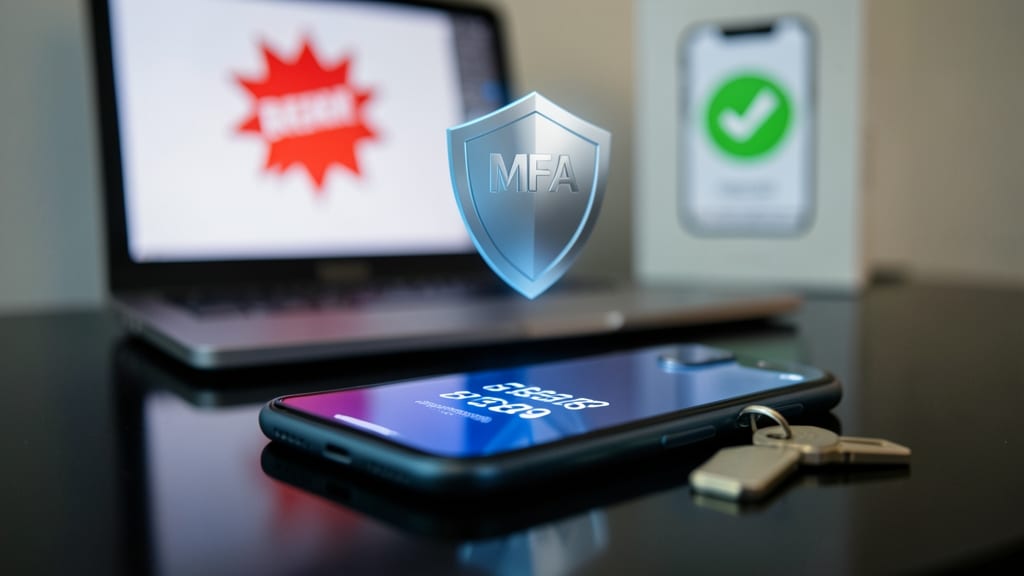
Password leaks happen—even to the most careful users. Multi-Factor Authentication (MFA) acts as your digital bodyguard, requiring a second verification step (like a code from your phone) even if hackers crack your password. This simple step blocks 99% of automated attacks, making it one of the most effective defenses available.
Set up MFA for Microsoft accounts, email providers (Gmail, Outlook), and financial apps using apps like Microsoft Authenticator or Google Authenticator. Physical security keys (like YubiKey) offer even stronger protection for high-risk accounts. Most services let you enable MFA in under two minutes, with backup codes for emergencies.
Whether you're a freelancer protecting client data or a casual user guarding personal accounts, MFA is the easiest upgrade you can make. ⚡
Regularly Update and Patch Windows
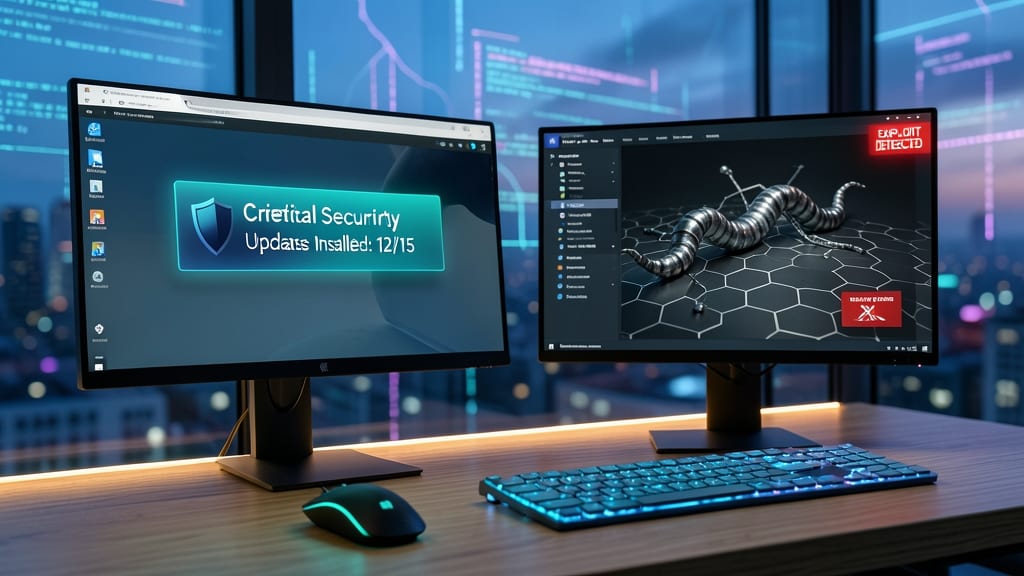
Microsoft’s Patch Tuesday releases aren’t just routine—they’re your first line of defense against exploits malware authors actively hunt for. Every month, Microsoft closes vulnerabilities that could let attackers hijack your system, steal data, or turn your PC into a botnet node.
Enabling automatic updates ensures you get critical fixes without lifting a finger, while checking Windows Update settings lets you verify patch status. The Quality Update alone often blocks zero-day threats before they’re widely exploited—don’t skip it. Even enterprise-grade systems rely on these patches to stay secure.
This is non-negotiable for anyone using Windows—whether you’re a casual user, small business owner, or developer. Set aside 10 minutes monthly to confirm updates installed, and you’ll block 80% of common attack vectors. 💪
Use a Password Manager for Credentials
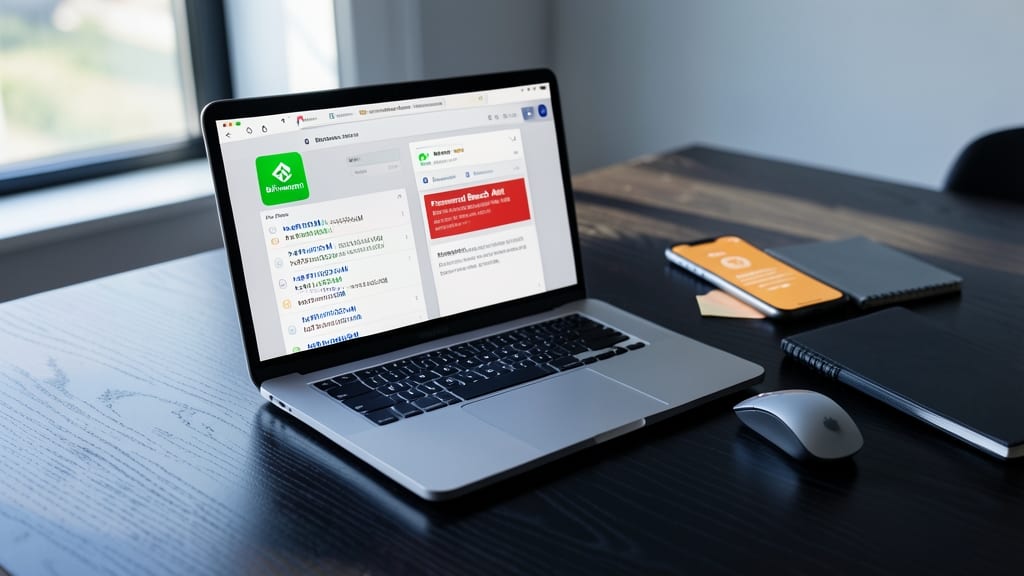
Tired of remembering (or writing down) endless passwords? The real danger isn’t weak passwords—it’s reusing them. When one account gets breached, hackers test those same credentials across hundreds of sites, and password managers like Bitwarden or KeePass stop that in its tracks by generating and storing unique, 25-character passwords automatically.
These tools sync across your devices, auto-fill logins, and even detect compromised passwords in real-time. Bitwarden offers an open-source core with optional premium features, while KeePass provides offline storage for maximum privacy. Both integrate with browsers and apps, eliminating the need for sticky notes or browser password managers that store credentials in plaintext.
Perfect for anyone juggling multiple accounts—from freelancers with client logins to gamers with separate accounts for every platform. Stop recycling passwords and let a manager handle the heavy lifting. ✨
Monitor Network Traffic with Windows Firewall
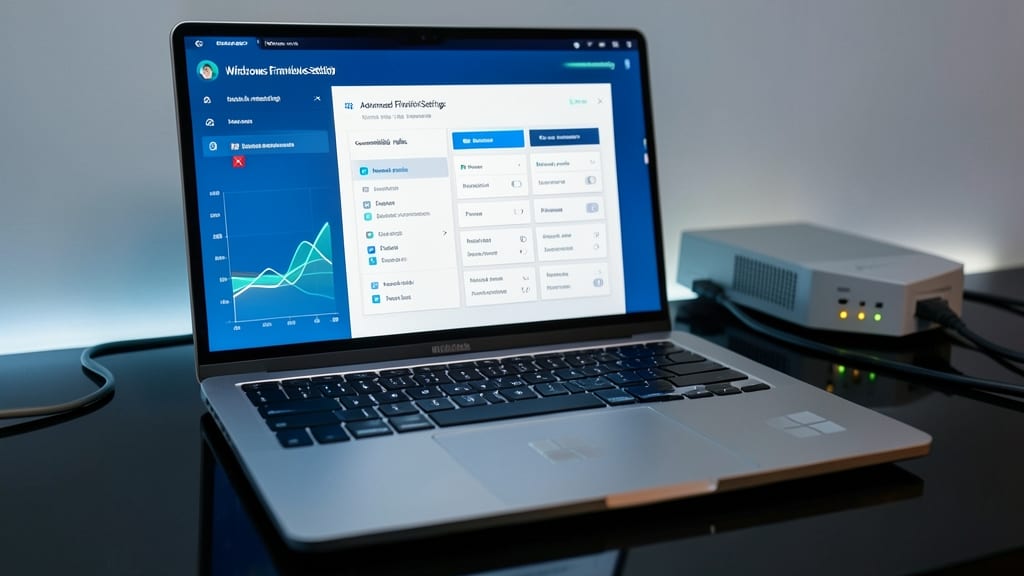
Many malware infections begin with unauthorized network access—Windows Firewall can stop them before they start. Unlike third-party firewalls, it’s built into every Windows installation, offering real-time monitoring and customizable rules without extra software.
Enable the Advanced Firewall Settings to block all incoming connections by default, then create exceptions only for trusted apps. The Logging feature records blocked attempts, helping you spot suspicious activity like brute-force attacks or port scans. For extra protection, enable Domain, Private, and Public profiles to control traffic across all network types.
This is especially useful for home users with IoT devices or remote workers connecting to public Wi-Fi. With minimal setup, you’ll add a critical layer of defense against network-based threats. 💪
Educate Yourself on Phishing Attacks
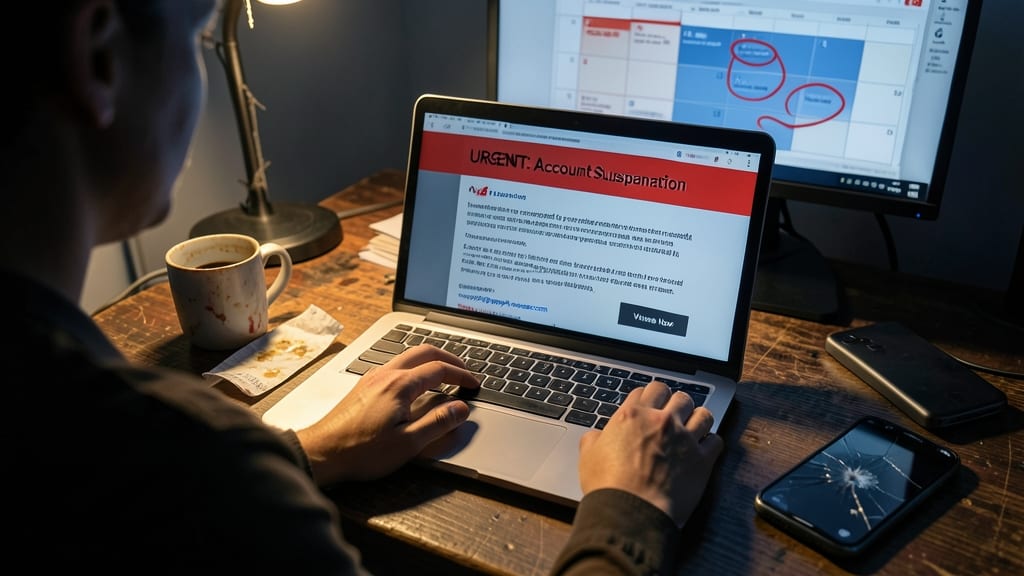
Phishing attacks are the #1 entry point for cybercriminals—yet most people still fall for them. The average user receives 11 malicious emails per month, and 90% of breaches begin with a phishing scam targeting weak human judgment, not technical flaws.
Train yourself to spot three critical red flags: urgent requests ("Your account will be locked!"), mismatched URLs (hover over links before clicking), and generic sender addresses (e.g., "support@amaz0n-security.com"). Tools like Microsoft Defender for Office 365 can block obvious scams, but your vigilance stops the rest. Forward suspicious emails to report@phishing.org to help others.
This skill is essential for everyone—from remote workers handling sensitive data to casual users shopping online. A 30-second check could save you from losing $1,000+ in fraud or identity theft. 💡