
Tip & Trick
Struggling to find files in your Microsoft ecosystem? A well-structured naming system saves time and prevents chaos. These seven file naming best practices will transform your digital organization, whether you use Windows, Office 365, or OneDrive.
Date-Based Naming for All Documents
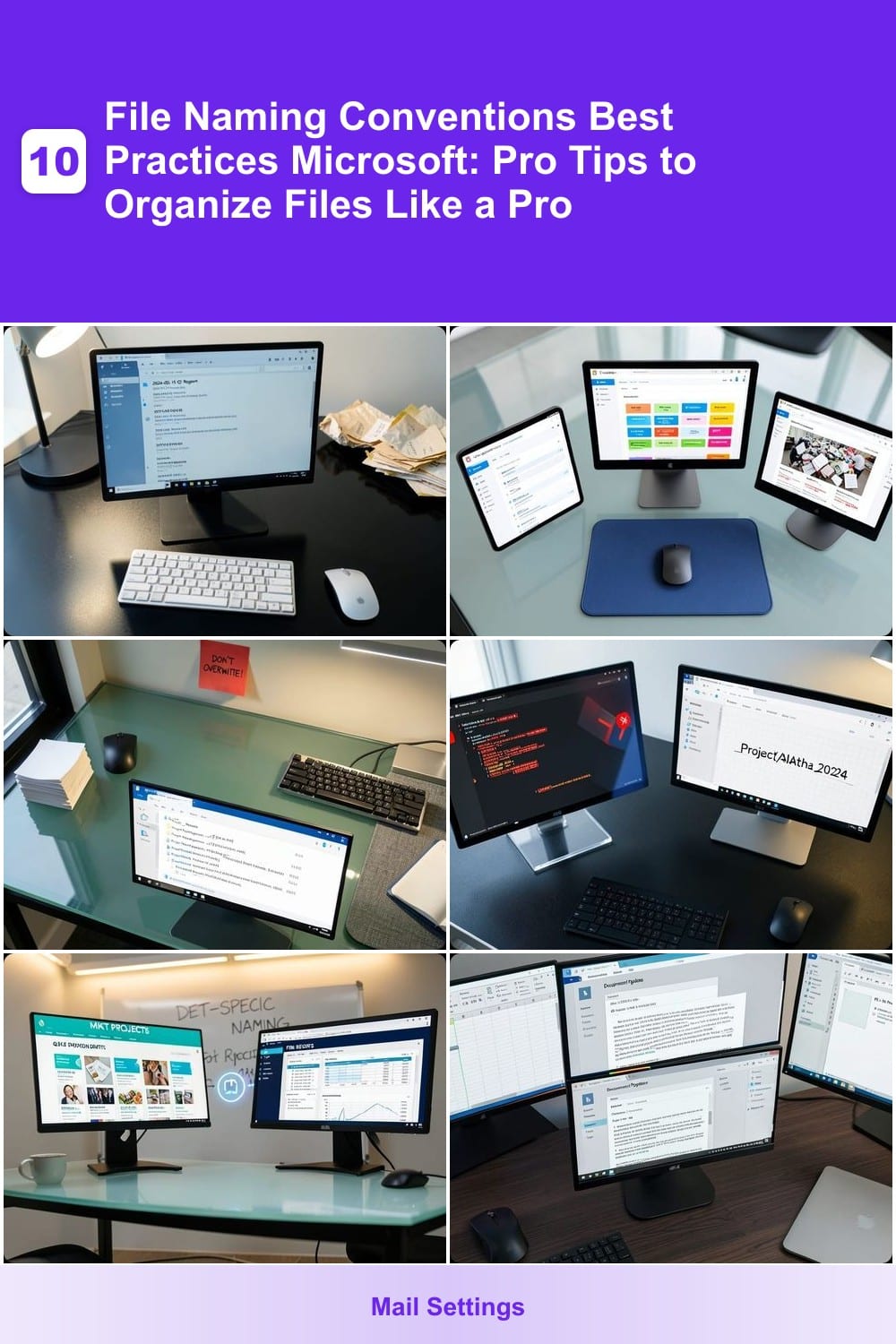
Ever wasted minutes searching for a file because its name was vague or outdated? Date-based naming solves this by embedding creation or deadline dates into filenames—like 2024-05-15Q2Report.docx—so you (and your team) instantly know its relevance.
Microsoft recommends using YYYY-MM-DD format (e.g., 2024-05-15) for chronological sorting, which works seamlessly in File Explorer, SharePoint, and OneDrive. Add a suffix like Final or Draft to distinguish versions, and avoid ambiguity in collaborative projects where deadlines matter. This method also syncs perfectly with Power Automate workflows that rely on date-based triggers.
Perfect for freelancers, agencies, or teams managing client deliverables—where deadlines and version control are non-negotiable. ⚡
Project-Centric Naming with Prefixes
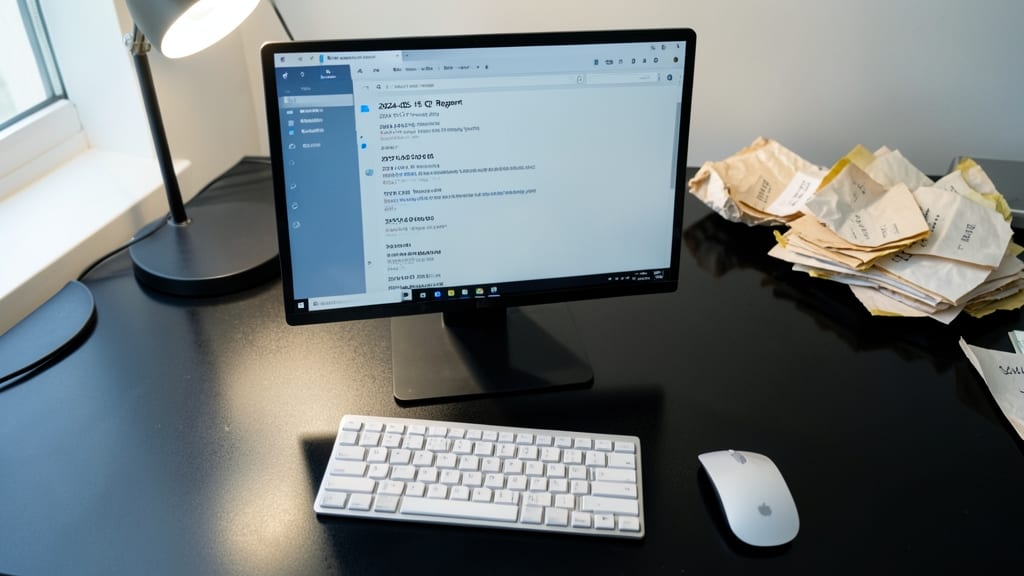
When team projects sprawl across SharePoint libraries or OneDrive folders, project-centric prefixes become your secret weapon for instant organization. Instead of hunting through "SarahReportv2.docx" or "MarketingPlanFinal.pdf," prefix every file with a standardized project code (like "MKT-2024-Q2") to instantly group related files together in search results and folder views.
Microsoft’s SharePoint and OneDrive automatically sort prefixed files alphabetically, so "MKT-2024-Q2ProposalFinal.docx" appears right next to "MKT-2024-Q2DataSheet.xlsx." Use uppercase letters and hyphens (e.g., "PROJ123_") for consistency, and combine with dates for even tighter control. This method works flawlessly with Power Automate workflows, too, since the prefixes remain intact during file transfers.
Teams managing cross-departmental initiatives—like product launches or client campaigns—will see the biggest benefits. Prefixes turn chaotic file dumps into self-organizing systems that scale effortlessly. ✨
Version Control Using Suffixes
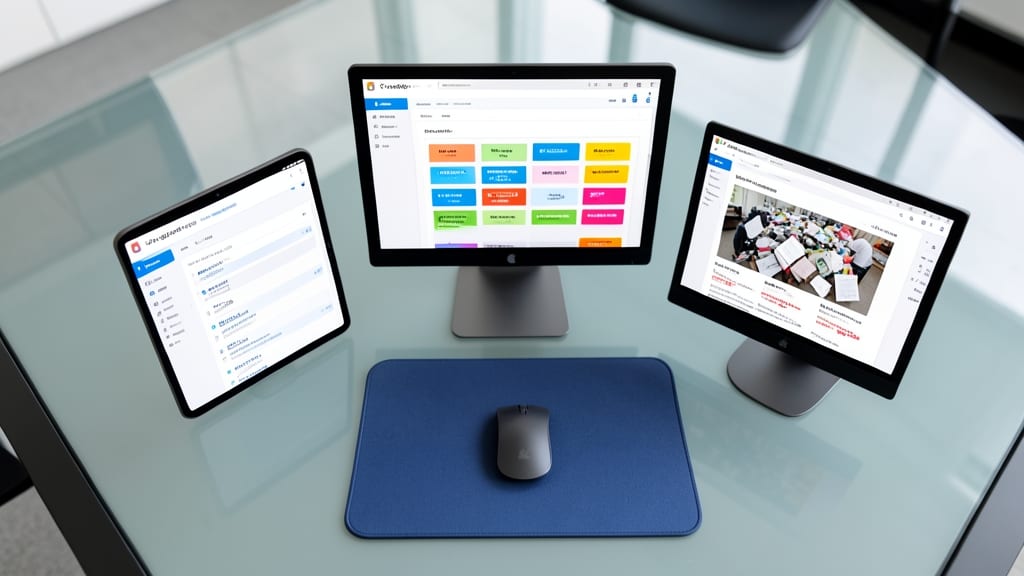
Tired of losing track of document revisions and accidentally overwriting your latest work? Suffix-based version control is your secret weapon for keeping Office files organized without the chaos of duplicate folders.
Instead of manually creating copies like "Projectv2 (Final).docx," use a consistent suffix system like "v1," "v2," or "Final." This method integrates seamlessly with Microsoft's built-in Track Changes and Save As features, ensuring every edit has a clear history. For example, "Q2Reportv1.docx" becomes "Q2Reportv2.docx" after updates—no more guessing which file is current.
This approach is perfect for freelancers, project managers, or teams where multiple stakeholders collaborate on the same documents. It’s simple, scalable, and works across Word, Excel, and PowerPoint without requiring extra tools. ✨
Avoiding Special Characters and Spaces
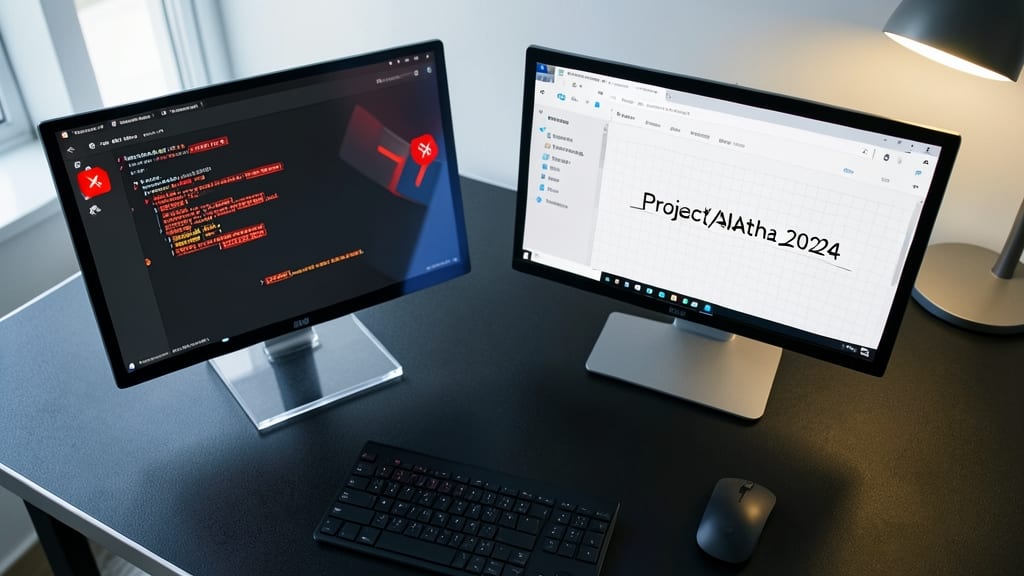
Tired of files failing to transfer or workflows breaking in Power Automate because of sneaky characters? Special characters like #, $, or % can derail cross-platform sharing and automation scripts—even in Microsoft’s own tools.
Stick to alphanumeric characters (A-Z, 0-9) and underscores () instead of spaces or symbols. This ensures seamless compatibility with Windows Command Prompt, PowerShell, and Power Automate triggers. For example, use Q2Report2024final instead of Q2 Report 2024! Final. Microsoft recommends this for SharePoint, OneDrive, and Teams file paths too.
Automation users will love how this prevents errors in Power Automate flows when referencing files. Developers and admins managing scripts will appreciate the reliability. ✨
Department-Specific Naming Codes
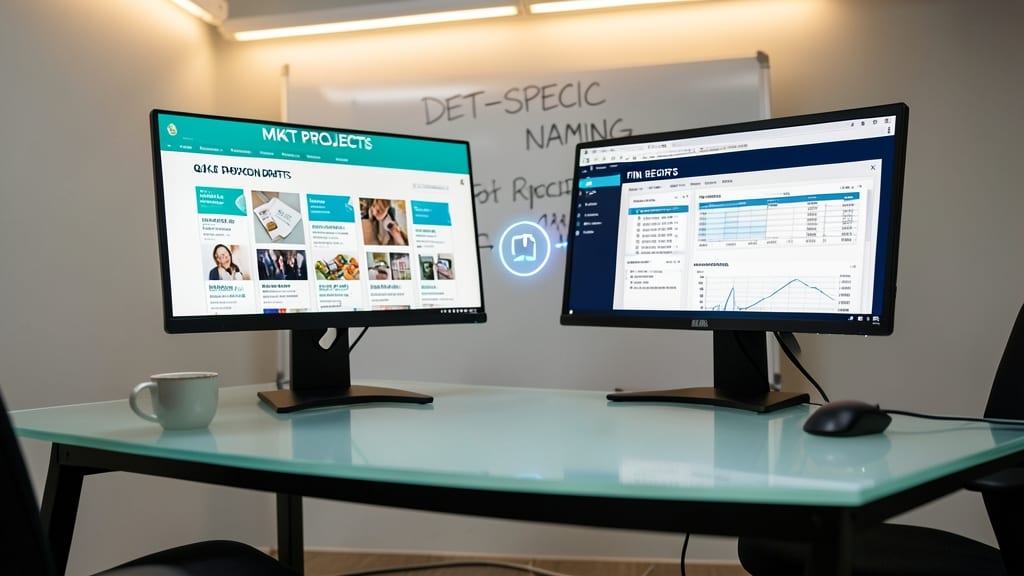
When Marketing and Finance teams share the same network but need completely different file structures, department-specific naming codes become your secret weapon. Instead of generic prefixes like "PROJ-123," this approach uses abbreviated department codes (e.g., MKT for Marketing, FIN for Finance) followed by consistent sub-patterns like YYYY-QTR or PROJECTID.
For example, a marketing campaign file becomes MKT-2024-Q2-Q3-LaunchPlanv2.docx, while a finance invoice follows FIN-INV-2024-0045final.xlsx. This system integrates seamlessly with Microsoft Power Apps for automated file routing and SharePoint metadata filters, ensuring files land in the right departmental libraries without manual sorting. The 3-4 character department codes keep filenames compact while eliminating ambiguity.
This method is ideal for enterprises with cross-departmental collaboration but strict compliance needs—like healthcare or legal firms—where file misplacement could have serious consequences. 💻
Metadata Integration with Office Properties
Tired of filenames that look like cryptic codes? Microsoft Office’s built-in document properties let you store searchable details—like client names or project codes—without cluttering the filename itself.
Every Office file (Word, Excel, PowerPoint) includes a Properties panel where you can add custom fields like Author, Company, or even custom metadata (e.g., "Client: Acme Corp"). These fields sync with Windows Search and SharePoint, making files instantly filterable by keywords. No more digging through folders—just type "Client: Acme" in the search bar, and every related file appears.
Perfect for freelancers managing multiple clients or corporate teams where files span projects. It’s the invisible organization tool that keeps your ecosystem tidy. ✨
Cloud-Specific Naming for OneDrive
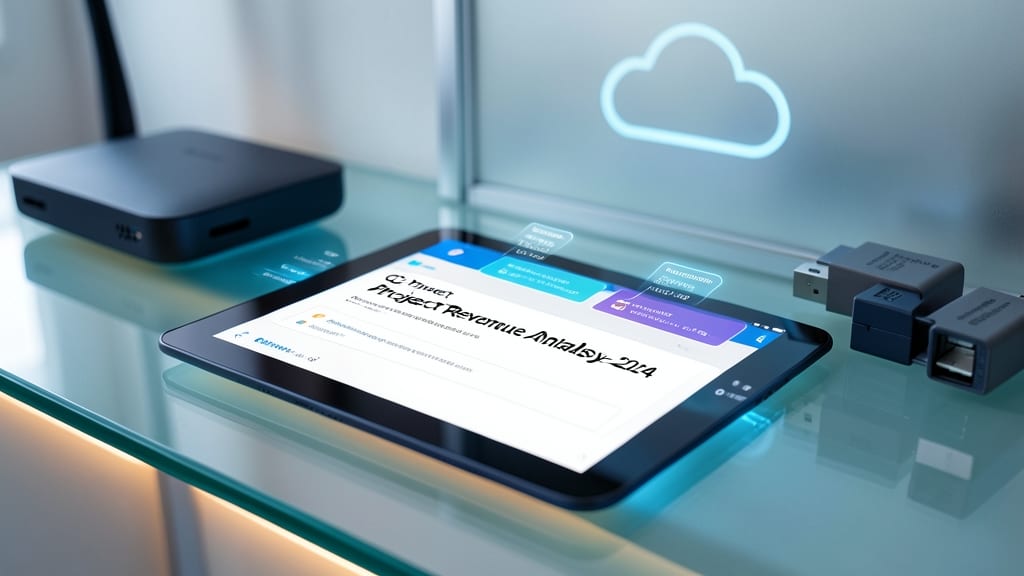
OneDrive’s search function isn’t just scanning filenames—it’s using Microsoft’s proprietary indexing system to prioritize files with optimized naming structures. Unlike local storage, cloud-based discovery relies on metadata and keyword density, making traditional folder hierarchies less effective.
To maximize visibility, use short, descriptive keywords (e.g., "Q2SalesReport2024" instead of "Document123") and avoid generic terms like "Final" or "Draft." OneDrive’s AI-driven search also favors filenames under 128 characters and with consistent prefixes (e.g., "PROJ-001") for faster filtering. ⚡
This approach is ideal for teams sharing files across devices—whether you’re collaborating in real-time or accessing archives from a mobile app. The result? Files surface instantly, even in massive libraries. 💻