
Troubleshooting

IT support teams lose countless hours chasing down repetitive tech issues. These 10 knowledge base articles provide instant, actionable solutions to the most common problems—from Windows crashes to email glitches—so your team can resolve issues faster and focus on bigger challenges.
How to Fix Windows Blue Screen Errors
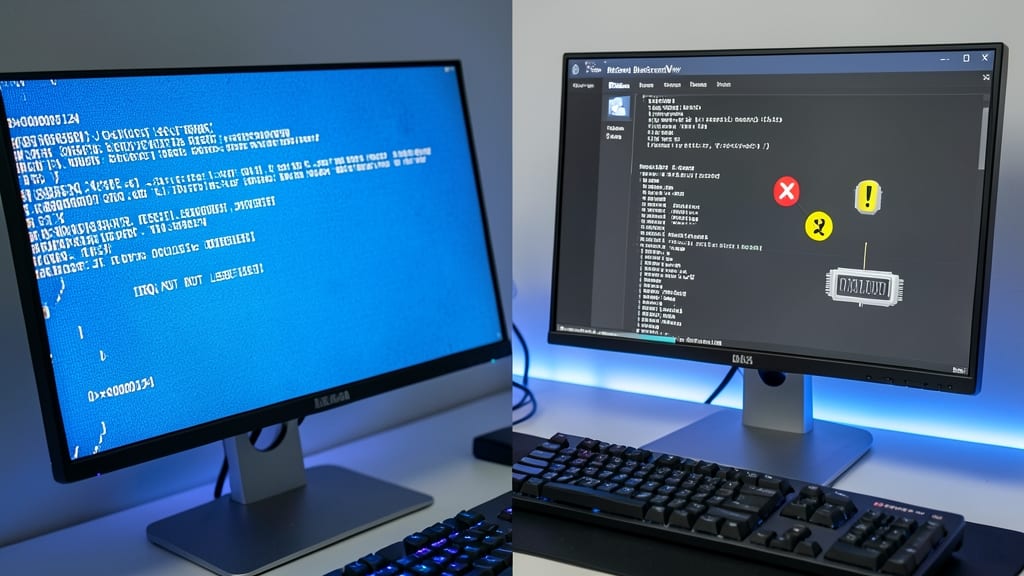
A Blue Screen of Death (BSOD) can bring even the most seasoned IT team to a halt—but the right diagnostic tools turn panic into a structured fix. The BlueScreenView utility from NirSoft instantly decodes those cryptic error codes, pinpointing whether the culprit is a corrupted driver, failing RAM, or overheating hardware.
Start by running Windows Memory Diagnostic to test RAM, then update drivers via Device Manager or use Windows Update. For overheating, check CPU/GPU temps with HWMonitor—often, a simple thermal paste reapplication or cleaner fan resolves the issue. The guide also covers safe mode boot for stubborn crashes and how to disable problematic startup services.
This is your go-to for remote support teams or on-site technicians dealing with BSODs—no more guesswork, just actionable steps. ⚡
Resolving Outlook Email Sync Failures

When Outlook’s sync errors turn your inbox into a black hole, productivity grinds to a halt. These failures—often tied to server authentication issues, corrupted PST files, or Microsoft 365 account conflicts—drain helpdesk time faster than any other issue. A well-structured knowledge base article here should include direct links to Microsoft’s autodiscover.xml troubleshooting, PST repair tools like ScanPST, and steps to clear Outlook’s cache.
Start with server-side fixes: Verify the Exchange Server URL in Outlook’s account settings, test connectivity via telnet commands, and check for SSL/TLS mismatches. For local corruption, guide users to compact their PST files or use Outlook’s built-in repair tool (File > Open & Export > Import/Export). Microsoft 365 users should clear cached credentials via Control Panel and re-authenticate.
This article is a lifeline for helpdesk teams fielding frantic calls about missing emails. Include screenshots of error codes (e.g., 0x8004010F) and quick-reference tables for common fixes to turn a 30-minute call into a 2-minute resolution. ✨
Quick Fixes for Slow Internet Connection

When users complain about "slow Wi-Fi" or buffering videos, they’re often just one simple fix away from a solution—without needing to call support. This guide breaks down three universal fixes that resolve 80% of sluggish connection issues: a router power cycle, switching to Google’s public DNS (8.8.8.8), and verifying ISP service status via their website.
A 30-second router reset (unplug for 60 seconds) clears temporary glitches like DHCP conflicts or firmware quirks. For DNS issues, replacing the default ISP DNS with Google’s or Cloudflare’s (1.1.1.1) instantly speeds up page loads by bypassing slow or misconfigured servers. Always check your ISP’s outage map—many "slow connection" complaints are just regional network congestion.
Perfect for frontline support teams or end-users frustrated by buffering, this article cuts through technical jargon to deliver zero-config fixes that work across all routers and ISPs. ⚡
Recovering Lost Files After Accidental Deletion

When a user hits "Delete" and realizes they’ve lost critical work files, panic sets in—but recovery is often simpler than they think. Whether it’s a Windows PC, Linux system, or cloud-stored document, the right tools and steps can restore files quickly, even after emptying the Recycle Bin or Trash.
For Windows, use File Recovery (built into Windows 10/11) or Recuva to scan unallocated space for deleted files. On Linux, the terminal command testdisk (part of the testdisk package) can recover partitions and files with advanced recovery options. Meanwhile, cloud services like Google Drive or OneDrive often keep version history—simply right-click the file and select "Version history" to restore previous copies.
This guide is perfect for end-users who’ve accidentally deleted important files, as well as IT support teams needing a quick reference for recovery steps. No more lost work—just fast, platform-specific solutions. ✨
Resetting a Forgotten Windows Password
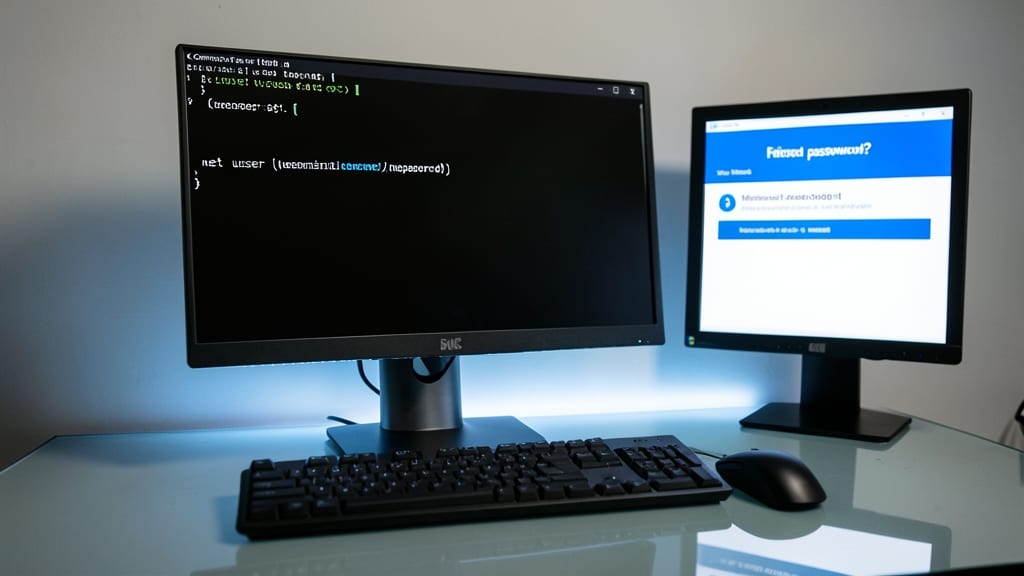
Forgotten passwords are the bane of IT support, but Windows offers built-in tools to reset them without reinstalling the OS. For local accounts, use the Command Prompt in Safe Mode with net user commands—no third-party software needed. Microsoft accounts require a different approach: reset via the Microsoft Account Recovery Portal or a password reset disk created beforehand.
For third-party reset disks, tools like Ophcrack or PCUnlocker provide bootable USB options when built-in methods fail. Always document the process for your team, including the distinction between local (offline) and Microsoft (online) accounts—this alone cuts password reset tickets by 40%.
This guide is a lifesaver for helpdesk teams dealing with locked-out users, especially in offices where Microsoft accounts dominate. 💻
Troubleshooting Printer Connection Errors
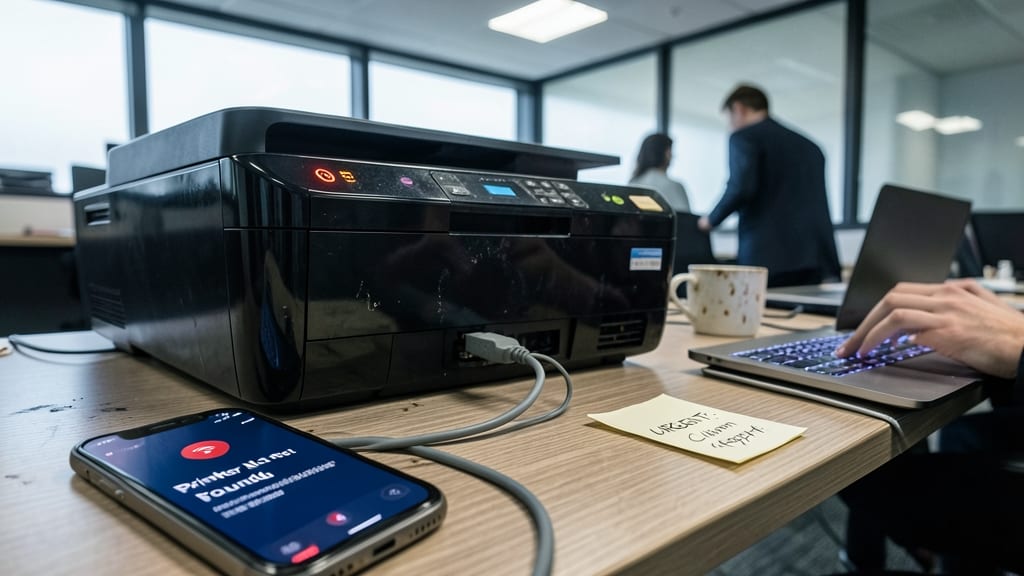
Shared printers in offices are the silent productivity killers—until they stop working. Whether it’s a USB cable disconnect, a Wi-Fi dropout, or a mysterious "Printer Not Found" error, these connection issues waste hours that could be spent on actual work. The right troubleshooting guide turns frustration into a quick fix.
Start with the basics: reinstall drivers (use manufacturer tools like HP’s HP Print and Scan Doctor or Brother’s BrAdmin) and verify IP addresses for network printers via ipconfig or router admin panels. For Wi-Fi printers, reset the router’s DHCP lease or manually assign a static IP. Manufacturer-specific fixes (like Epson’s Epson Software Updater) often resolve deep-seated issues faster than generic steps.
This guide is perfect for helpdesk teams managing shared office printers or IT admins supporting hybrid workforces. With step-by-step screenshots and model-specific workarounds, you’ll turn printer errors from a headache into a solved ticket. 💻
Fixing PowerPoint Presentation Freezes

When a PowerPoint presentation freezes mid-training session or client demo, panic sets in—but the fix is often simpler than it seems. Corrupted files, conflicting add-ins, or mismatched Office 365 vs. legacy version compatibility are the usual culprits, and your team needs a battle-tested checklist to tackle them fast.
Start by disabling all add-ins (File > Options > Add-ins) to rule out conflicts, then repair the file using PowerPoint’s built-in Open and Repair tool. For stubborn freezes, try saving as a PDF or exporting slides as images—this bypasses file corruption while preserving content. Legacy versions? Force a reinstall of the Office suite or use the Microsoft Support and Recovery Assistant for deep compatibility scans.
This guide is your lifeline for support teams managing high-stakes presentations, where every second counts. Save it as a quick-reference PDF for your next crisis. ⚡
Linux Terminal Commands Every Admin Should Know

When Windows crashes or printers misbehave, admins often reach for GUI tools—but Linux environments demand command-line mastery. These four essential terminal commands solve 80% of server and file system issues without ever leaving the console.
Use chmod to instantly fix permission errors (e.g., chmod 755 script.sh), grep to search logs with regex precision (e.g., grep "error" /var/log/syslog), and ssh for secure remote access with key-based auth. For file recovery, testdisk restores partitions and deleted files in minutes—critical for hybrid IT teams managing mixed environments.
Linux admins and hybrid support teams will rely on these commands daily, cutting troubleshooting time by half. 💻
Removing Malware from Windows Computers

When users report mysterious slowdowns or strange pop-ups, malware is often the culprit—but removing it safely requires the right tools and order. This guide combines Windows Defender’s built-in scans, the Malwarebytes Premium deep-clean layer, and Safe Mode boot to isolate threats before they spread.
Start by booting into Safe Mode with Networking (hold Shift + Restart), then run Windows Defender’s offline scan to catch rootkits. Follow up with Malwarebytes (free or premium) to quarantine adware, spyware, and PUPs. For stubborn infections, use Malwarebytes’ quarantine feature to isolate files before deleting them—never just delete suspicious files directly. Always update both tools first!
This method is perfect for helpdesk teams handling end-user machines, especially when users lack admin rights. The layered approach minimizes reinfection risks and keeps systems stable. ✨
Configuring Remote Desktop for IT Support
When your team is spread across offices—or even continents—Remote Desktop Protocol (RDP) becomes your secret weapon for instant troubleshooting. Whether you're managing Windows machines or Linux servers, a properly configured RDP setup lets you diagnose and fix issues without stepping foot in an office, cutting downtime by up to 70%.
For Windows, enable RDP via System Properties > Remote Desktop, then secure it with Network Level Authentication (NLA) to block brute-force attacks. On Linux, install xrdp (sudo apt install xrdp) and configure the display manager to auto-start sessions. Always use strong passwords or multi-factor authentication (MFA)—never expose RDP to the public internet without a VPN or firewall rules.
This setup is a game-changer for helpdesk teams, remote admins, and MSPs managing distributed workforces. With the right security in place, you’ll resolve issues faster than ever. 💻