
PowerPoint
Elevate your PowerPoint presentations with these seven transition effects that create polished, professional slideshows. Whether you're delivering a corporate pitch or a classroom lecture, seamless transitions keep your audience engaged and focused on your message.
Fade Slide Transition for Subtle Professionalism
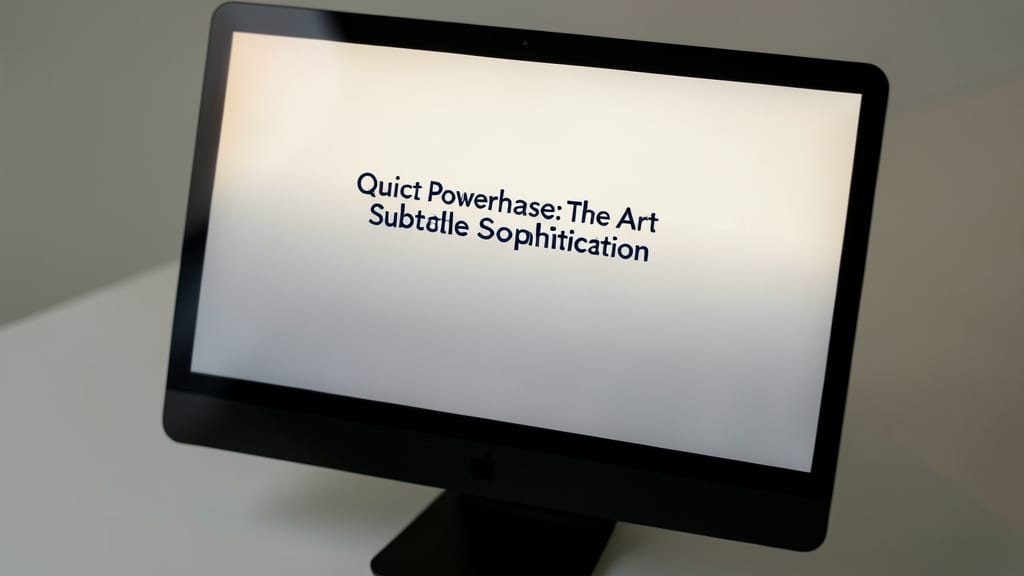
When your presentation demands focus over flash, the Fade transition is the quiet powerhouse of PowerPoint effects. Unlike flashy animations, it dissolves slides effortlessly, keeping attention squarely on your message while adding a touch of sophistication.
Available in all PowerPoint versions (2016, 2019, 365, and Online), this transition offers customizable timing (from 0.5s to 5s) and direction control (fade in/out). Pair it with a solid color background or minimalist design to amplify its professional appeal—ideal for boardrooms where subtlety speaks louder than spectacle.
Perfect for executive reports, financial reviews, or training modules, this transition ensures your audience absorbs content without visual distractions. ⚡
Push Slide Transition for Dynamic Storytelling
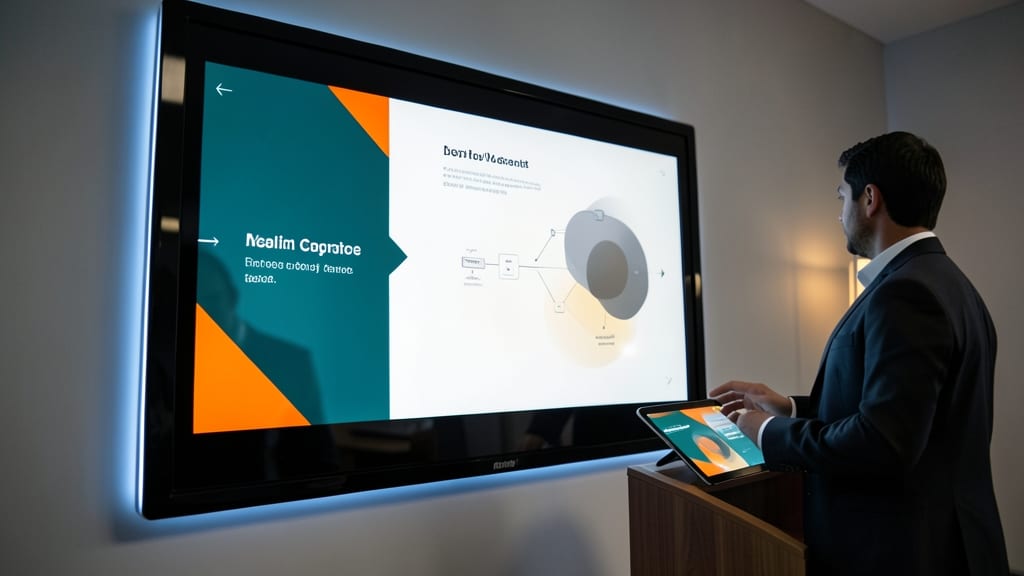
Need to guide your audience through a story or process with clear direction? The Push Slide Transition turns your presentation into a dynamic journey by making one slide "push" the next—left, right, up, or down—just like flipping pages in a book or moving through a physical space.
This transition is directional by design, letting you control the flow (e.g., pushing right for progression or left for a "backstep"). It works seamlessly in PowerPoint 2016, 2019, and 365, and you can pair it with sound effects (like a subtle "whoosh") for extra impact. Perfect for product demos (showing how features unfold) or step-by-step tutorials where sequence matters.
Storytellers and trainers will love how it mirrors real-world movement—no distracting flashes or abrupt cuts. Just pure, intentional motion to keep your audience locked in. ✨
Wipe Slide Transition for Modern Minimalism
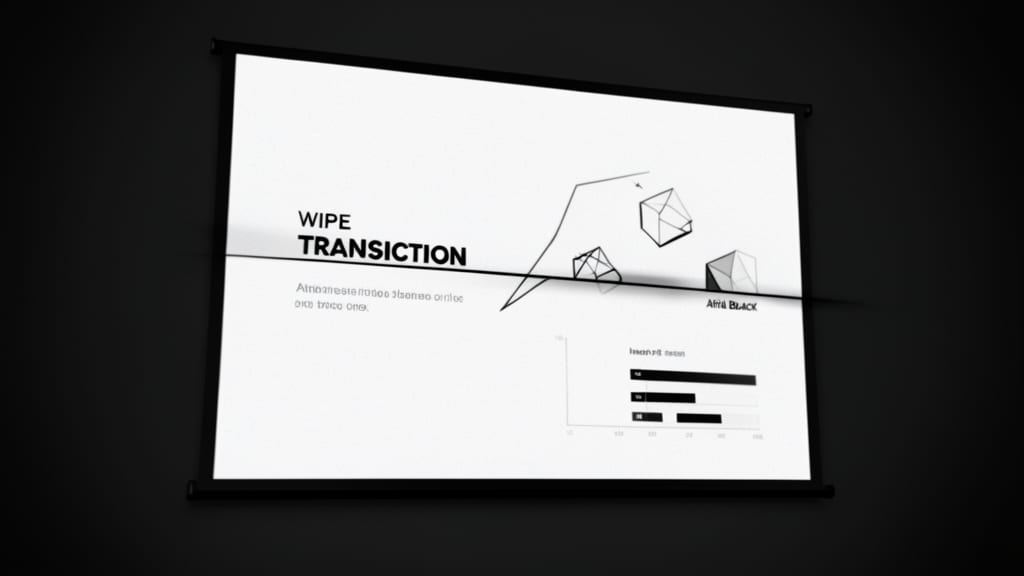
When you want to signal a bold yet clean transition—without the clutter—PowerPoint’s Wipe effect delivers a sleek, directional shift that feels fresh. Unlike push or fade effects, this transition uses a straight-line reveal (horizontal, vertical, or diagonal) to emphasize a deliberate break between ideas, making it perfect for modern design-focused presentations.
The Wipe transition is fully customizable: adjust the speed (slow for emphasis, fast for pacing) and choose from four directions (left, right, up, or down) to match your slide’s flow. It works seamlessly across PowerPoint 2016–365, and its minimalist approach ensures it won’t compete with your content—just subtly guide the viewer’s eye.
Creative professionals, UX designers, and tech teams will love this for section dividers or concept shifts, while its understated elegance keeps it professional enough for client pitches. ⚡
Zoom Slide Transition for High-Impact Reveals
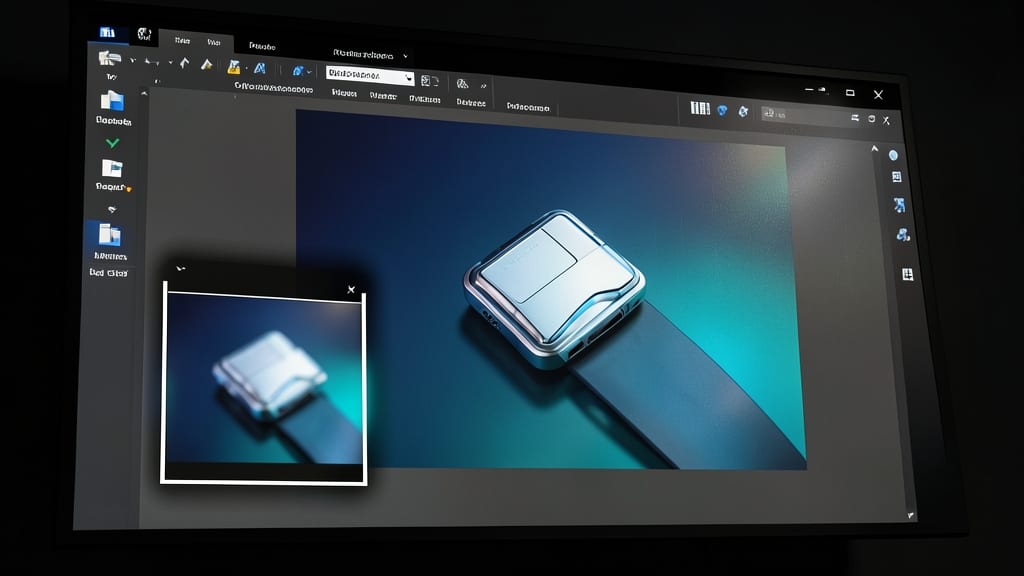
When you need to make a big reveal—like a product launch or a keynote highlight—the Zoom Slide Transition delivers that cinematic "wow" factor. Unlike subtle fades or wipes, this transition zooms in from a thumbnail preview, instantly drawing eyes to your most critical slides.
Customize the speed and direction (inward or outward) to match your energy, and pair it with a sound effect for extra impact. It’s especially effective for data-heavy slides or visual comparisons, where you want the audience to focus sharply on the new content. Works seamlessly in PowerPoint 2016 and later, including the online version.
Perfect for speakers who want to command attention without overwhelming the audience. Use it sparingly—once per presentation—to keep the drama high. ✨
Morph Slide Transition for Seamless Data Visualization
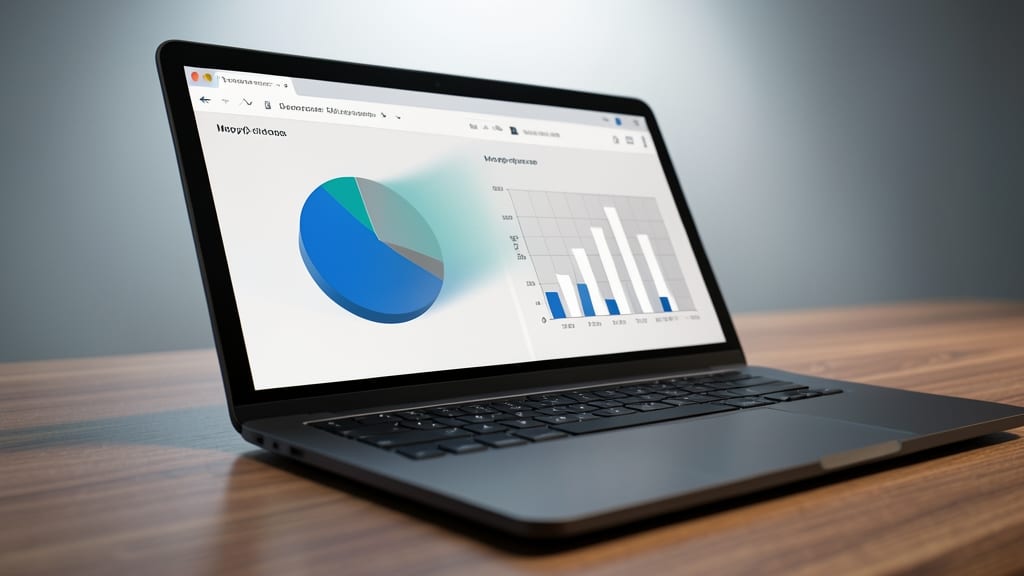
When your slideshow hinges on charts, graphs, or infographics, the Morph transition in PowerPoint becomes your secret weapon. Unlike abrupt cuts or flashy reveals, this effect intelligently morphs one layout into another—preserving your data’s integrity while adding a touch of sophistication.
Available in PowerPoint 2016 and later (including Office 365), the Morph transition works best with similar slide layouts (e.g., bar charts → line graphs, pie charts → tables). You can adjust the transition speed and even fine-tune elements like text boxes or shapes to animate independently. For data-heavy presentations, this keeps your audience focused on insights, not visual distractions.
Perfect for analysts, educators, or marketers presenting complex datasets, the Morph transition ensures your message lands clearly—without sacrificing polish. ✨
Split Slide Transition for Creative Divides
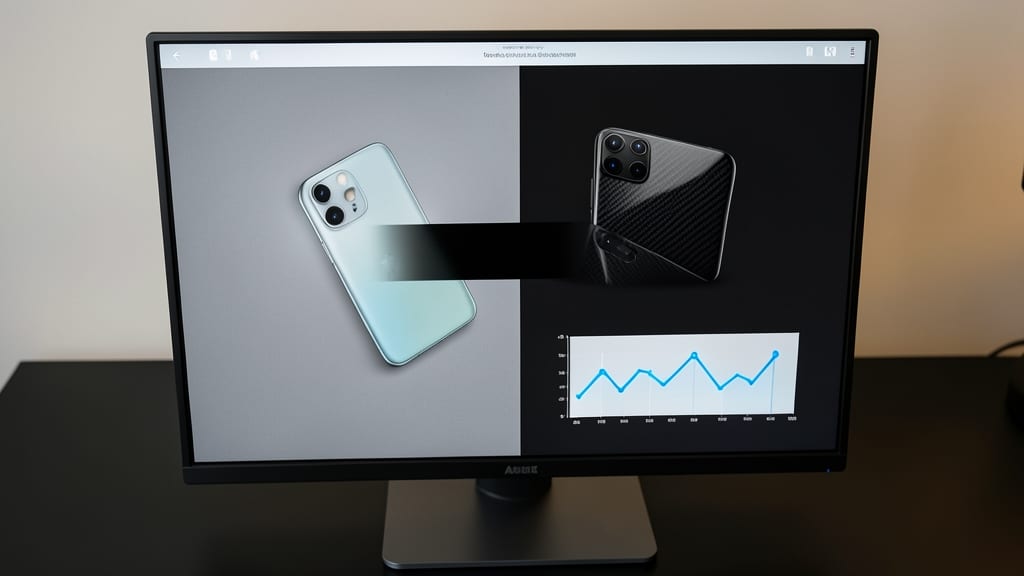
Need to showcase before-and-after designs, compare two product features side-by-side, or highlight contrasting data sets? The Split Slide Transition in PowerPoint delivers a clean, dynamic divide—either horizontally or vertically—to keep your audience’s focus sharp on both sides of your content.
This transition works by splitting the screen along a customizable line, revealing each slide’s content in real time. You can adjust the split direction (left/right or top/bottom) and speed to match your pacing, while the smooth animation ensures no jarring cuts. It’s especially useful for dual-screen comparisons, like A/B testing results or architectural renderings.
Perfect for designers, marketers, and educators who need to visually separate yet connect two ideas—think of it as the ultimate side-by-side reveal. ⚡
Custom Animation Paths for Personalized Transitions
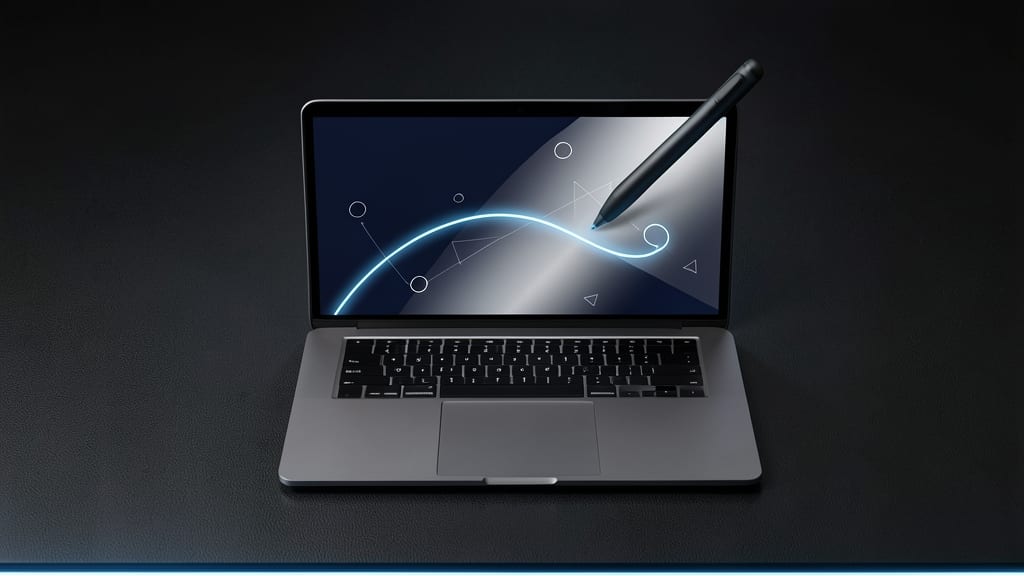
When standard transitions feel too generic, custom animation paths let you craft transitions that match your brand’s personality or artistic vision. Unlike pre-built effects, this feature lets you draw freehand or use geometric shapes to define how slides move—whether it’s a slide spiraling into view or following your logo’s curve.
To use it, go to the Transitions tab, select More Transitions, and choose Custom Path. Here, you can adjust speed, direction, and even add easing effects for smoother motion. It’s perfect for logo-aligned transitions or slideshows where visual flair enhances storytelling without overwhelming the message.
Ideal for designers, marketers, or educators who want to stand out, this tool turns your presentation into a visual experience—not just a slide deck. ✨