
Coding
Excel’s math and trig functions transform raw data into precise calculations—essential for finance, engineering, and scientific analysis. Mastering these 10 functions will unlock efficiency and accuracy in your spreadsheets, from basic arithmetic to complex trigonometric modeling.
SUM Function for Basic Arithmetic

If you’ve ever spent hours manually adding numbers in Excel, the SUM function is your game-changer. This simple yet powerful tool instantly adds values in rows, columns, or ranges, saving time and reducing errors—whether you're tracking quarterly sales or balancing a budget.
To use it, type =SUM( followed by your cell range (e.g., =SUM(A1:A10)). Excel handles everything, including blank cells or text entries, while ignoring logical values like TRUE/FALSE. For multi-range sums, separate ranges with commas: =SUM(A1:A5,B1:B5). The function even supports dynamic ranges with structured tables.
Perfect for accountants, small business owners, or anyone managing financial data, SUM is the first function every Excel user should master. ⚡
AVERAGE Function for Data Trends

Struggling to make sense of student test scores, sales performance, or market trends? The AVERAGE function in Excel cuts through the noise by calculating the mean value—ignoring text, logical errors, or empty cells—so you get clean, actionable insights every time.
Simply type =AVERAGE(range), like =AVERAGE(B2:B100), and Excel instantly computes the arithmetic mean. It automatically skips non-numeric entries, so you don’t have to pre-clean your data. For weighted averages, combine it with SUMPRODUCT or IF functions. Teachers, analysts, and researchers rely on this to spot trends, identify outliers, and make data-driven decisions without manual calculations.
Perfect for educators grading classes, marketers analyzing KPIs, or anyone turning raw numbers into clear performance metrics. 💡
ROUND Function for Precision Control
Tired of manually adjusting decimals in financial reports or scientific data? The ROUND function in Excel automates precision control with minimal effort, ensuring consistency across your spreadsheets.
Use =ROUND(number, num_digits) to round numbers up, down, or to a specific decimal place—like rounding $123.4567 to $123.46 for financial reports. You can even round to whole numbers (e.g., =ROUND(3.7, 0) returns 4), or use negative digits to round to thousands (e.g., =ROUND(1234, -2) returns 1200).
Accountants, scientists, and analysts rely on this function to maintain decimal accuracy without manual tweaking—ideal for budgets, lab measurements, or any data requiring strict formatting. ✨
SQRT Function for Square Roots

Need to calculate the side length of a square from its area, or find the magnitude of a vector in physics? The SQRT function in Excel handles square roots instantly—no calculator required. It’s the go-to tool for engineers, physicists, and architects who work with geometric relationships daily.
Simply type =SQRT(number) in any cell, and Excel returns the positive square root of the input. For example, =SQRT(25) yields 5, while =SQRT(2) gives 1.414213562 (rounded to 10 decimal places by default). Pair it with other functions like POWER or SUM to solve complex equations without leaving your spreadsheet.
Ideal for structural analysis, signal processing, or project planning, this function cuts down manual calculations by 80%. Skip the guesswork and let Excel handle the math—precisely. ✨
SIN Function for Trigonometric Analysis

Need to model sound waves, analyze structural loads, or design a bridge? The SIN function in Excel unlocks trigonometric precision without leaving your spreadsheet. Whether you're working in radians or degrees, this function calculates sine values—critical for simulations, physics experiments, and architectural blueprints.
Simply enter =SIN(angle) where angle is in radians (default) or use =SIN(RADIANS(degrees)) for degree-based inputs. For example, =SIN(PI()/2) returns 1, while =SIN(DEGREES(30)) gives 0.5—perfect for verifying calculations. Combine it with PI() or RADIANS() for seamless unit conversions.
Engineers and architects rely on SIN to model vibrations, optimize designs, and validate theoretical models. If you’re tackling periodic data or geometric challenges, this function is your go-to for accuracy. ✨
PI Function for Circle Calculations

Tired of memorizing π (3.14159...) every time you calculate circle dimensions? The PI() function in Excel does the heavy lifting for you—returning a precise value of π (15 decimal places) that you can plug directly into formulas.
Use it to compute area (π × r²) or circumference (2 × π × r) with zero manual input. For example, type =PI()*A2^2 to calculate a circle’s area where A2 holds the radius. It’s especially useful for architects designing curved structures or engineers working with circular components.
No need for external tools—just type =PI() and let Excel handle the rest. Perfect for anyone who works with circles, whether in blueprints, manufacturing, or even data visualization. ✨
DEGREES Function for Unit Conversion

Stuck with trigonometric values in radians but need degrees for real-world applications? The DEGREES function bridges this gap instantly—critical for navigation systems, astronomy charts, or any project requiring standard angle measurements.
Simply input a radian value (e.g., =DEGREES(1.5708)), and Excel converts it to 90 degrees—no manual calculations or unit confusion. Pair it with SIN, COS, or TAN for seamless trigonometric workflows, or use it alone to validate surveying data or plot celestial coordinates.
Perfect for students, engineers, and data analysts who work with angle-based measurements but prefer the intuitive degree system. ⚡
FACT Function for Factorials

Need to calculate permutations, binomial probabilities, or scientific sequences? The FACT function in Excel computes factorials instantly—critical for probability theory, combinatorics, and advanced statistical modeling.
Just enter =FACT(number) where number is your input (e.g., =FACT(5) returns 120). It handles values up to 170! (Excel’s limit), making it perfect for scenarios like calculating combinations (nCr) or binomial coefficients. For larger values, consider GAMMA or LN functions combined with factorials.
Data scientists, statisticians, and engineers will find this indispensable for modeling scenarios like binomial distributions or permutation calculations. ⚡
LOG Function for Exponential Growth

When your data grows faster than you can track it—like investments compounding or populations expanding—the LOG function is your secret weapon. Unlike linear calculations, logarithms let you analyze exponential trends by converting them into manageable, linear scales, making patterns crystal clear.
Excel’s LOG function supports two bases: base 10 (common log) and natural log (e). Use =LOG(number, [base]) where omitting the base defaults to base 10. For example, =LOG(100) returns 2 (since 10² = 100), while =LOG(100, e) calculates the natural log. Pair it with EXP to reverse the process, or nest it in charts to linearize exponential data.
Financial analysts use it to calculate doubling time of investments, epidemiologists model virus spread rates, and scientists decode half-life decay. If your work involves growth trends, this function turns chaos into clarity. ✨
RADIANS Function for Angle Conversion
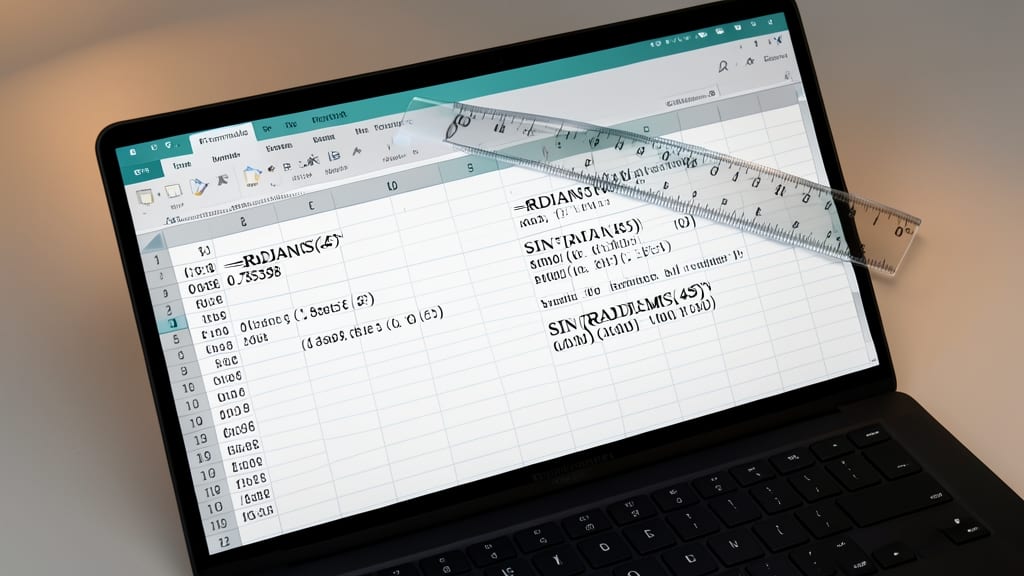
When your calculations hinge on angles but Excel expects radians—not degrees—RADIANS is your lifesaver. This function bridges the gap between real-world measurements (like 45°) and the mathematical standard (π/4 radians), ensuring accuracy in trigonometric formulas.
Simply enter =RADIANS(angleindegrees)—for example, =RADIANS(90) returns 1.5708, the radian equivalent of 90°. It’s lightweight, requiring zero configuration, and works seamlessly with other trig functions like SIN or COS for physics simulations or data science models.
Perfect for engineers validating structural angles, physicists modeling wave patterns, or data scientists preprocessing spatial datasets. ⚡