
Tip & Trick
Mastering Microsoft 365 Word can transform your productivity from tedious to effortless. These seven expert-approved tips and tricks will save you hours weekly—whether you're drafting reports, designing documents, or collaborating with teams.
Quick Parts Gallery for Reusable Content
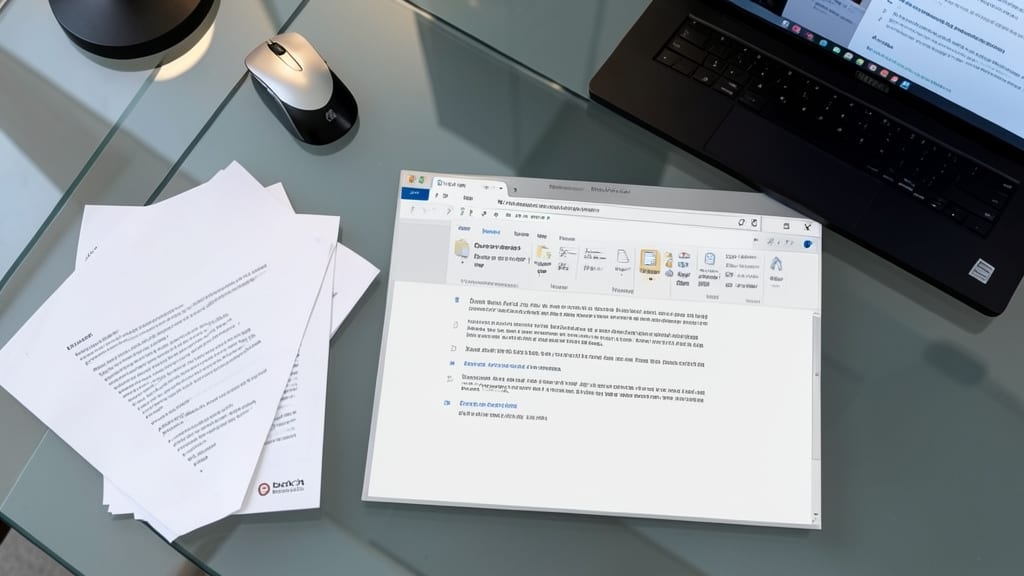
Tired of retyping the same disclaimers, legal clauses, or branded templates every time you start a new document? The Quick Parts Gallery in Microsoft 365 Word lets you store frequently used text, tables, or graphics once—then insert them instantly with a single click.
To get started, highlight the content you want to reuse, then go to Insert > Quick Parts > Save Selection to Quick Parts Gallery. Name it (e.g., "Client Disclaimer" or "Project Header") and save. Next time, just navigate to Insert > Quick Parts and select your saved item—no copy-pasting required. You can even organize entries into folders for easy access. Pro tip: Use this for standard emails, contracts, or branded templates to maintain consistency across documents.
This trick is a game-changer for legal teams drafting contracts, HR professionals onboarding employees, or marketers sending branded proposals—cutting repetitive work by up to 40%. ⚡
Track Changes with Comments and Highlights
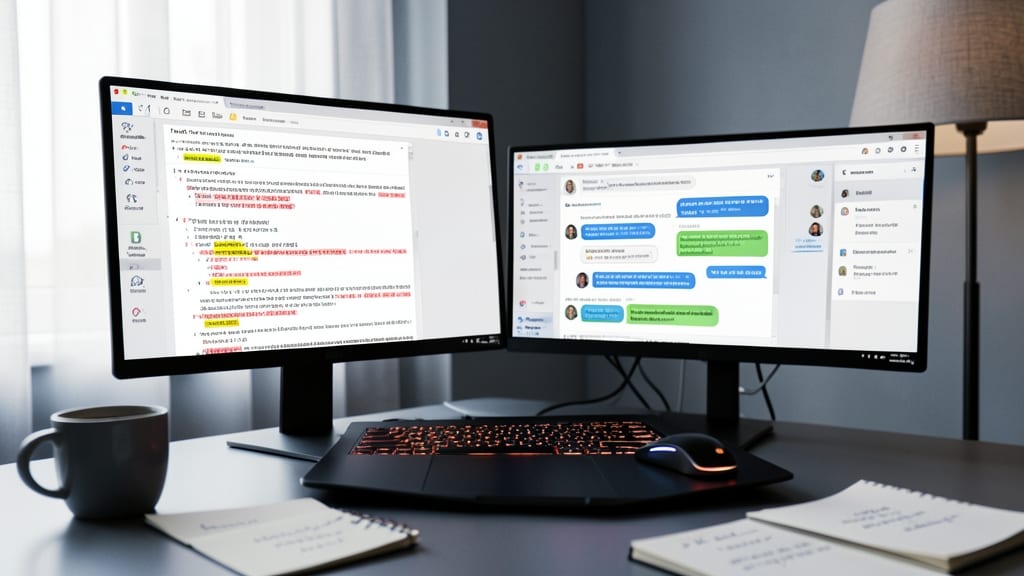
Frustrated by endless back-and-forth emails to clarify edits in Word documents? The Track Changes feature gets a major upgrade with comments and highlighting tools—turning your doc into a live collaboration hub without leaving Word.
Use comments to leave targeted feedback directly beside specific text (no more vague "fix this section" emails). Need to flag a quick edit? Highlight text in yellow to mark it for revision while keeping the original intact. These tools work seamlessly with Track Changes—so you can see edits and feedback in one place. Pro tip: Use @mentions in comments to notify team members without switching apps.
This combo is a game-changer for freelancers managing client revisions or collaborative writing teams—cutting revision cycles by 40% while keeping everything organized in one document. 💡
Mail Merge for Personalized Bulk Documents
Tired of manually typing the same letter or certificate for every student, client, or employee? Mail Merge in Microsoft 365 Word automates personalized bulk documents—saving hours with just a few clicks.
Start by creating a Word template with placeholders like <
This trick is a lifesaver for educators grading assignments, HR teams onboarding new hires, or small business owners managing invoices. No more copy-pasting errors—just zero-config automation once you set it up. ✨
Navigation Pane for Large Documents
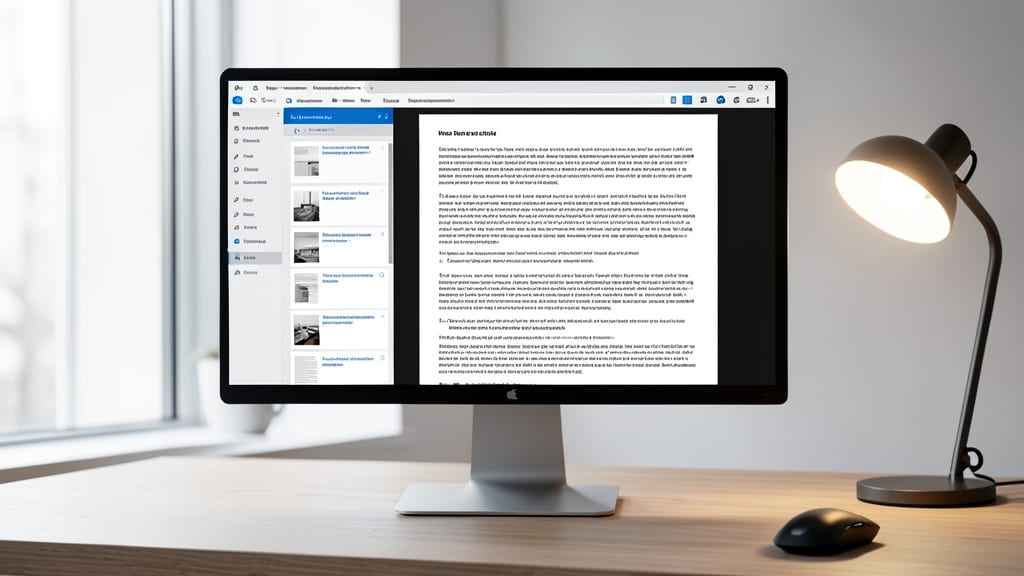
Struggling to find your way through a 50-page legal brief or 100-page research paper? The Navigation Pane in Microsoft 365 Word turns scrolling into a thing of the past—letting you jump to any section in seconds with just a click.
Access it via View > Navigation Pane to see headings, pages, or even comments as clickable links. Need to review a specific section? Click its heading to instantly jump there. Even better, use the search bar to find keywords across your entire document—no more scrolling through endless pages. This feature works seamlessly with Track Changes too, so you can navigate comments and edits without losing your place.
Perfect for legal professionals, academics, or technical writers—this trick cuts editing time by 30% for documents over 20 pages. Your scroll wheel will never feel the same again. ⚡
Text to Speech for Editing on the Go

Stuck staring at the same sentence for the 10th time, wondering if it sounds natural? Microsoft 365 Word’s Text to Speech (TTS) feature turns your screen into a real-time editor—letting you hear your writing as you go. Perfect for catching awkward phrasing, pacing issues, or even missed typos while you’re on the move.
Enable it via Review > Read Aloud to hear your document narrated naturally (with adjustable speed and voice options). Pause, rewind, or skip sections effortlessly—ideal for commuters, students, or professionals who multitask while editing. The Microsoft Neural TTS voices sound so lifelike, you’ll forget it’s AI until you pause to adjust the volume.
This trick is a lifesaver for freelance writers, academics, or anyone who edits on the go—transforming passive reading into an active, auditory review. Give your eyes a break and let your ears catch what you’ve missed. 💡
Compare Documents Side-by-Side
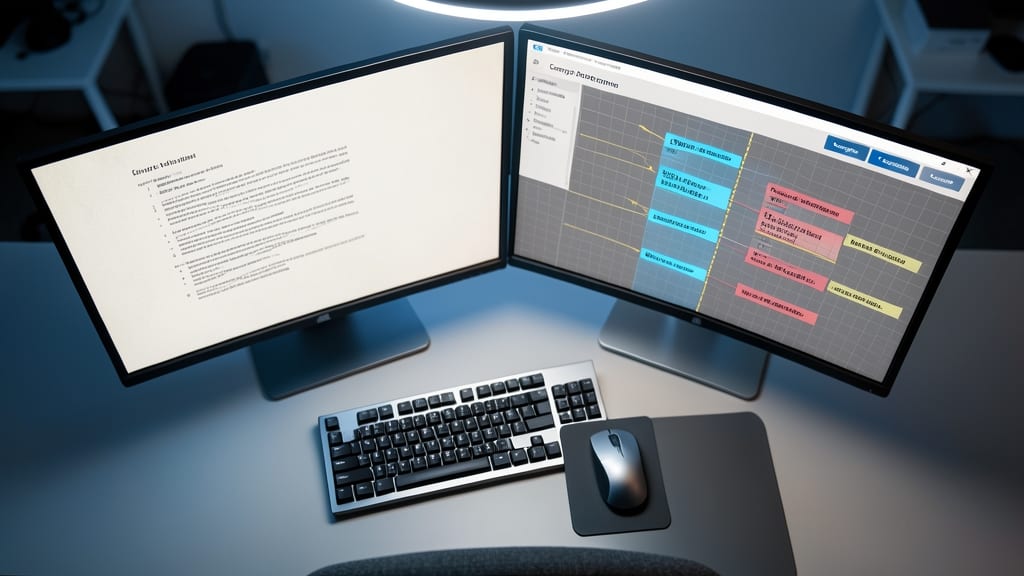
Ever spent hours cross-referencing two versions of a document, only to miss a critical change? Microsoft Word’s Compare Documents feature solves this with a split-screen view that highlights every addition, deletion, or formatting shift in real time.
Open the tool via Review > Compare > Compare, then select your original and revised files. Word instantly displays side-by-side versions with color-coded changes (green for additions, red for deletions) and a vertical bar to sync scrolling. For contracts or research papers, this eliminates the guesswork of manual comparisons.
Perfect for legal teams, academics, or anyone tracking edits across drafts—no more squinting at PDFs or printing multiple copies. ⚡
Customizable Quick Access Toolbar
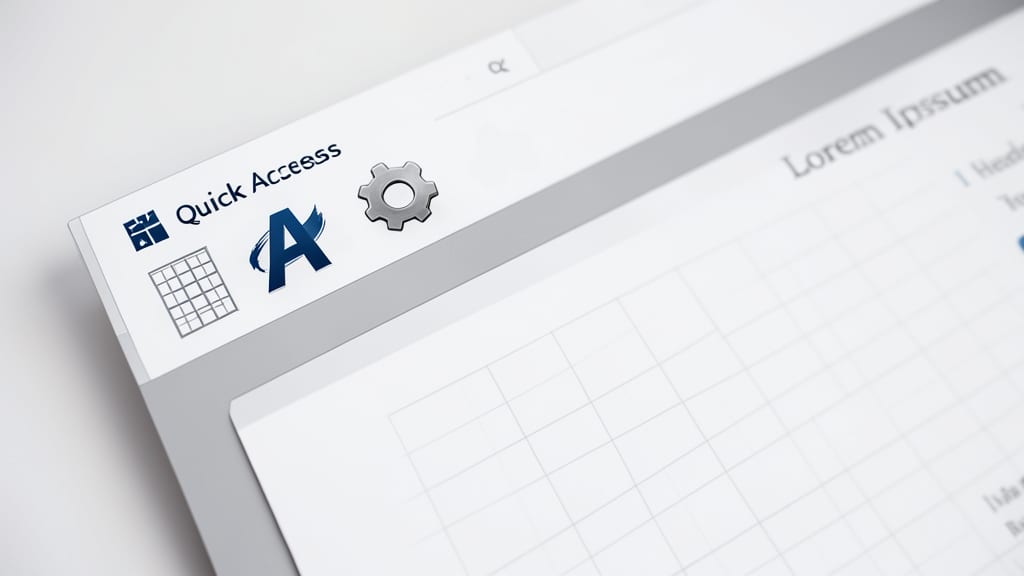
Tired of hunting through menus for the same commands every time? The Quick Access Toolbar lets you pin your most-used actions—like Insert Table, Apply Styles, or Run Macros—right where you need them, saving clicks and mental energy.
Right-click the toolbar to add commands from any ribbon, or use the dropdown menu to customize it further. Need to toggle Track Changes or Compare Documents often? Drag them in for instant access. The toolbar even remembers your settings across documents, so your workflow stays consistent.
Perfect for legal professionals, marketers, or anyone drowning in repetitive tasks—this trick turns Word into a personal productivity powerhouse. ⚡