
Software
Microsoft Edge offers powerful tools to enhance your browsing experience, but many users miss key optimizations. These seven pro tips will help you speed up navigation, boost security, and unlock hidden productivity features you didn’t know existed.
Enable Immersive Reader for Focused Reading
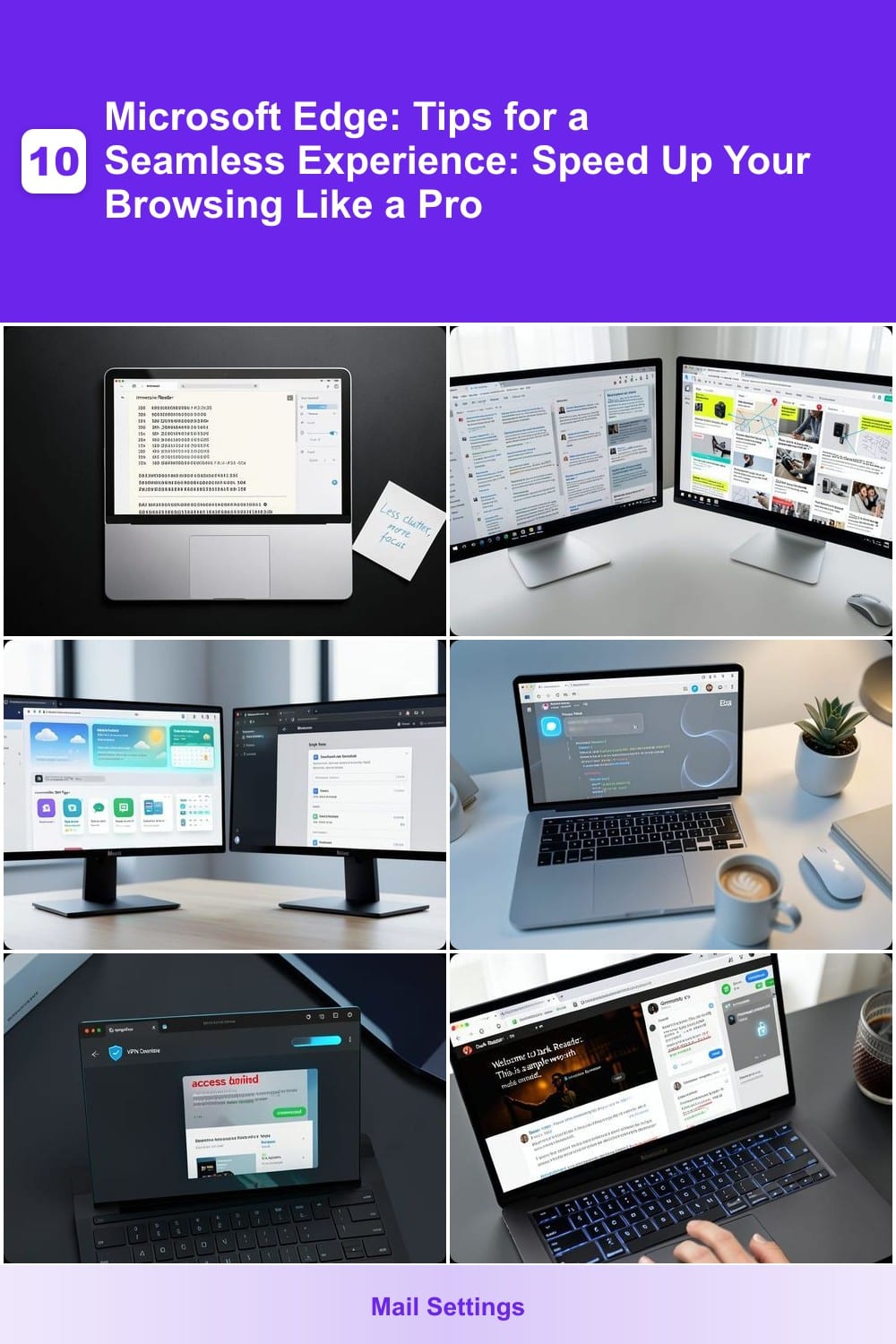
Drowning in dense articles or research papers? Microsoft Edge’s Immersive Reader strips away distractions with a clean, distraction-free interface designed for deep focus. This built-in tool transforms cluttered web pages into a serene, readable layout with customizable fonts, line spacing, and even dyslexia-friendly modes like Dyslexia Mode and OpenDyslexic fonts.
With just one click, you can adjust text size, background contrast, and page color to reduce eye strain. The text-to-speech feature lets you listen while following along, making it perfect for multitaskers or those with visual fatigue. Best of all, it works across devices and syncs with your Microsoft account for seamless access.
Students, writers, and professionals who juggle long-form content will love how Immersive Reader turns overwhelming pages into manageable, stress-free reading sessions. Give it a try—your eyes (and productivity) will thank you! ✨
Use Collections to Organize Research Instantly
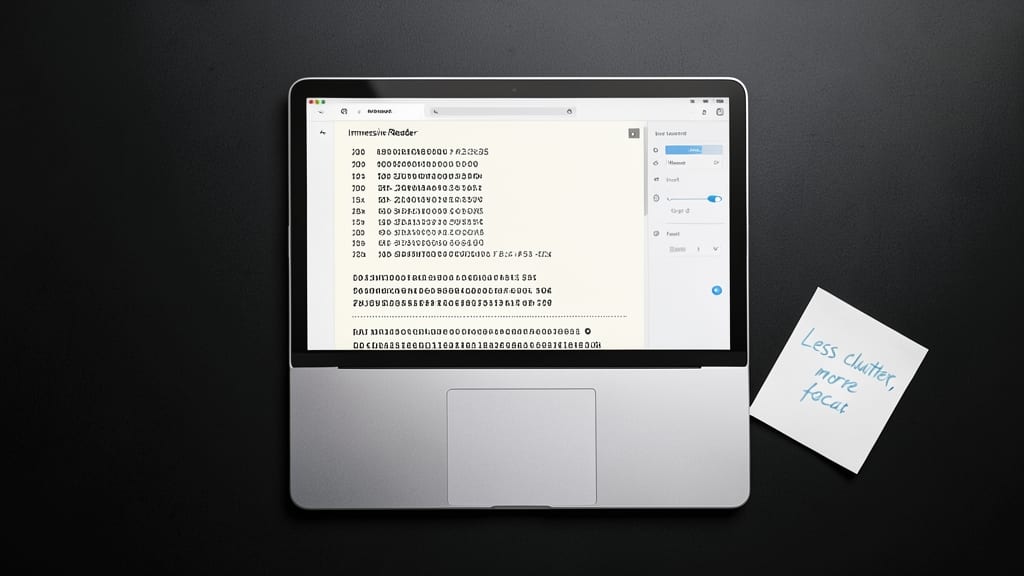
Drowning in tabs while researching? Microsoft Edge’s Collections feature turns chaotic web browsing into a visual, organized system—like a digital mood board for your brain.
With just a few clicks, you can clip articles, annotate key points, and save images directly into customizable boards. The drag-and-drop interface lets you rearrange items, add sticky notes, and even tag content for later. No more losing track of sources—just open your Collection later to see everything neatly arranged, complete with highlights and context.
This is a game-changer for journalists, project managers, or students juggling multiple research threads. Whether you’re tracking industry trends or planning a project, Collections keeps everything in one place without the tab clutter. ✨
Customize Start Page for Productivity
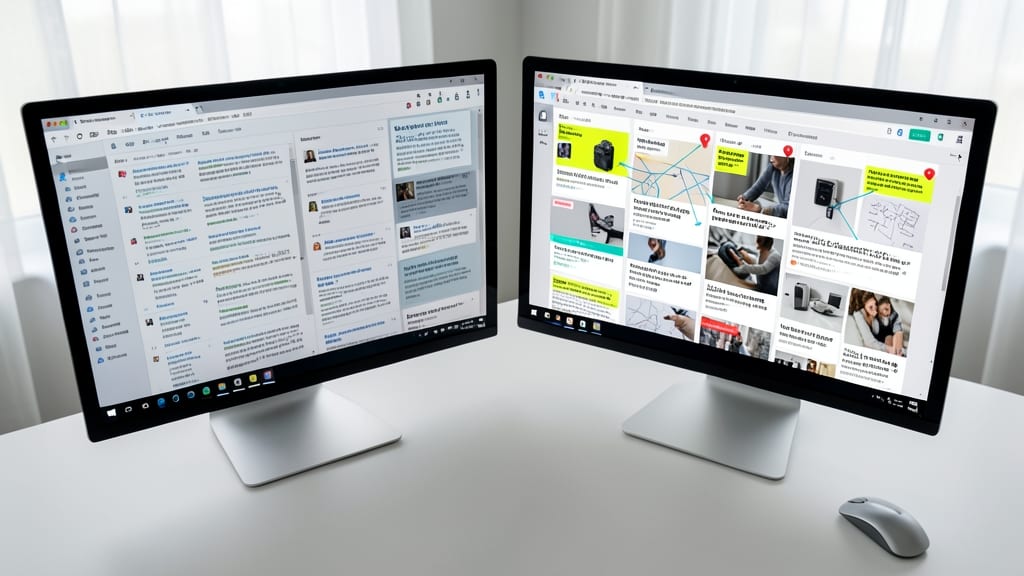
Tired of wasting minutes scrolling through dozens of tabs just to find that one site you know you bookmarked? Microsoft Edge’s customizable Start Page turns chaos into control with a single-click dashboard.
Pin your favorite sites (like Slack, Trello, or your project tracker) alongside live widgets for weather, news, or even stock updates—all updated in real time. The dark mode reduces eye strain, while the search bar integrates with Bing for instant answers. Best of all, it loads faster than a traditional new tab page, saving you seconds every time you open your browser.
This is a game-changer for remote workers, freelancers, or anyone juggling multiple tools—no more tab overload. Just open Edge, and your workflow starts exactly where you left off. ✨
Block Distractions with Focus Mode
Tired of getting pulled away from deep work by endless notifications and social media pings? Microsoft Edge’s Focus Mode is your digital "Do Not Disturb" button, designed to keep you locked in during critical sessions.
With just a few clicks, you can silence all notifications and block specific sites like Twitter, Reddit, or news outlets for up to 8 hours. The built-in timer ensures you take scheduled breaks, while the sleek interface shows real-time stats on blocked distractions. It even works across devices if you’re signed into your Microsoft account.
This is the perfect tool for remote workers crunching numbers or students fighting the urge to scroll through memes. Give it a try during your next focused work block—your productivity will thank you. ✨
Speed Up Loading with Edge’s Built-in VPN
Tired of slow loading times or geo-blocked content ruining your browsing? Microsoft Edge’s built-in VPN—available in the Stable Channel (Version 120+)—lets you encrypt your traffic and access restricted sites without installing extra apps. No ads, no bloat, just secure, fast browsing with a single click.
Activating it is simple: Click the lock icon in the address bar, select Microsoft Edge VPN, and choose a server location. It supports automatic protocol switching (WireGuard for speed, OpenVPN for security) and even works on mobile devices via the Edge app. Best of all, it’s free for basic use (with optional premium upgrades for more locations).
This is a game-changer for digital nomads, travelers, or anyone accessing region-locked streaming services. No more juggling third-party VPNs—just seamless security built right into your browser. ✨
Automate Tasks with Edge’s Extensions

Tired of manually toggling between tabs for tools like password managers or grammar checkers? Microsoft Edge’s extensions ecosystem turns your browser into a productivity powerhouse with just a few clicks.
Install Dark Reader to reduce eye strain with a single toggle, Grammarly to catch errors in real-time, or LastPass to auto-fill passwords securely. The Edge Add-ons store offers over 15,000 extensions, including niche tools like OneNote Web Clipper for developers or uBlock Origin for ad-free browsing. Best of all, they sync across devices via your Microsoft account.
Content creators will love Canva’s design tools or Trello’s project boards, while developers can integrate GitHub Copilot or Postman directly into their workflow. No more context-switching—just pure efficiency. ✨
Clear Cache and Cookies Smartly
Tired of slow browsing and privacy concerns but dread losing your saved logins? Microsoft Edge’s selective cache and cookie clearing lets you strike the perfect balance between speed and convenience—without the hassle of re-entering passwords.
Start by pressing Ctrl+Shift+Del to open the Clear browsing data menu. Here, you can choose to delete only cached images and files (for faster loads) or cookies and other site data (for better privacy) while keeping saved passwords untouched. For even more control, use the Advanced tab to exclude specific sites from being cleared—ideal for your most-used accounts.
This trick is a game-changer for privacy-conscious users who still want to log in instantly, or for anyone frustrated by Edge’s sluggish performance after weeks of browsing. Try it today and enjoy a cleaner, faster browser! ✨