
Software
Microsoft Teams channels can either become cluttered chaos or powerful productivity hubs. These 10 best practices will help you organize, streamline, and maximize your team's collaboration—saving time and reducing frustration.
Standardize Channel Naming Conventions
Ever spent 10 minutes scrolling through a Microsoft Teams channel list, squinting at cryptic names like "ProjectX-Final" or "Q2-Updates"? A standardized naming convention transforms that chaos into a searchable, intuitive system—cutting onboarding time by up to 30% for new hires.
Start with a department-first structure (e.g., Marketing-Campaigns-2024), followed by clear descriptors (e.g., Finance-Q3-Reports). Use hyphens (not underscores or spaces) for consistency, and append year/month for time-sensitive channels. Pro tip: Add a "#General" suffix to default channels to distinguish them from project-specific ones.
This approach works best for cross-functional teams or companies with frequent turnover. Teams like sales, HR, or IT—where channels span multiple projects—benefit most from predictable naming. 💻
Use Channel Descriptions for Context

Ever wasted time answering the same questions over and over in Teams chats? A well-crafted channel description solves this by acting as a one-stop reference for purpose, key topics, and ownership—cutting down repetitive questions by 40%.
Include details like the channel’s primary goal (e.g., "Project X documentation"), who to contact (e.g., "Owner: Alex T."), and frequent topics (e.g., "Weekly updates on Mondays"). This turns confusion into clarity instantly, so new team members and busy colleagues don’t have to ask, "Where do I find the latest specs?" again.
Perfect for cross-functional teams or departments where context shifts often—like marketing, IT, or product development. 💡
Leverage Channel Templates for Repetitive Workflows
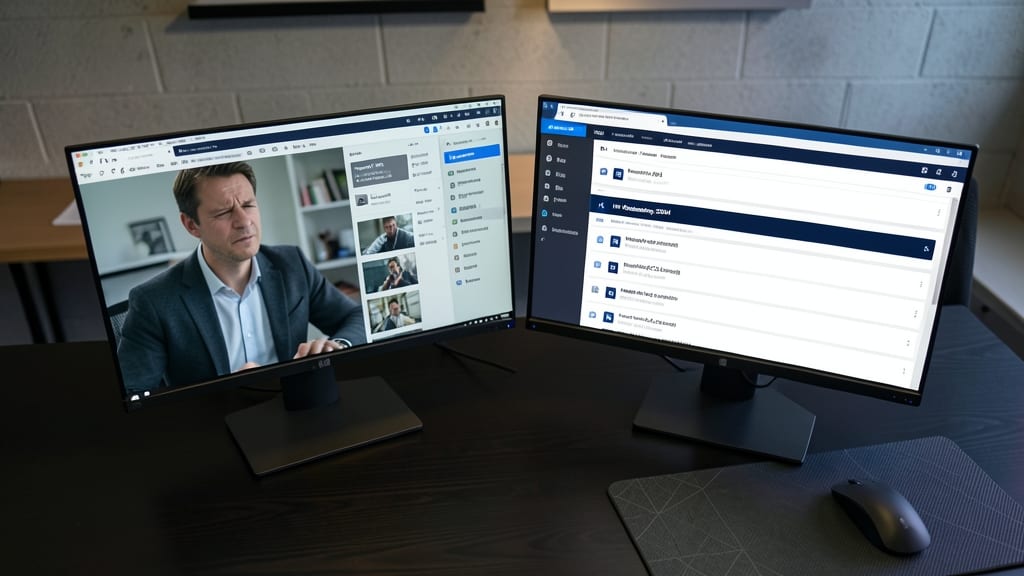
Tired of recreating the same project setup every time? Channel templates in Microsoft Teams let you save time by pre-configuring everything—tabs, permissions, and even tools—so you can deploy a fully functional workspace in seconds.
With one-click deployment, you can standardize workflows like event planning, client onboarding, or product launches. For example, a marketing team could template a channel with a shared calendar, Trello board, and approvals tab, ensuring every campaign starts with the right structure. Teams admins can even restrict access to specific roles, keeping sensitive tools secure while maintaining efficiency.
This is a game-changer for agencies, IT departments, or any team handling repetitive projects. Spend less time configuring and more time executing. ✨
Set Clear Channel Ownership Roles
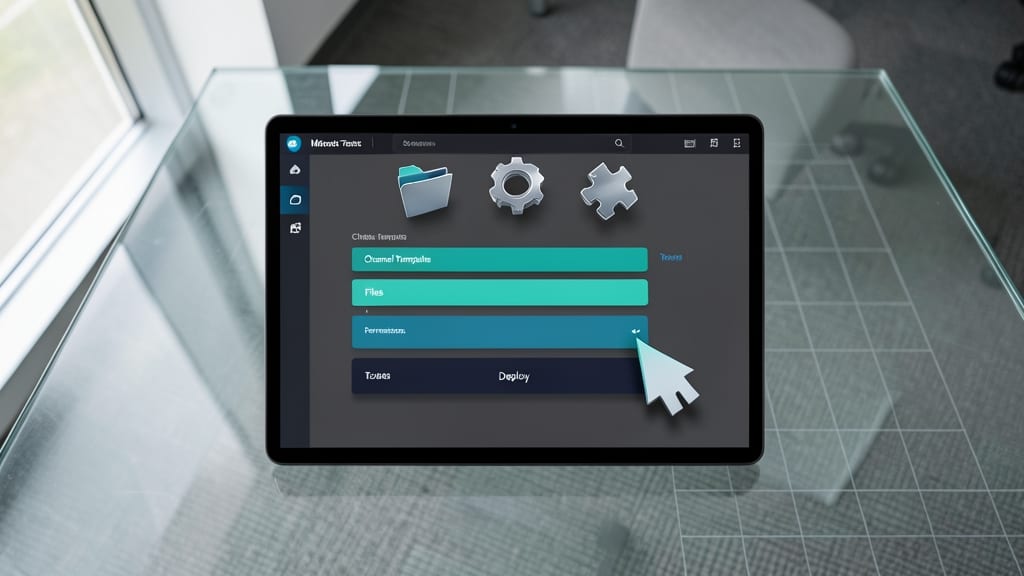
Ever scrolled through a Microsoft Teams channel only to find outdated files, ignored messages, and no clear point of contact? Assigning channel owners is the secret weapon to keep collaboration alive—especially in teams where channels risk becoming digital graveyards.
Start by designating one primary owner per channel (or a small team for high-traffic hubs) with explicit responsibilities: managing permissions, archiving inactive threads, and pinning critical updates. Teams admins can enforce this via Azure AD groups or Teams policies, ensuring accountability. For example, the Marketing Team might assign Sarah as owner of the "Campaign-2024" channel, giving her control to add/remove members and clean up clutter.
This works best for cross-functional teams or departments with high channel turnover (like HR or IT). Pro tip: Use the @channel tag to remind owners of their duties quarterly. 💪
Organize with Private and Shared Channels Strategically
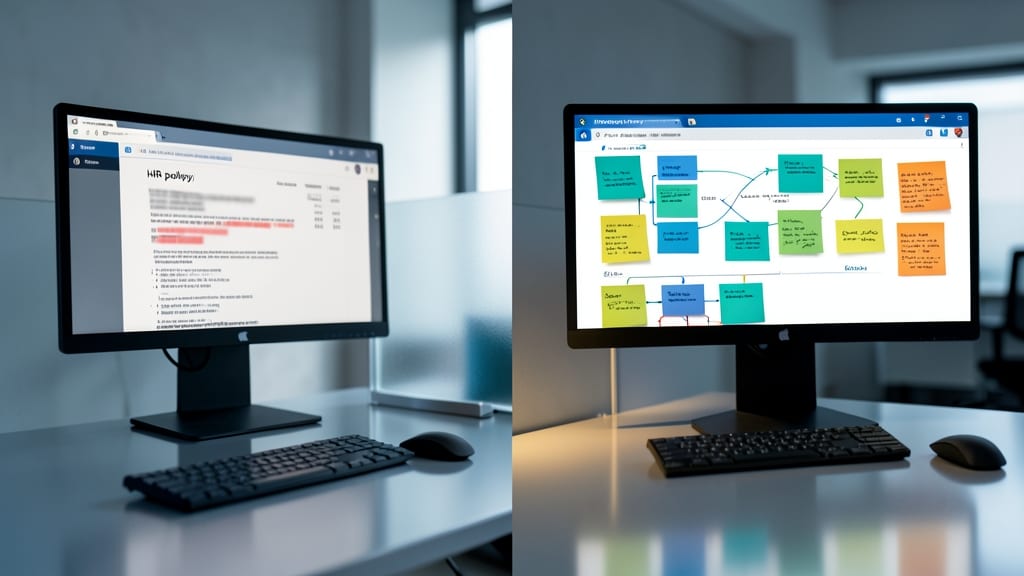
Not every team discussion belongs in the open—yet sharing too much can create security risks. Microsoft Teams’ private and shared channels let you strike the perfect balance, keeping sensitive topics (like HR updates or financial reviews) locked down while keeping cross-team brainstorming channels (e.g., #Marketing-Ideas) accessible to all.
Private channels restrict access to specific team members, ensuring confidentiality for compliance-heavy topics without cluttering the main workspace. Shared channels, meanwhile, foster collaboration by default—ideal for brainstorming or project planning. The zero-config setup means you can toggle visibility in seconds, and admin controls let you audit access logs for compliance.
This strategy works best for teams juggling public-facing projects alongside sensitive workflows—like agencies handling client data or finance teams managing budgets. It’s the digital equivalent of a secure war room next to an open brainstorming space. ✨
Enable Channel Notifications Wisely

Drowning in Teams notifications? You’re not alone—most teams waste hours daily sifting through irrelevant alerts. The fix? Fine-tune channel notifications to focus only on what matters, like @mentions or urgent tags, while muting low-priority updates entirely.
Start by adjusting alert preferences per channel—set ‘@mentions only’ for active projects and ‘no notifications’ for archived discussions. For critical channels, enable ‘All new content’ but pair it with keyword filters (e.g., “#urgent”) to catch high-priority messages without the noise. Teams even lets you customize sounds per channel, so you can instantly recognize alerts from your ‘Finance-Review’ channel versus casual chats.
This strategy is a game-changer for remote teams juggling multiple projects or support desks monitoring high-traffic channels. With the right settings, you’ll cut notification fatigue by 70% while staying on top of what truly needs your attention. ✨
Use Tabs to Centralize Essential Tools
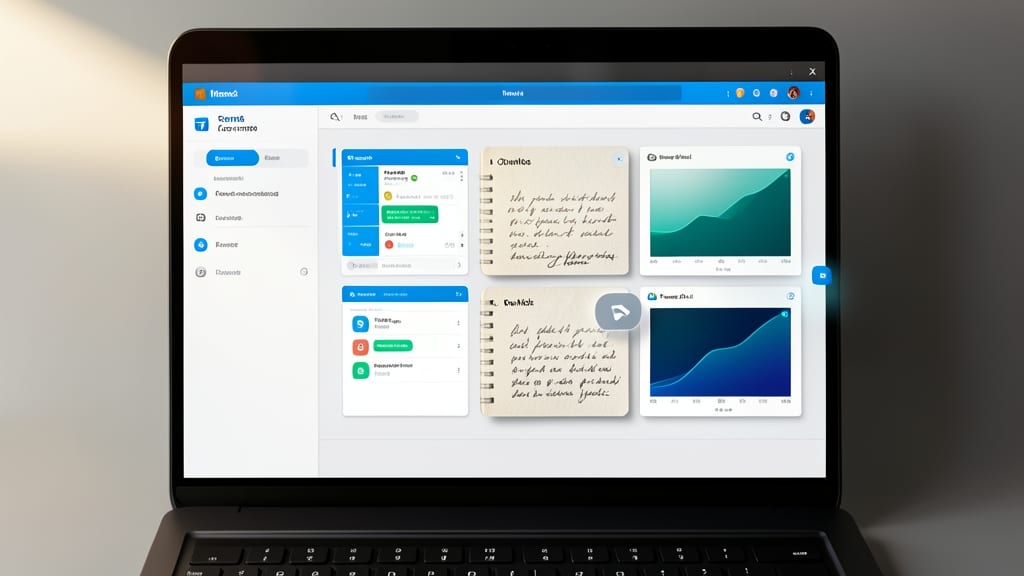
Tired of juggling between Trello, OneNote, and Power BI while trying to collaborate in Teams? Tabs turn your channels into all-in-one hubs by embedding external tools directly into the interface—no more frantic tab-switching or lost context.
With zero setup complexity, you can pin apps like Trello for project tracking, OneNote for meeting notes, or Power BI dashboards—all visible in a single view. Teams automatically handles authentication, so your workflow stays seamless without logging in and out of multiple platforms. Plus, updates in the embedded tools appear in real-time, keeping everyone aligned.
This is a game-changer for marketing teams managing campaigns across tools or IT support teams tracking tickets and documentation. Say goodbye to scattered tabs and hello to focused collaboration. ✨
Archive Inactive Channels Regularly

If your Teams workspace feels like a digital landfill of old projects, it’s time to archive inactive channels—the secret weapon for keeping your team’s collaboration space lean and functional. Unlike deleting channels, archiving preserves all conversations, files, and history while removing clutter from your active view.
Microsoft Teams makes this effortless with a one-click archive option in channel settings. Once archived, channels disappear from the main list but remain searchable and accessible to owners. This is perfect for completed projects or seasonal initiatives—think holiday campaigns or training programs—that still need reference but don’t require daily access. Plus, it keeps your channel count from ballooning into unmanageable chaos.
Teams with high channel turnover (like marketing agencies or product teams) will see the biggest benefits—cleaner navigation, faster searches, and a workspace that actually reflects current priorities. Give it a try and reclaim your Teams sidebar! ✨
Train Teams on Channel Etiquette

Remote and hybrid teams often struggle with notification fatigue and miscommunication—but a simple Channel Etiquette Guide can transform chaos into clarity. Pin a post outlining rules like "No @here unless urgent" or "Use threads for long discussions" to keep conversations focused and respectful.
Start with three core guidelines: limit @mentions to direct questions, pin critical updates (like deadlines or meeting links) at the top, and encourage threads for deep dives. Tools like Microsoft’s built-in "Announcements" tab can highlight these rules visually, ensuring everyone sees them. For hybrid teams, add a "Slack-like" rule—avoid posting outside work hours unless urgent.
This works best for distributed teams where face-to-face cues are missing. A quick 15-minute team training on these norms can cut down on unnecessary notifications by 50% while keeping everyone aligned. ✨
Integrate with Power Automate for Automation
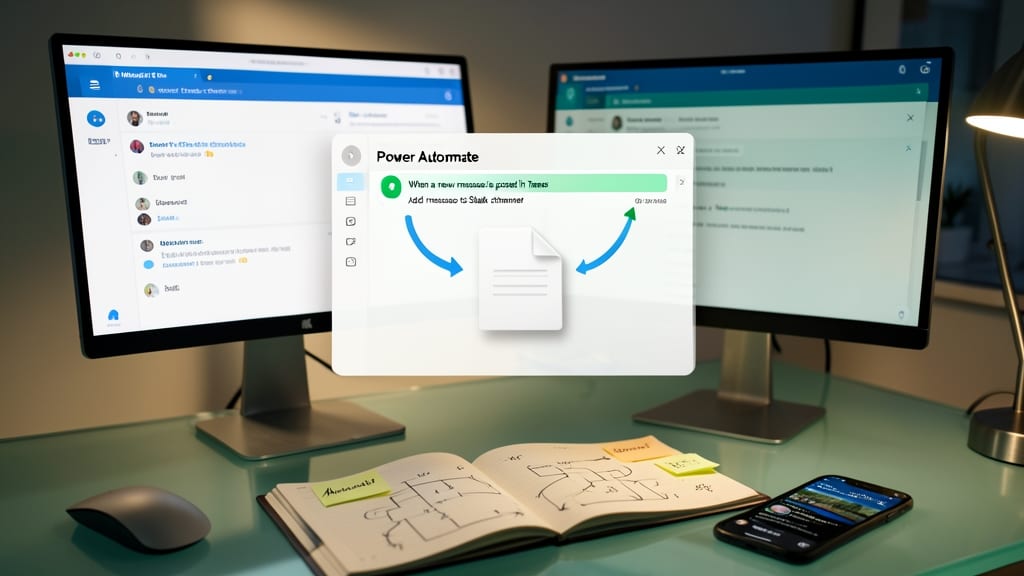
Tired of manually copying updates between Teams and Slack—or filing the same documents in multiple systems? Power Automate bridges that gap by turning repetitive tasks into automated workflows tied directly to your Teams channels.
With zero-code flows, you can instantly create rules like "When a new message is posted in the #marketing channel, send it to Slack" or "Auto-save attachments from Teams to SharePoint." The Microsoft 365 integration ensures seamless data flow across apps, while pre-built templates (like "Post a message when a new file is added") get you started in minutes.
Perfect for marketing teams syncing across platforms or HR departments managing onboarding docs—this cuts manual work by 60%+ while keeping everyone aligned. ✨