
Tip & Trick
Working remotely exposes you to unique cybersecurity risks—but these 10 simple, actionable practices will shield your digital workspace without requiring advanced tech skills. Protect sensitive data while maintaining productivity with minimal effort.
Enable Two-Factor Authentication Everywhere
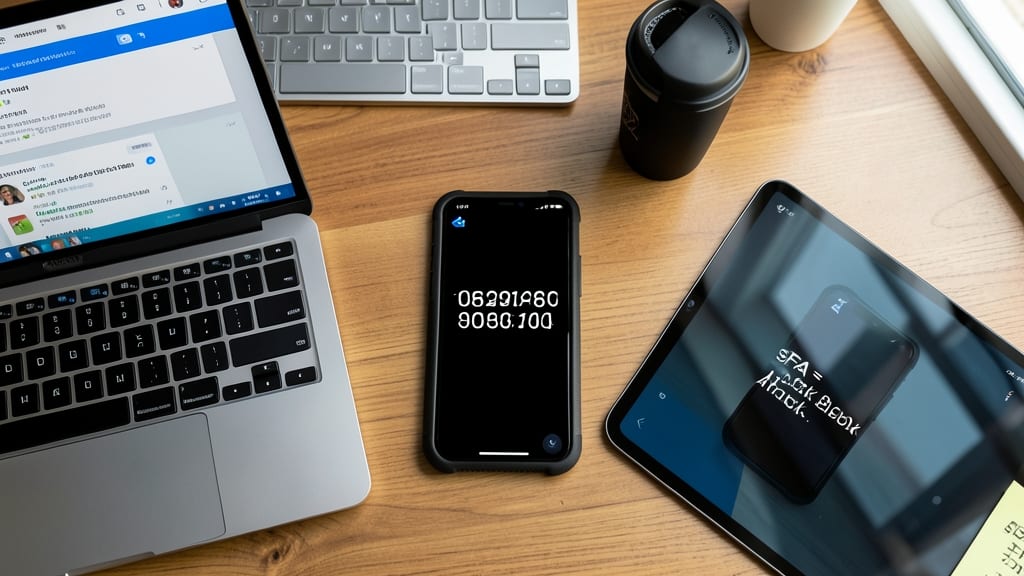
Credential theft is the #1 way hackers breach remote work accounts—but two-factor authentication (2FA) blocks 99.9% of automated attacks in seconds. The best part? It works across emails, cloud services, and even personal accounts without slowing you down.
Start with authenticator apps (like Google Authenticator or Microsoft Authenticator) for zero-config setup on most platforms. For extra security, enable hardware keys (YubiKey) for work accounts—these physical tokens are nearly impossible to phish. Even SMS-based 2FA is better than nothing, though apps are far more reliable. Prioritize work tools first: email, Slack, and cloud storage like Google Drive or OneDrive.
This is the single most effective security upgrade you can make—no technical skills required. Remote workers handling sensitive data should enable 2FA today. ✨
Use a Dedicated Work VPN
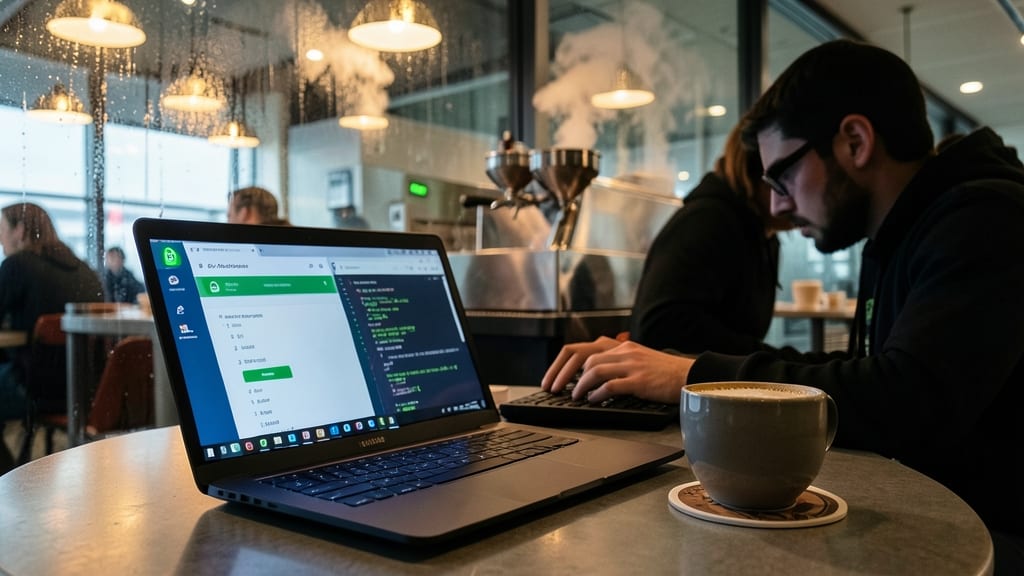
Public Wi-Fi at coffee shops or airports isn’t just convenient—it’s a prime target for hackers. A dedicated work VPN creates an encrypted tunnel between your device and company servers, blocking eavesdroppers from intercepting sensitive emails, financial data, or client files.
Most corporate VPNs offer military-grade encryption (AES-256) and seamless integration with company security policies. They’re also lightweight, running in the background without slowing down your workflow. Unlike free consumer VPNs, work VPNs are optimized for zero-config access to internal resources like shared drives or proprietary tools.
This is a must-have for anyone handling confidential documents remotely—especially if you frequently switch between personal and work devices. 💻
Implement Device-Level Encryption
What if someone walked off with your laptop today? Without device-level encryption, they could access every file, email, and password in minutes—even if your screen locks. This isn’t just paranoia; it’s a compliance requirement for most companies handling sensitive data.
Windows users enable BitLocker (built into Pro/Enterprise editions) with a 256-bit AES key—industry standard encryption that even the NSA trusts. Mac users activate FileVault (free with macOS) via System Preferences, which encrypts your entire drive with XTS-AES-128. Both systems require your password to unlock, making stolen devices useless without brute-force attempts (which take years).
This is your last line of defense for physical security—ideal for contractors, finance teams, or anyone carrying work devices outside the office. Set it up once and forget it. ✨
Create Strong Passwords with a Manager
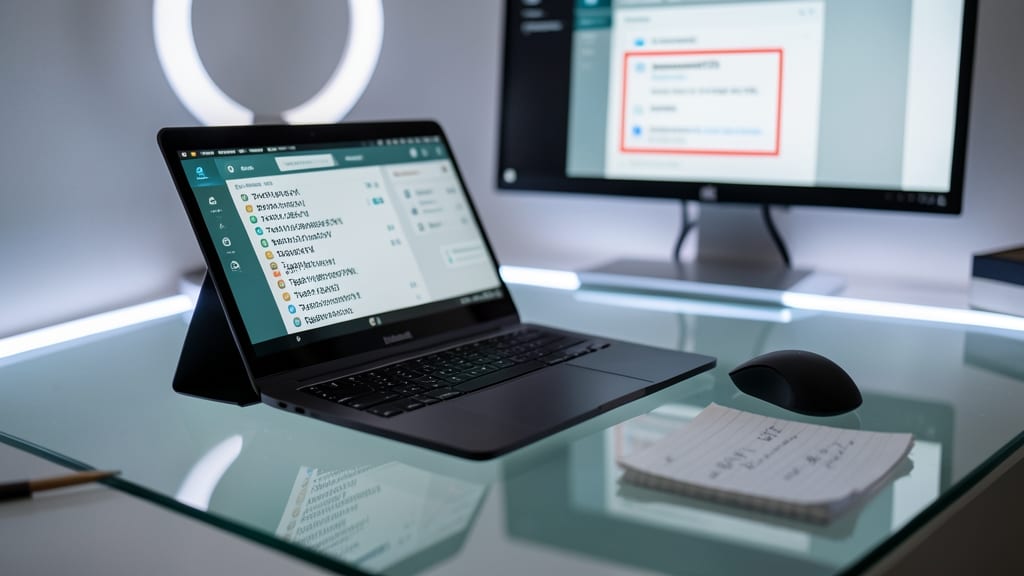
Tired of forgetting passwords or reusing the same weak one across accounts? A password manager like Bitwarden or 1Password solves this instantly by generating and storing 20+ character passwords with symbols and numbers—far stronger than anything you’d remember.
These tools sync across devices, auto-fill logins, and even warn you if a saved password appears in a data breach. Most offer free plans with end-to-end encryption, ensuring only you can access your credentials. For remote workers, this eliminates the #1 breach risk: reused passwords that compromise multiple accounts at once.
Ideal for anyone juggling work emails, cloud services, and personal accounts—especially those who’ve fallen victim to password fatigue. Start with one and never type another password manually again. ✨
Enable Automatic Software Updates
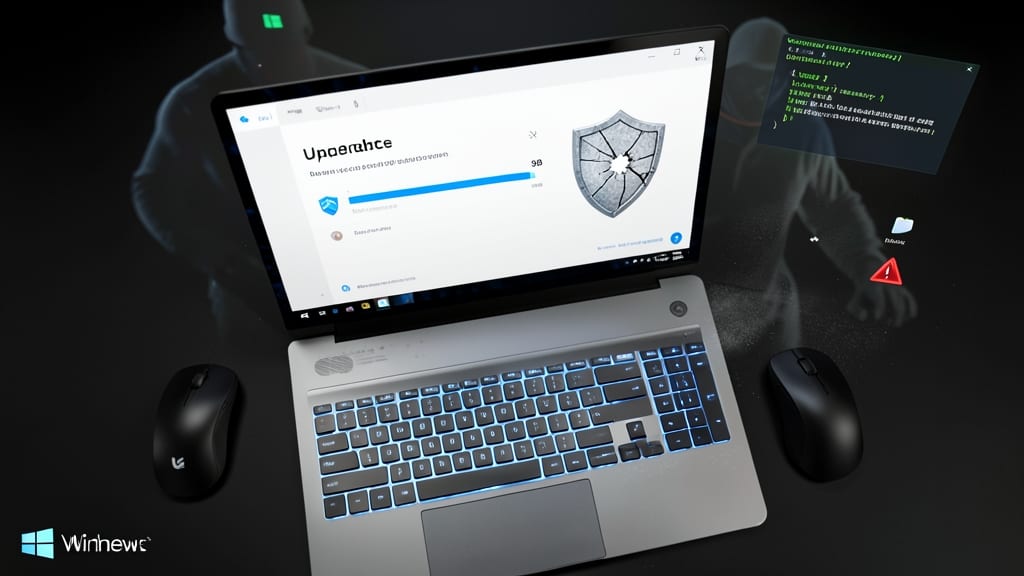
Cybercriminals love exploiting outdated software—70% of successful attacks target known vulnerabilities that could’ve been patched. The good news? Most modern operating systems and apps can update themselves automatically, closing security gaps before hackers even notice.
On Windows, enable automatic updates via Settings > Windows Update > Advanced options (set to "Automatic"). For macOS, go to System Preferences > Software Update and check "Automatic updates." Browsers like Chrome and Firefox also offer zero-config auto-updates—just enable them in their respective settings. This ensures your system stays protected without lifting a finger.
This is especially critical for remote workers who often juggle multiple devices. IT admins can enforce these settings via group policies, while individuals benefit from the peace of mind that comes with a battle-tested setup. ⚡
Secure Your Home Network
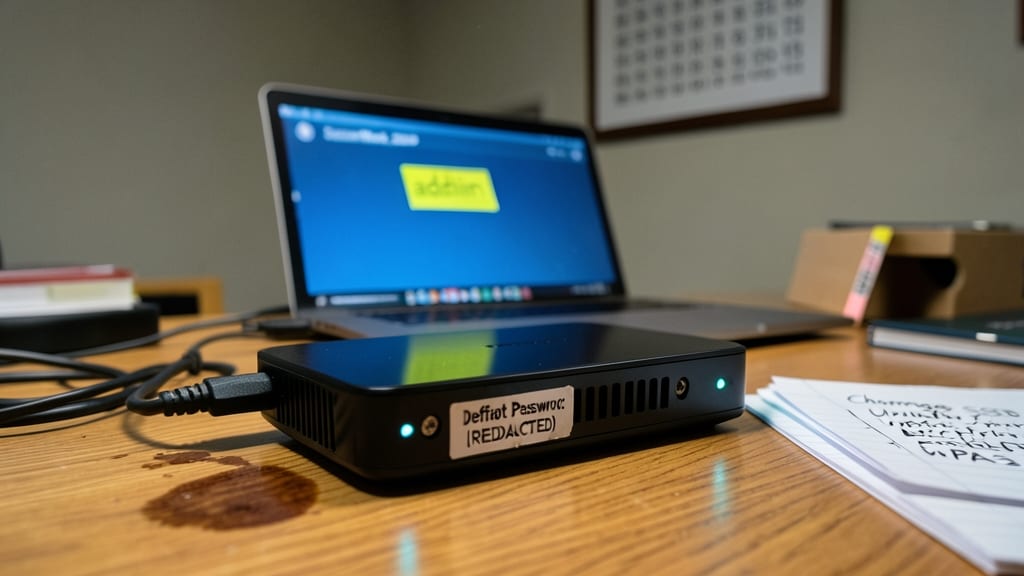
Your home Wi-Fi is the front door to your digital workspace—and most routers ship with default passwords that hackers know by heart. A quick 10-minute setup can block neighborhood snoopers from hijacking your work traffic while you stream, browse, or video call.
Start by changing the router admin password (check your manual for the default) and disabling WPS—that PIN-based setup is a security nightmare. Then upgrade to WPA3 encryption (instead of WPA2) to lock out brute-force attacks. Most modern routers support this natively, and it’s often just a dropdown menu in the settings.
This is especially critical if you work from coffee shops or public spaces where your device might connect to unsecured networks by default. A properly locked-down home network ensures your VPN and encryption layers stay effective. 💪
Use Company-Approved Cloud Storage
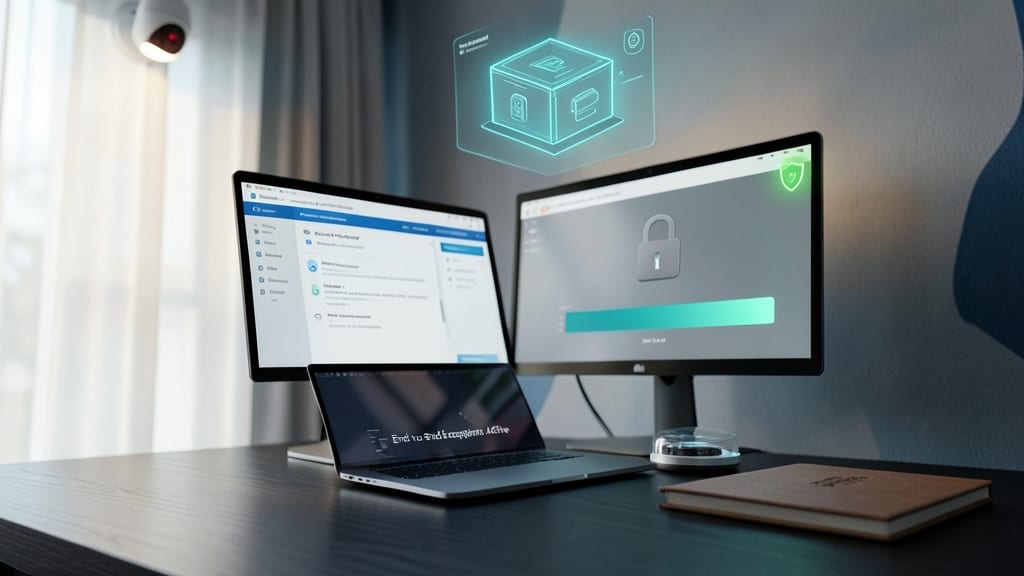
Tired of wondering if your work files are safe from prying eyes? Company-approved cloud storage eliminates that guesswork by combining end-to-end encryption with strict access controls—so even if your device gets compromised, your data stays locked down.
These services (like Microsoft OneDrive for Business or Google Workspace) automatically enforce role-based permissions, track file activity, and integrate with your company’s security policies. No more risky shortcuts like personal Dropbox accounts or USB drives—just a single, audited platform where IT can revoke access instantly if needed.
Perfect for remote teams handling client data, contracts, or proprietary docs—this step closes the most common gap in remote security: unmonitored file sharing. ✨
Disable Unused Device Features
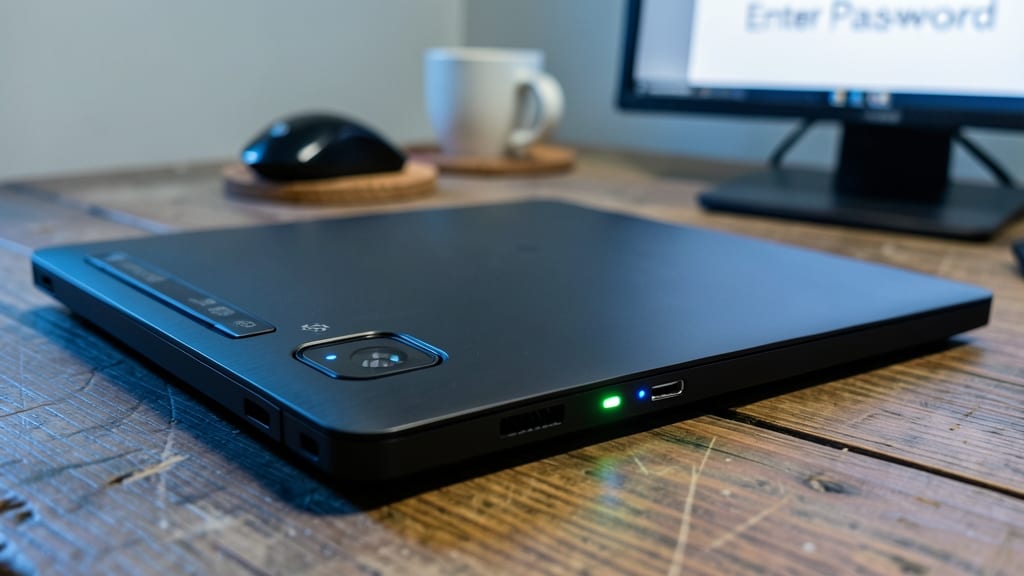
Your laptop’s Bluetooth, NFC, and webcam might seem harmless when idle—but they’re prime targets for hackers looking to exploit overlooked vulnerabilities. A single forgotten connection can turn your device into an open door for malware or unauthorized access.
Most modern devices let you disable these features with a quick toggle (Windows: Settings > Bluetooth, macOS: System Preferences > Bluetooth, or even a physical switch on some laptops). For webcams, cover the lens with a sticker when not in use—it’s a visual reminder and a physical barrier. Just remember to re-enable them when you need them, like during video calls or file transfers.
This habit is especially critical for freelancers, contractors, or anyone handling sensitive work data—even a single overlooked feature can create a security gap. A few seconds of setup now could save hours of cleanup later. ✨
Educate Yourself on Phishing Scams
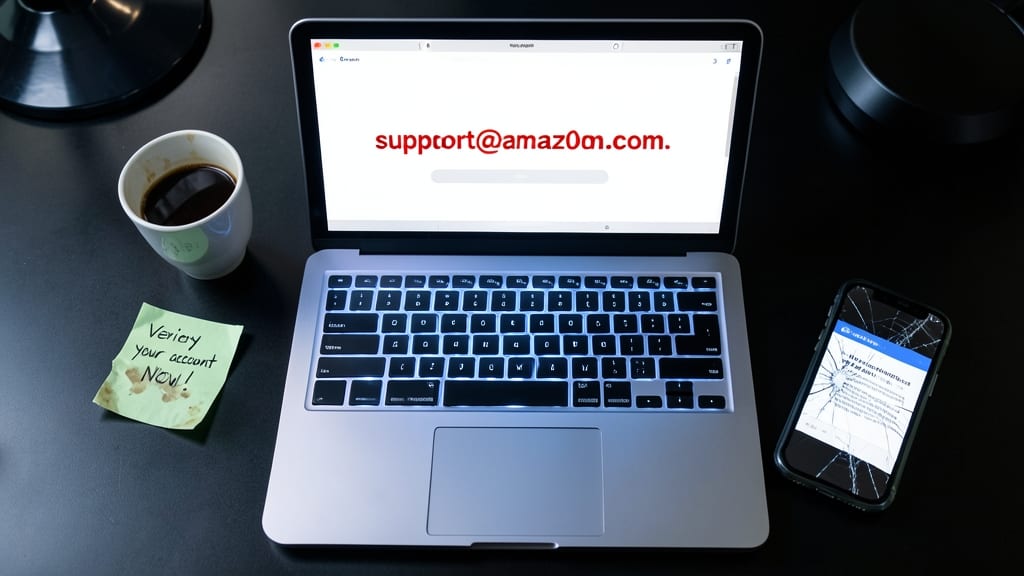
Most cyberattacks begin with a single click—yet phishing emails often slip past even tech-savvy users. The key to defense lies in recognizing red flags before they compromise your accounts, like mismatched sender domains (e.g., "support@amaz0n.com") or urgent requests with vague language ("Verify your account immediately").
Train yourself to hover over links before clicking (check the URL preview) and avoid downloading unexpected attachments. Tools like Google’s Phishing Quiz or KnowBe4’s free training modules simulate real attacks to sharpen your instincts. Even a 60-second pause can prevent a costly breach.
This skill is non-negotiable for anyone handling sensitive work data—especially in finance, healthcare, or legal fields. Start with these free resources to build muscle memory. ✨
Backup Critical Files Offline
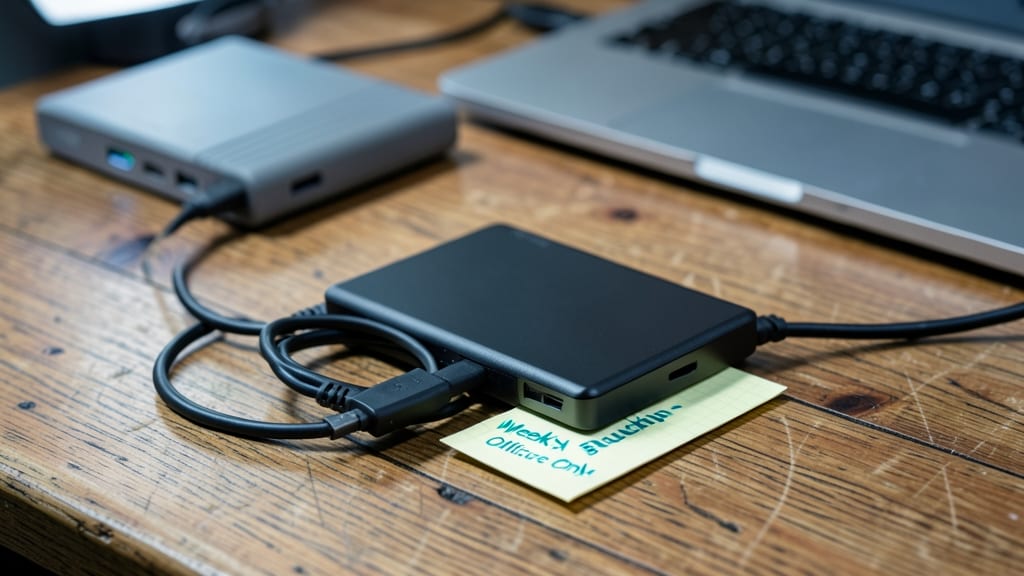
Even cloud backups can’t save you from ransomware—cybercriminals increasingly target offline backups as their first line of defense. The solution? A physically disconnected external drive or USB, updated weekly, that stays immune to network-based attacks.
Use a 1TB+ external SSD (like the SanDisk Extreme Pro) for speedy backups, or a USB 3.2 drive for portability. Schedule weekly syncs using Windows File History or Time Machine (Mac)—just unplug it afterward. For extra security, encrypt the drive with BitLocker (Windows) or VeraCrypt to add another layer of protection.
This is your last-resort recovery tool—ideal for freelancers, contractors, or anyone handling sensitive client data. A single offline backup could mean the difference between a quick restore and weeks of lost work. 💪