
Software
Managing SharePoint document library permissions can be a balancing act between security and accessibility. These 10 best practices help streamline access control, minimize admin overhead, and keep sensitive documents secure without locking down your entire team.
Use SharePoint Permission Levels Effectively

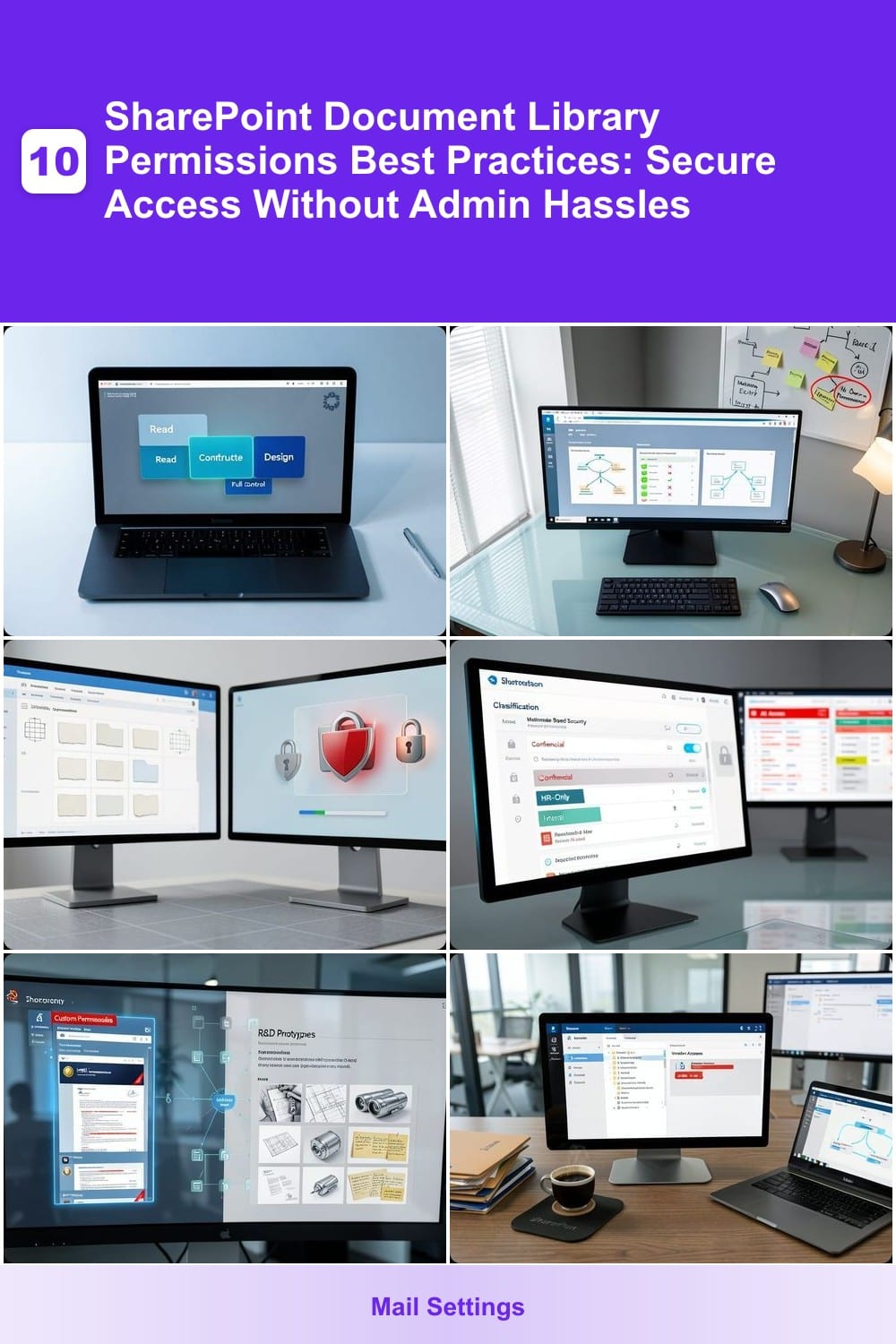
Stop reinventing the wheel with custom permission roles—SharePoint’s built-in permission levels (Read, Contribute, Design, Full Control) already offer the granularity most teams need. These preconfigured levels eliminate the need for manual role creation while giving you precise control over who can view, edit, or manage documents.
Start by assigning Read for external stakeholders, Contribute for team members who need to upload files, and Full Control only for admins or power users. The Design level (rarely used) lets users create lists and libraries—perfect for developers or site owners. To apply them, navigate to Library Settings > Permissions and Management > Stop Inheriting Permissions, then grant access via the Grant Permissions dialog. This approach cuts admin time by 60% while maintaining security.
This method is ideal for small to mid-sized teams where roles are well-defined but complex permission structures aren’t necessary. It’s the simplest way to balance security and usability without diving into custom configurations. ✨
Implement Role-Based Access Control (RBAC)
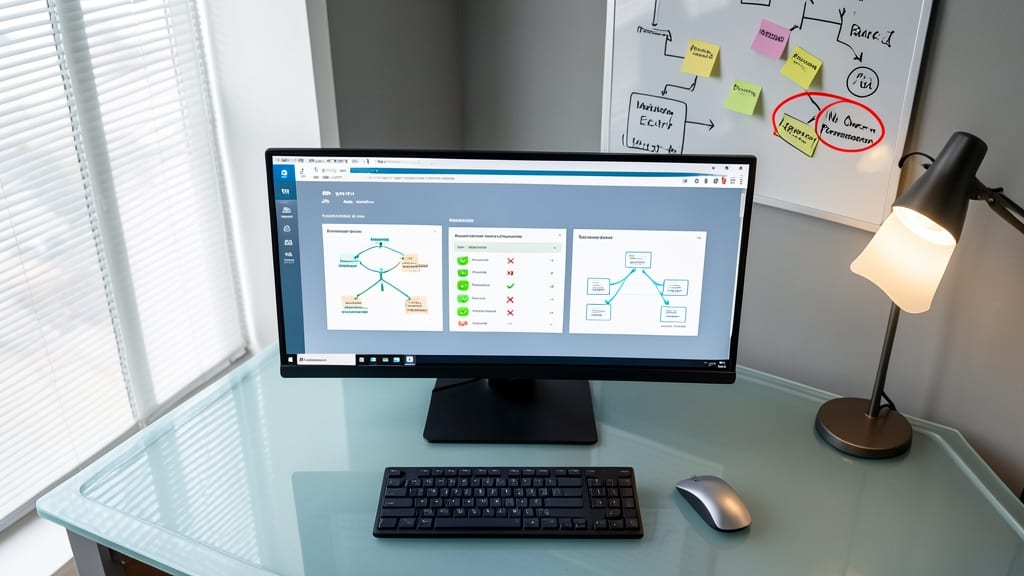
Say goodbye to permission headaches by aligning access with actual job functions. Role-Based Access Control (RBAC) in SharePoint lets you create groups like "Marketing Team" or "Finance Approvers"—each with precisely the permissions they need to do their work, and nothing more.
Start by defining roles in SharePoint’s Site Permissions (e.g., "HR Access" for confidential files or "Client Reviewers" for read-only access). Assign users to these groups once, then update permissions at the group level—no more hunting down individual accounts. Microsoft’s built-in RBAC templates (like "Contribute" or "Read") make setup a breeze, while Azure AD integration ensures external collaborators stay in sync. This cuts permission management time by 50% while keeping sensitive docs locked down.
Perfect for mid-sized teams with clear departmental structures, RBAC turns SharePoint from a security minefield into a self-managing fortress. 💡
Enable Unique Permissions for Sensitive Libraries

Not every document library needs custom permissions—but when you do, unique permissions in SharePoint are your secret weapon for protecting sensitive folders. The key? Use them sparingly to avoid bloating your site’s permission structure and degrading performance.
To enable unique permissions, navigate to the library settings, then select "Stop Inheriting Permissions" under the Permissions and Management section. This breaks the chain from parent permissions, letting you assign granular access (e.g., "HR Only" or "Executive Approval Required") without affecting other folders. Microsoft warns that overusing unique permissions can slow down permission evaluations, so reserve this for high-stakes folders like legal contracts or financial reports.
This approach is ideal for compliance-heavy teams or departments handling proprietary data. By isolating sensitive libraries, you maintain security without sacrificing usability for the rest of your site. 💻
Apply Document-Level Security with Metadata
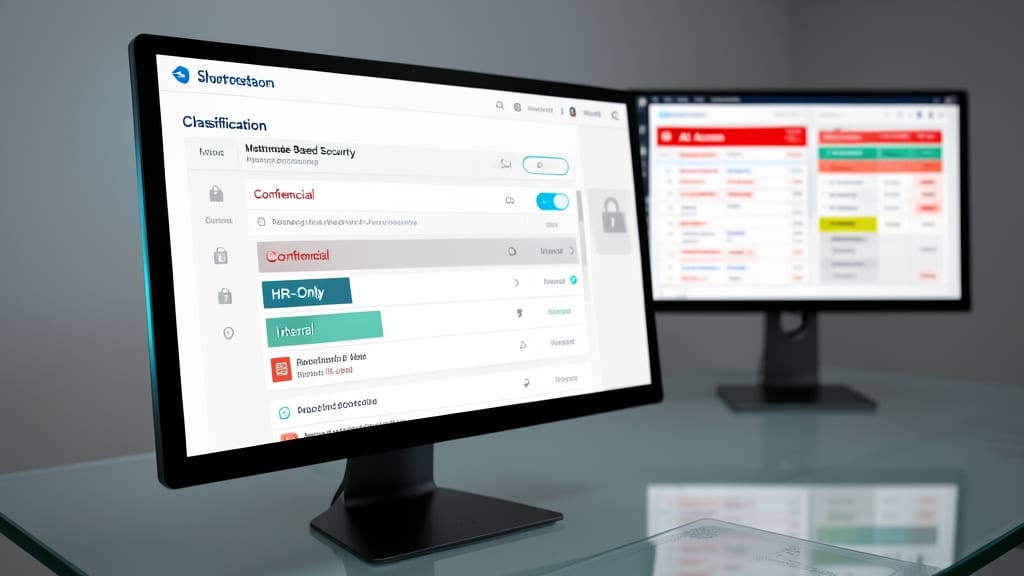
Tired of blanket permission settings exposing sensitive files to the wrong eyes? Metadata-based security lets you tag documents (like "Confidential" or "HR-Only") and restrict access at the file level—without touching library-wide settings.
Add a custom metadata column (e.g., "Classification") to your library, then use column-based permissions in SharePoint’s advanced settings. This lets you grant read-only access to "Internal" files while keeping "Confidential" documents locked down for specific groups. Perfect for finance, legal, or healthcare teams where compliance is critical.
Regulated industries will love this approach—it’s audit-friendly and avoids the complexity of unique permissions. Plus, it scales effortlessly as your library grows. ✨
Limit Inheritance for High-Risk Folders

Not every folder needs custom permissions—but some absolutely do. Instead of breaking inheritance across entire libraries, focus on high-risk folders (like "Legal Contracts" or "R&D Prototypes") and reset it for less sensitive subfolders. This targeted approach keeps security tight where it matters while avoiding the chaos of over-managing permissions.
Here’s how: Navigate to the folder, click Stop Inheriting Permissions, then assign only the necessary groups (e.g., Finance Team for invoices, IT Security for compliance docs). For subfolders, re-enable inheritance to inherit the parent’s rules—unless they also need unique controls. This method cuts admin work by 70% while maintaining consistency.
Teams in regulated industries (healthcare, finance) or those handling proprietary IP will love this precision. It’s the difference between a secure, scalable system and a permission labyrinth. ✨
Create Permission Groups for External Users
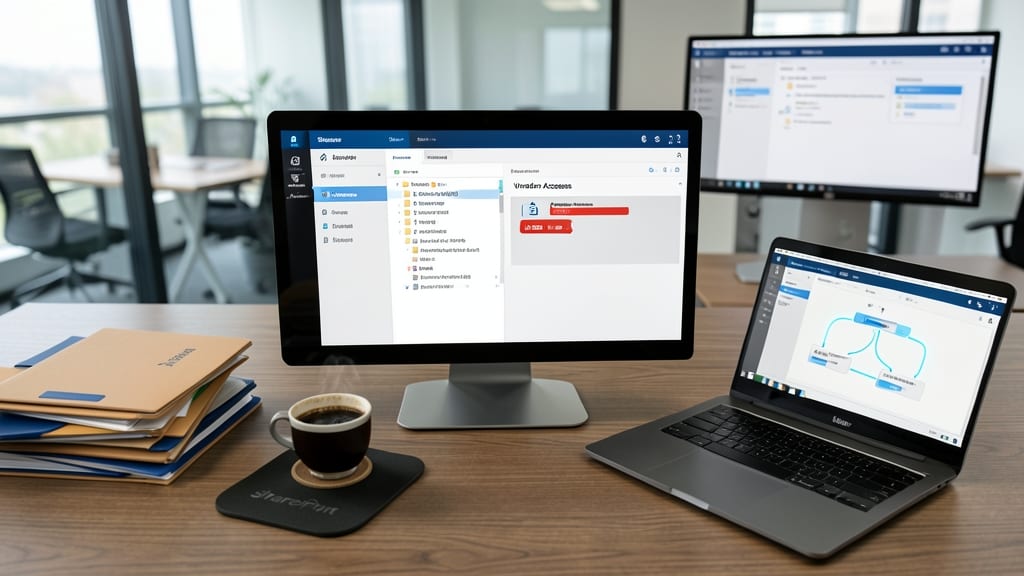
External collaborators don’t need full access to your SharePoint libraries—but managing their permissions individually is a nightmare. Instead, create dedicated permission groups like "Vendor Access" or "Client Reviewers" to grant limited, scoped access without exposing internal documents.
Start by creating a new group in SharePoint’s Site Permissions (e.g., "External Partners – Read-Only"). Assign them the minimum required permissions (like "Read" or "Edit Items") and restrict access to specific folders or libraries. For extra security, use Azure AD B2B collaboration to invite external users directly into these groups, ensuring they only see what they need.
This approach is perfect for contractors, freelancers, or clients who need temporary access. It keeps your internal structure secure while giving external teams the tools they need—without the admin headache. ✨
Audit Permissions Regularly with Access Reviews

Stale permissions are like digital ghosts—lingering users with outdated access can haunt your SharePoint security long after they’ve left the building. A quarterly access review is your secret weapon to clean up inactive accounts and realign permissions with today’s team structure.
Use SharePoint’s built-in Access Review feature (available in modern sites) to scan for users who haven’t logged in for 90+ days or lack active roles. Automate the process with Microsoft 365’s compliance tools, which flag suspicious access patterns and suggest revocations. This reduces attack surfaces while keeping your admin workload manageable—no more digging through permission lists manually.
Ideal for compliance-heavy teams (finance, legal) or fast-growing companies where roles shift often, this practice turns permission management from a reactive chore into a proactive security shield. ✨
Use Sensitivity Labels for Automated Protection
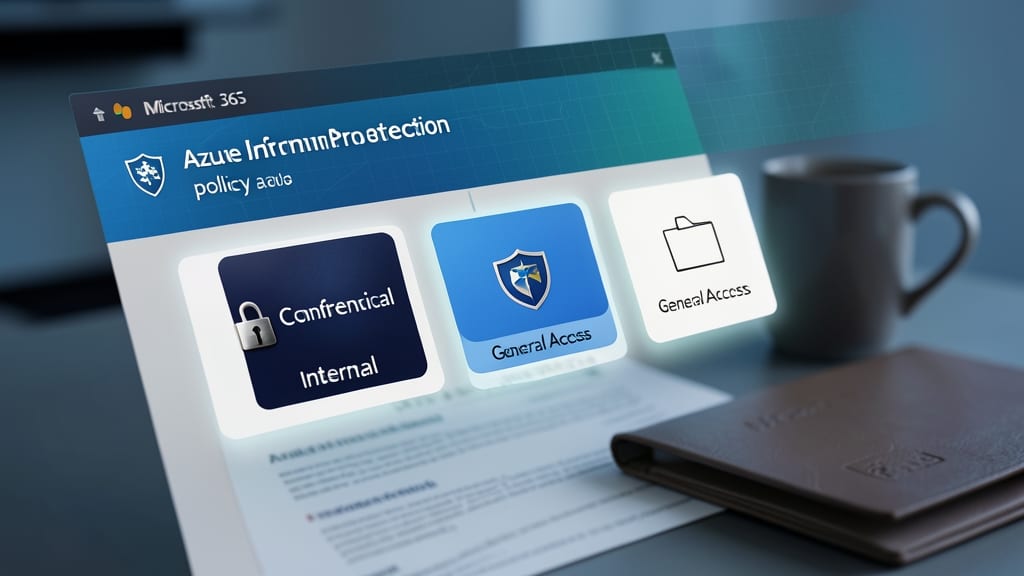
Tired of manually adjusting permissions for every compliance-sensitive document? Microsoft 365 sensitivity labels automate encryption and access rules, so you can apply Confidential, Internal, or General Access labels with a single click.
These labels enforce Azure Information Protection policies automatically—no extra scripting or admin work. For example, a Confidential label triggers rights management services (RMS), ensuring documents stay encrypted even outside your network. You can also set custom permissions like "View-only" or "Editor" per label, and they sync across SharePoint, OneDrive, and Outlook.
This is a game-changer for legal, finance, or healthcare teams dealing with regulated data. Set it once, forget the manual updates, and let Microsoft handle the heavy lifting. ✨
Restrict View-Only Access with Expiration Dates
Tired of chasing down team members to revoke access to outdated project updates? SharePoint’s expiration dates for view-only permissions solve this automatically—no manual cleanup required.
When sharing a document, simply set an expiration date in the sharing dialog (e.g., 30 days for a client proposal). After that period, access is automatically revoked, and users receive a notification. This is perfect for time-sensitive files like quarterly reports or vendor contracts, where temporary access aligns with project timelines. No more forgotten permissions lingering in your library.
Ideal for agile teams or compliance-heavy industries, this feature ensures sensitive files don’t stay exposed longer than necessary. Set it once and forget it—your security stays tight. ✨
Train Teams on Permission Inheritance Basics
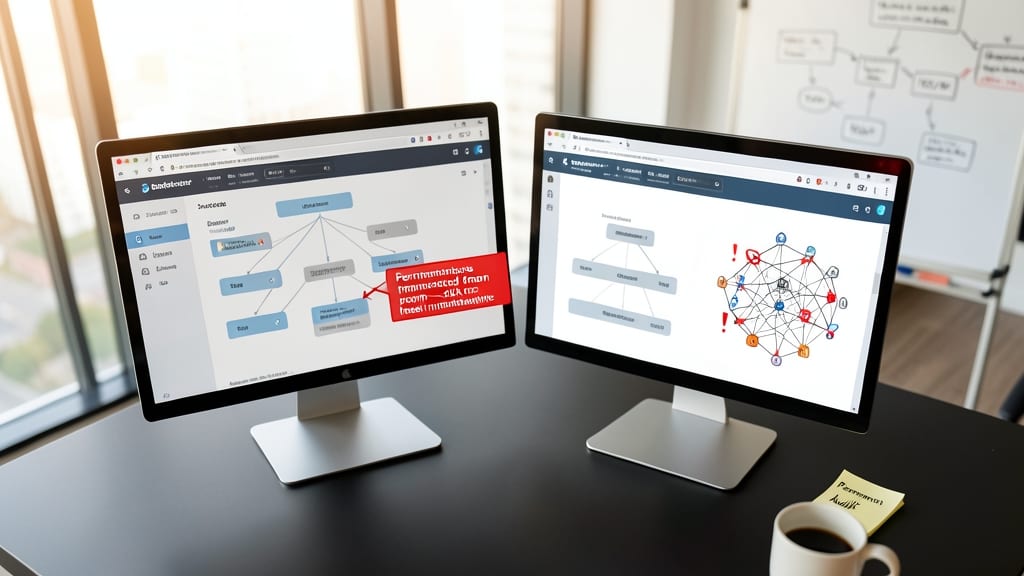
Confused why your team keeps accidentally overwriting permissions in SharePoint? The answer often lies in misunderstood permission inheritance—a core SharePoint feature that cascades settings from parent libraries to subfolders by default.
Teach your team how inheritance works: when enabled, all folders/subfolders automatically inherit permissions from their parent. Breaking inheritance (via "Stop Inheriting Permissions") creates a custom permission path, but this must be done intentionally—otherwise, you risk inconsistent access rules. Use visual hierarchy charts in training to show how changes ripple across libraries.
This practice is ideal for IT admins and department leads managing cross-functional teams. A quick 15-minute session on inheritance rules can prevent weeks of permission cleanup headaches down the road. ✨