
Tip & Trick
Microsoft OneNote 2013 is a powerhouse for organization, yet many users overlook its most powerful features. These seven hidden tips and tricks will transform how you capture, organize, and retrieve information—boosting your productivity instantly.
Quick Capture with OneNote Clipper Browser Extension
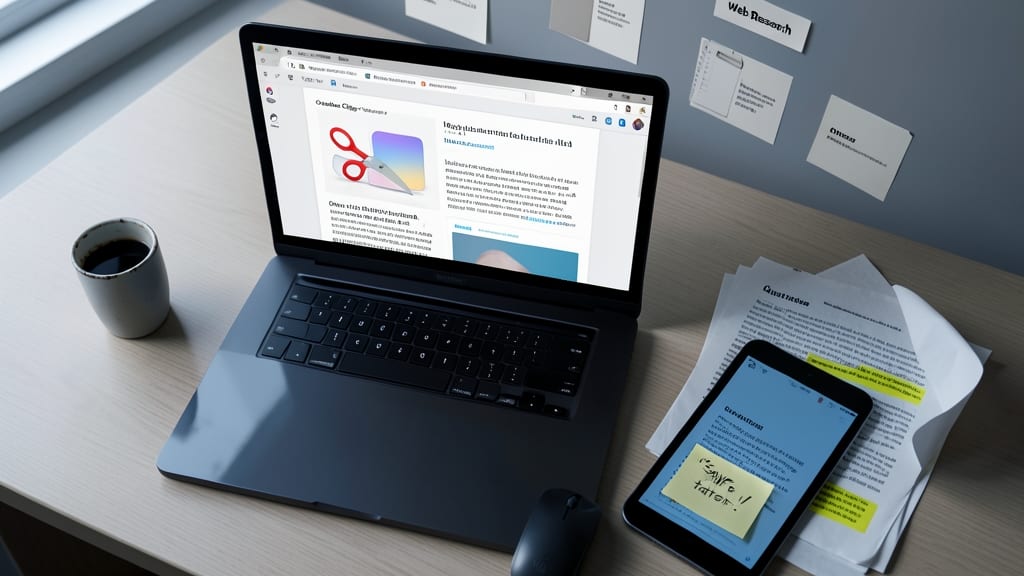
Tired of losing valuable web research or struggling to save articles for later? The OneNote Clipper browser extension lets you instantly capture full web pages, screenshots, or specific sections—all without leaving your browser. It’s like having a digital clipboard that syncs directly to your notebook.
With just one click, you can save entire articles, highlighted text, or even screenshots into a dedicated OneNote section. The extension supports Chrome, Firefox, and Edge, and works seamlessly with your existing notebooks. Researchers, journalists, or busy professionals will love how it eliminates the need for bookmarks or manual copying—everything stays organized in one place.
Perfect for fact-checkers, students, or anyone drowning in browser tabs, this tool turns your notes into a searchable archive of online discoveries. Try it today and never lose a valuable find again. ⚡
Handwriting to Text Conversion for Notes
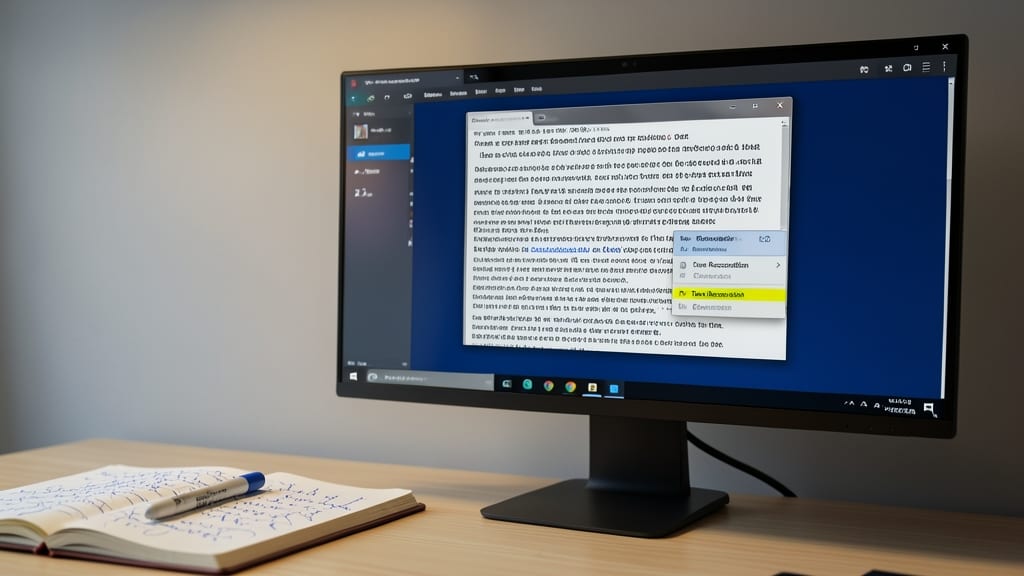
Frustrated by the gap between your handwritten notes and digital organization? OneNote 2013’s built-in OCR (Optical Character Recognition) bridges that gap effortlessly. With just a few clicks, scribbles become searchable, editable text—no third-party apps required.
Simply right-click on handwritten text, select "Copy Text from Picture", and watch OneNote transform your notes into clean, digital format. The feature handles printed text and handwriting alike, making it ideal for students transcribing lectures or professionals sketching ideas on tablets. Accuracy improves with legible handwriting, but even messy notes often convert with surprising precision.
This trick is a lifesaver for hybrid note-takers who switch between analog and digital methods. Try it next time you’re juggling paper notes and digital workflows—your future self will thank you. ✨
Tagging System for Instant Note Organization
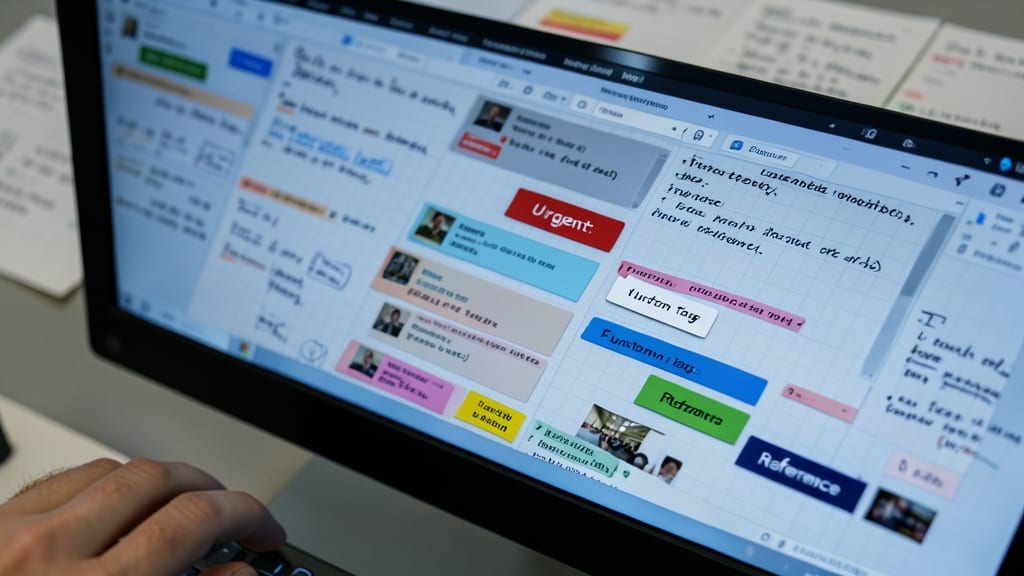
Tired of scrolling through endless pages just to find that one note? OneNote 2013’s tagging system turns your digital notebook into a visual powerhouse with color-coded labels that categorize notes instantly by project, priority, or topic.
Create custom tags like “Urgent” (red), “Reference” (blue), or “Meeting Notes” (green)—then apply them with a single click. The system even lets you search by tag color, so you can pull up all high-priority items in seconds. No more lost notes; just organized chaos under control.
Perfect for project managers, students, or anyone juggling multiple tasks, this feature turns OneNote into your personal productivity hub. ✨
Audio and Video Recording Directly in Notes
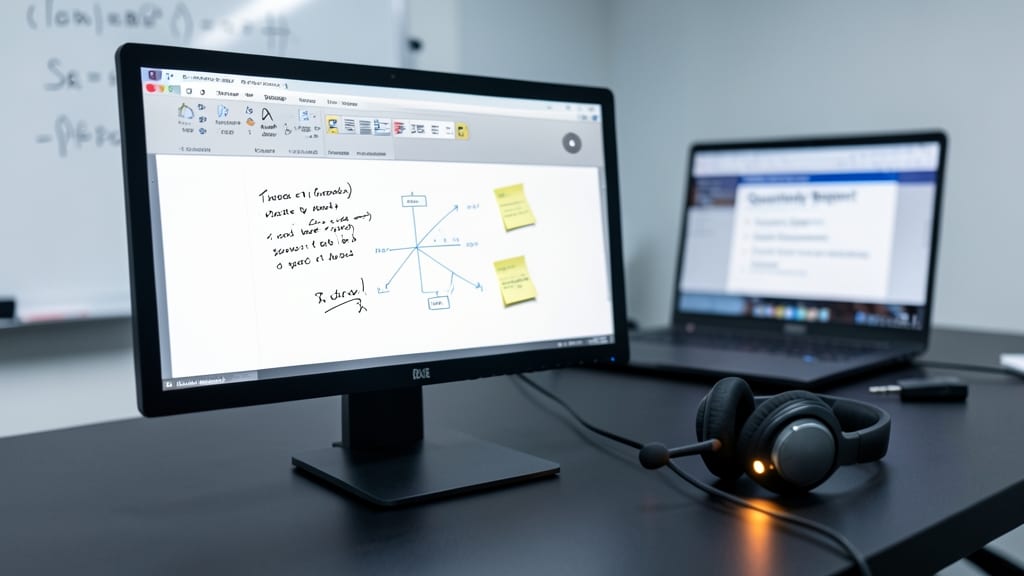
Missed a key point during a meeting or lecture? OneNote 2013’s built-in audio and video recording lets you capture moments directly within your notes—no extra apps needed. Simply click the microphone or camera icon in the ribbon, and start recording while typing or sketching alongside the audio/video.
The recordings embed seamlessly as playable media clips within your notes, complete with timestamps and searchable transcripts (for audio). You can even tag recordings by topic or project, then replay them alongside related notes—perfect for interviews, brainstorming sessions, or language practice. The feature works with both internal and external mics/cameras, making it versatile for any setup.
Ideal for educators, interviewers, or collaborative teams, this trick turns OneNote into a dynamic workspace where ideas stay connected to their context. ⚡
Section Groups for Hierarchical Note Management
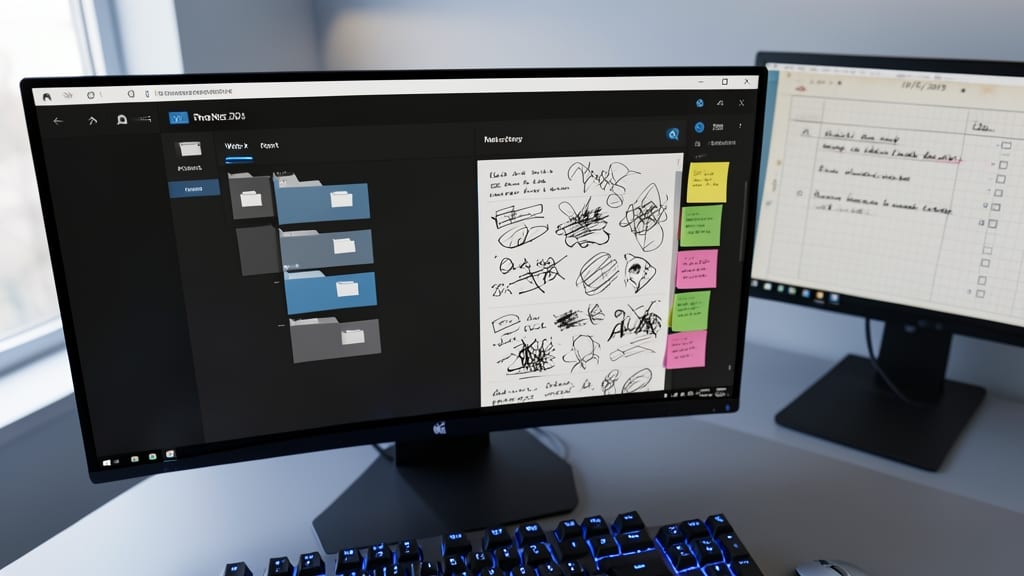
Tired of drowning in flat note pages that don’t reflect how your brain actually works? OneNote 2013’s section groups let you create nested folders—like "Work > Projects > Client X"—to mirror real-world hierarchies and keep chaos at bay.
With just a few clicks, you can collapse or expand groups to focus on what matters, reducing visual noise. The drag-and-drop interface makes rearranging sections effortless, while search functionality lets you find notes across all levels instantly. Perfect for managers juggling multiple projects or students tracking research across subjects.
This feature turns OneNote into a digital filing cabinet that adapts to your workflow, not the other way around. 💻
Math Equation Solver with Ink Input

Stuck on a math problem during a study session? OneNote 2013’s ink math solver turns your handwritten equations into instant solutions—no calculator needed. Simply write out your problem (like solving for x in 3x² + 5x – 2 = 0), and OneNote converts it to digital text while displaying the answer and step-by-step breakdown.
This feature supports algebra, calculus, and trigonometry, with recognition for fractions, exponents, and symbols. It even handles multi-step equations, making it a lifesaver for engineers drafting calculations or students reviewing homework. The solver integrates seamlessly with your notes, so you can refine your work without losing context.
Engineers sketching designs or students working through complex problems will love how this blends analog intuition with digital precision. Try it the next time you’re jotting down equations—your brainstorming just got smarter. ✨
Offline Access and Sync Across Devices

Stranded in a café with spotty Wi-Fi or jotting down ideas on a cross-country flight? OneNote 2013’s offline-first design ensures you never lose a thought—even when the internet drops. Open your notebook on any device, edit notes without connection, and watch changes sync seamlessly the moment you reconnect.
The magic happens with automatic background sync across Windows PCs, Macs, and mobile devices. No manual uploads or version conflicts—just tap "Sync Now" to push updates to your cloud notebook. Even better, OneNote compresses large files on the fly, so you can attach photos or documents without worrying about bandwidth. Perfect for field researchers, remote workers, or anyone who’s ever missed a note because of a dead zone.
This feature is a lifesaver for digital nomads and road warriors who rely on notes across devices. Try it during your next commute—your future self will thank you for the uninterrupted workflow. ⚡