
Tip & Trick
Microsoft Word is packed with hidden features that can save you hours of work. These 10 productivity-boosting tips and tricks will transform how you use Word, from automating repetitive tasks to creating polished documents faster than ever.
Quick Parts Gallery for Reusable Content
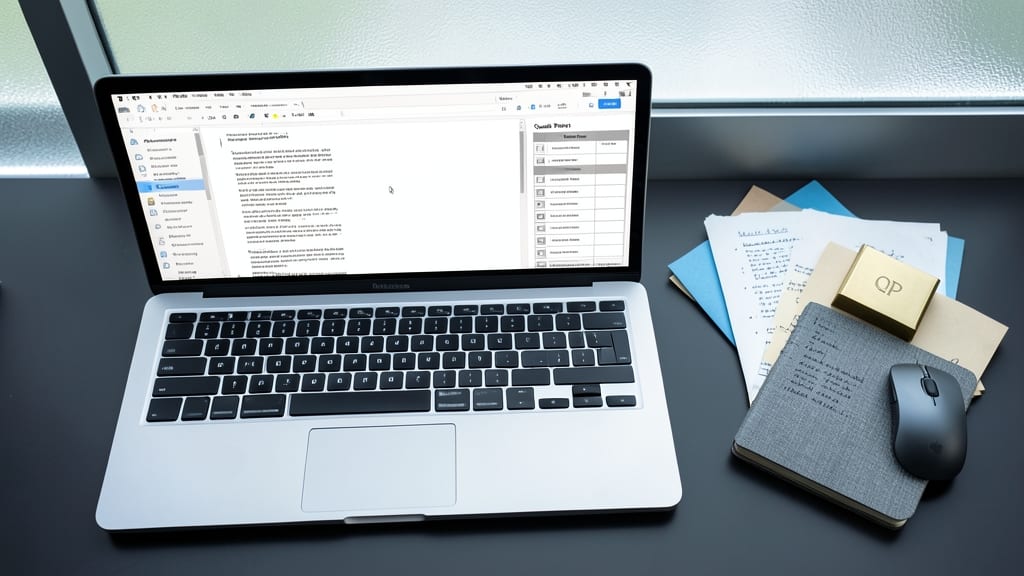
Ever waste time retyping the same disclaimers, boilerplate text, or formatted tables? The Quick Parts Gallery in Word lets you store frequently used content—like signatures, legal clauses, or even entire tables—and insert it instantly with a keyboard shortcut (default: Ctrl+F3). No more copy-pasting or reformatting!
To use it, highlight your text, table, or graphic, then click Insert > Quick Parts > Save Selection to Quick Parts Gallery. Name it (e.g., "Client_Agreement") and assign a shortcut. Next time, just press your shortcut to paste it exactly as saved—formatting and all. Pro tip: Use AutoText for dynamic fields like dates or names, which update automatically.
Perfect for legal teams drafting contracts, HR professionals handling onboarding docs, or freelancers reusing templates. Say goodbye to repetitive typing and hello to seamless workflows! ⚡
Track Changes with Comments and Final Version
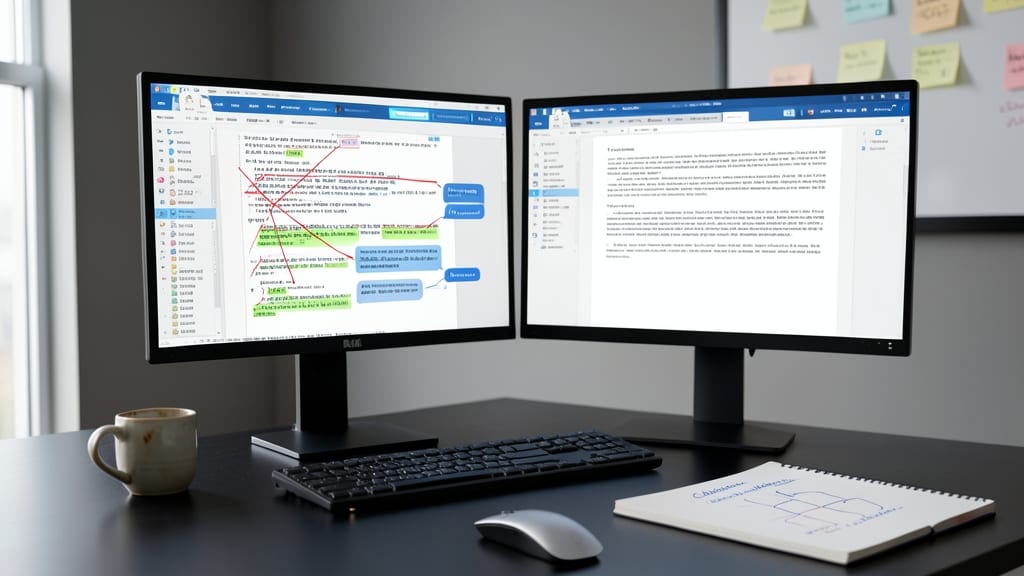
Collaborating on documents doesn’t have to mean endless email chains or lost revisions. Word’s Track Changes tool lets you mark edits, add comments, and even generate a final, clean version—all in one place. Simply enable it via the Review tab, and every insertion, deletion, or formatting tweak appears with timestamps and author names, so nothing gets overlooked.
Need to discuss a specific edit? Add a comment bubble directly beside the text, then reply within Word—no need to switch apps. When it’s time to finalize, use the Accept/Reject Changes tools to approve edits in bulk or one-by-one. The best part? The Final version button strips out all tracked changes, giving you a pristine copy ready for printing or sharing.
This is a game-changer for legal teams, editors, and project managers who juggle multiple drafts. No more "Version 3.7finalreally.docx" chaos—just seamless collaboration with a single source of truth. ✨
Keyboard Shortcuts for Navigation
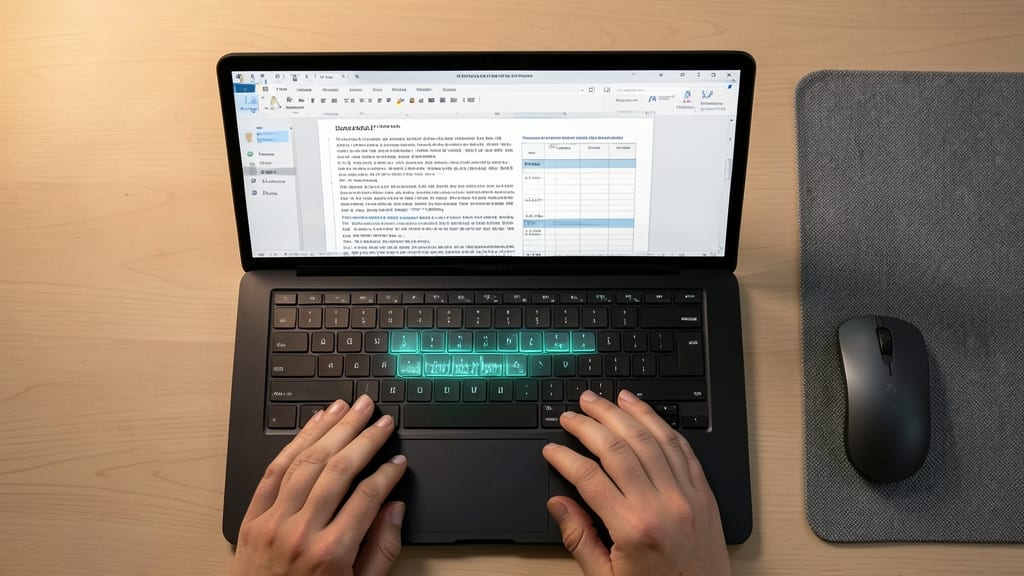
Tired of scrolling endlessly in long documents? Microsoft Word’s navigation shortcuts turn page-by-page flipping into lightning-fast jumps. With just Ctrl+Alt+Page Up/Down, you’ll zip between sections, headings, or even tables—ideal for editing 50-page reports or reviewing dense manuals.
These shortcuts work with headings (1-6) and bookmarks, so you can instantly jump to the "Executive Summary" or "Appendix" without manual scrolling. Pair it with Ctrl+F for search-and-go navigation, and you’ll reclaim minutes every day. No more losing your place in sprawling documents!
Perfect for editors, lawyers, and researchers who juggle multiple document versions. Master these, and you’ll edit like a pro. ⚡
Customizable Quick Access Toolbar
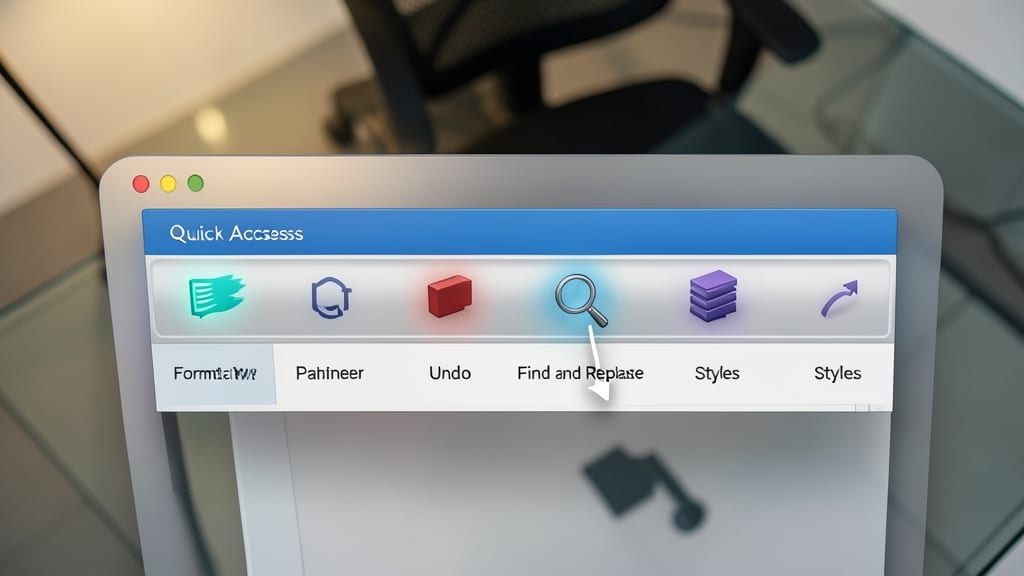
Tired of digging through menus for commands like Find and Replace or Styles? The Quick Access Toolbar lets you pin your most-used features right where you need them—just above the ribbon—for instant access with a single click.
Right-click the toolbar to add commands like Format Painter, Undo, or even Custom Tabs. It syncs across devices via OneDrive, so your shortcuts travel with you. Perfect for power users who hate hunting through menus mid-workflow.
Ideal for legal professionals, academics, or anyone drowning in repetitive formatting tasks—this is the ultimate time-saver. ✨
Mail Merge for Personalized Letters
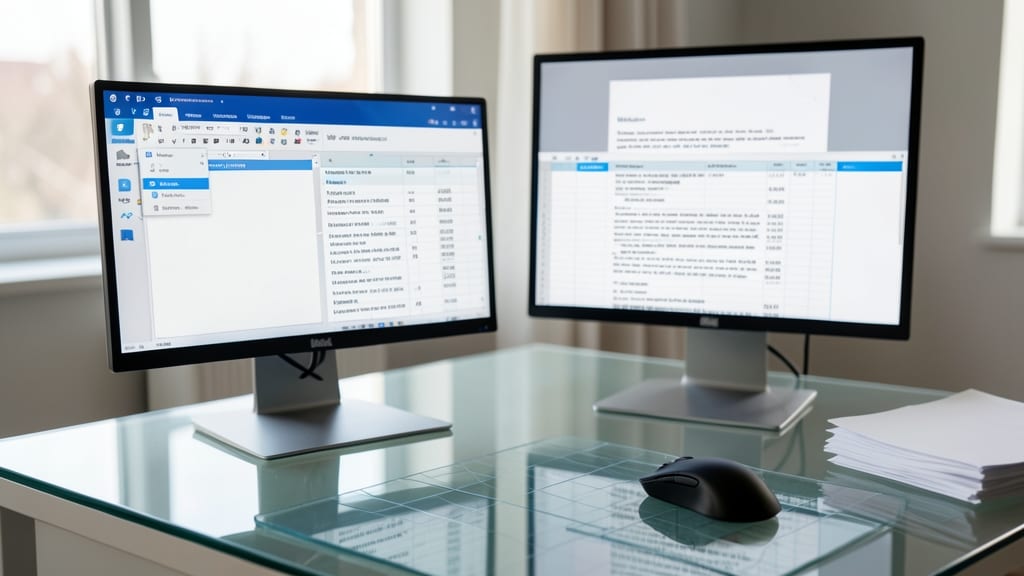
Tired of manually typing the same letter 50 times? Mail Merge in Word turns repetitive tasks into a one-click operation, pulling recipient names, addresses, and details straight from Excel or Outlook. Whether you're sending personalized thank-you notes, holiday cards, or bulk invoices, this feature handles the heavy lifting.
Start by creating a template letter with placeholders like <
Small business owners, HR teams, and marketers will love this time-saver—especially when deadlines are tight. ⚡
Text to Speech for Proofreading
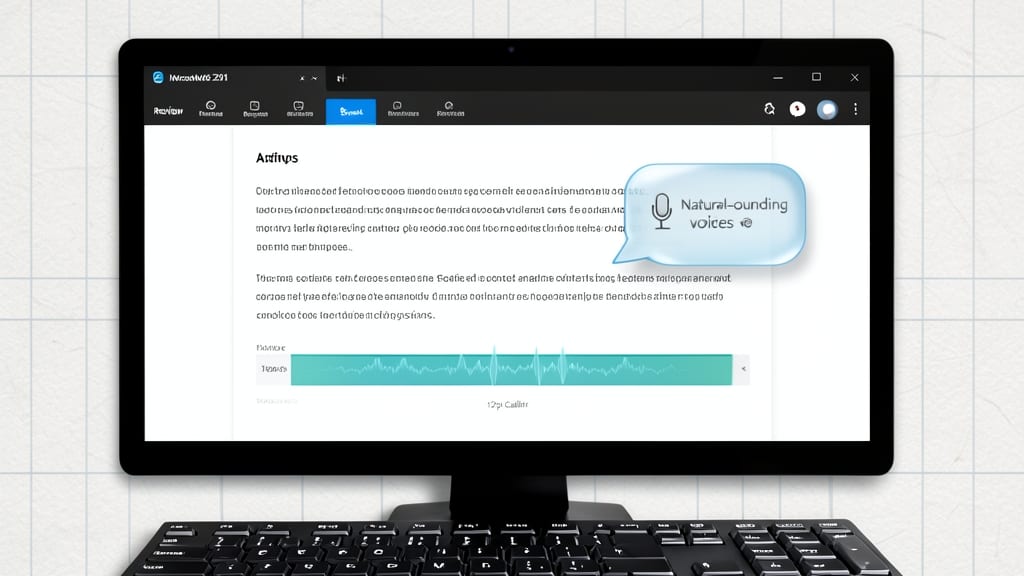
Struggling to spot awkward phrasing or typos in your writing? Microsoft Word’s built-in Text to Speech (TTS) tool lets you listen to your document aloud—revealing errors your eyes might miss. Simply select the text, click the Speak button in the Review tab, and choose from natural-sounding voices like George (US English) or Hazel (UK English).
The feature supports adjustable speed (slow down for complex sentences) and pauses between paragraphs, making it ideal for catching grammar slips, awkward phrasing, or missing words. It’s especially useful for non-native speakers or students drafting essays—hearing your work read back often uncovers issues you’d overlook visually.
Perfect for writers, researchers, or anyone who wants a second set of ears. Try it with your next draft—you might be surprised what you catch! ✨
Styles for Consistent Formatting
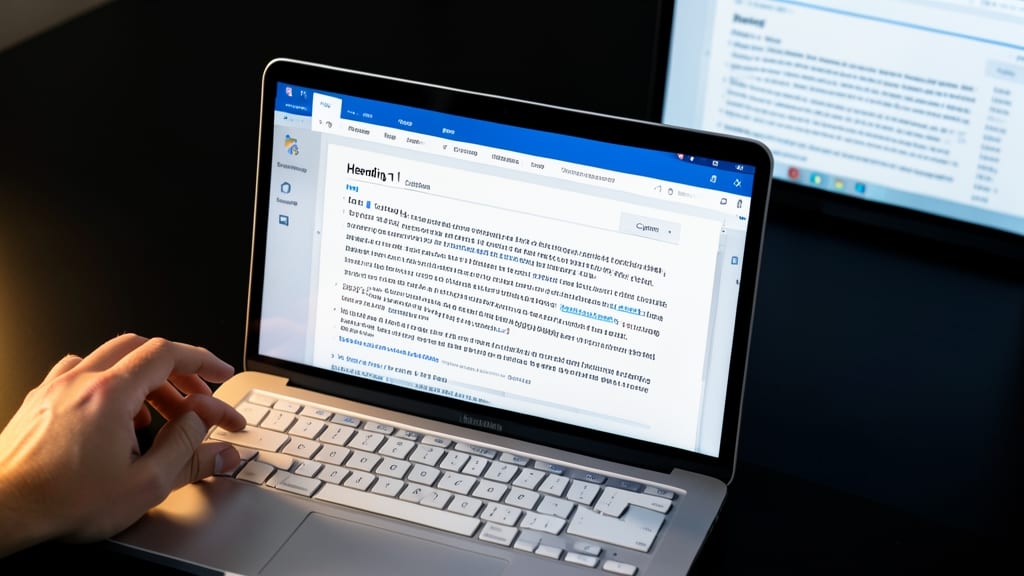
Tired of manually adjusting fonts, spacing, and alignment in every heading? Word’s Styles feature lets you apply professional formatting with a single click—and updates everything automatically.
From Heading 1 to Caption, predefined styles ensure consistency across your entire document. Modify one instance (like font size or line spacing), and Word updates every heading or caption using that style. The Navigation Pane even lets you jump between headings instantly, perfect for long reports or resumes.
This is a must for academics, recruiters, and professionals who need polished documents without the hassle. Give it a try—your future self will thank you! ✨
Compare Documents for Edits
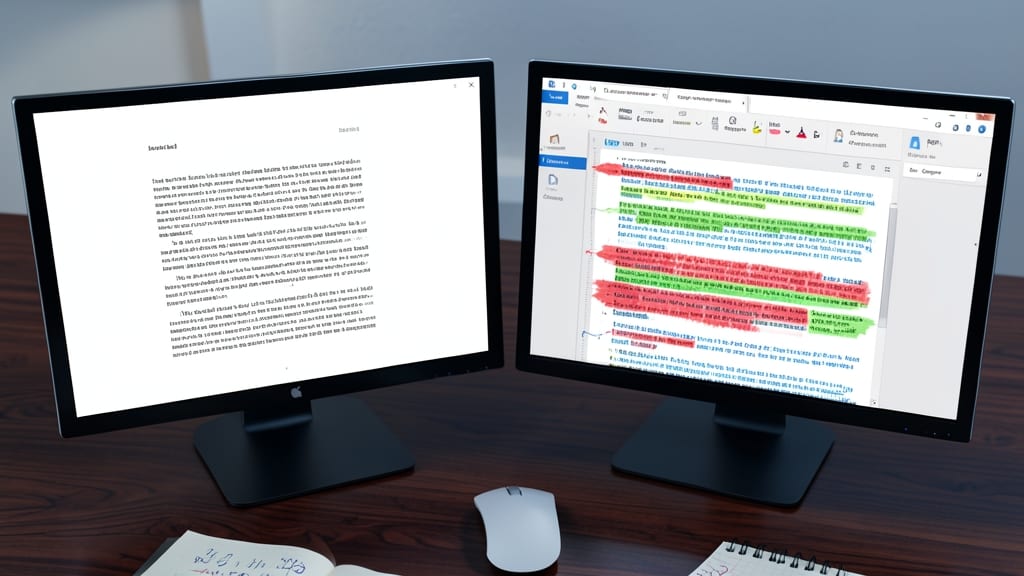
Ever spent hours manually comparing two versions of a document to spot changes? Word’s Compare Documents feature eliminates that guesswork by merging files side-by-side with color-coded highlights—deletions in red, additions in green, and formatting shifts in blue.
Simply go to Review > Compare > Compare and select both files. The tool generates a third document showing every revision, including tracked changes and comments. This is a lifesaver for legal teams reconciling contracts, editors refining manuscripts, or project managers aligning reports—all without the back-and-forth of emailing files.
Perfect for anyone juggling multiple drafts, this feature turns chaos into clarity in seconds. ⚡
Equation Editor for Math and Symbols
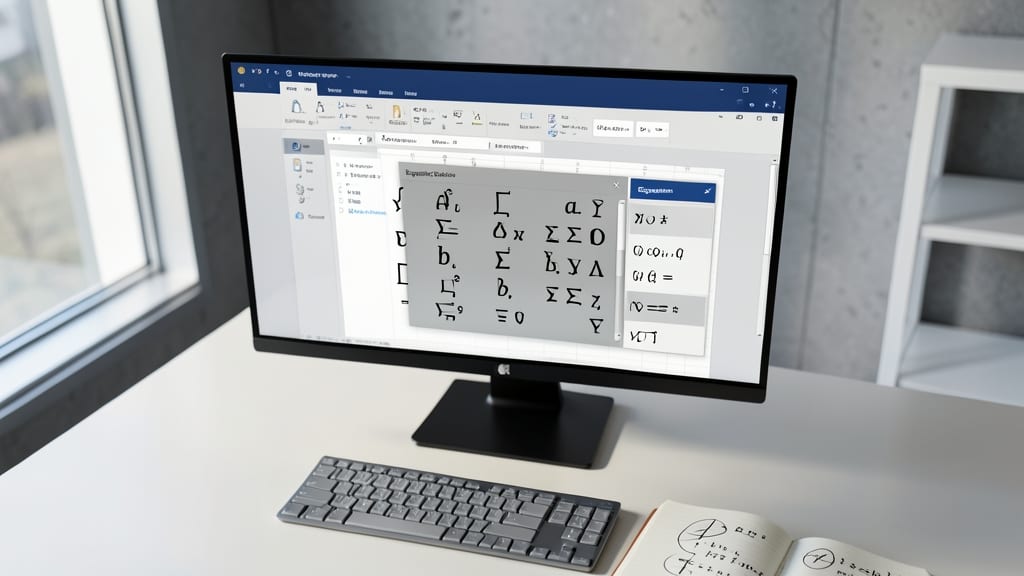
Struggling to type out complex equations or Greek symbols in Word? The built-in Equation Editor lets you insert professional-grade math notation with just a few clicks—no LaTeX knowledge required.
Access it via the Insert tab, then choose Equation. The toolbar offers templates for fractions, integrals, matrices, and more, while the symbol palette includes Greek letters (α, β, γ) and special characters. For advanced users, the linear equation builder lets you type equations naturally, with Word formatting them automatically. ⚡
Perfect for students writing research papers, engineers documenting formulas, or researchers presenting data—this tool turns handwritten scribbles into polished, publication-ready equations in seconds. 💻
Macros to Automate Repetitive Tasks
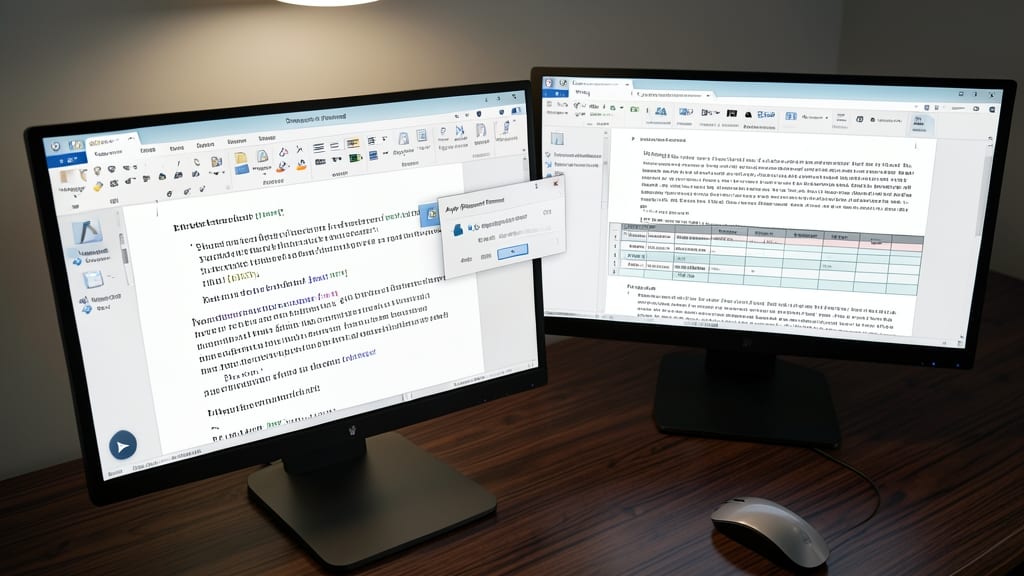
Tired of repeating the same formatting steps every time you create a report? Macros in Word let you record a sequence of actions—like inserting headers, adjusting table styles, or applying consistent fonts—and replay them instantly with a single click.
To get started, enable the Developer tab (File > Options > Customize Ribbon), then click Record Macro. Assign a shortcut (like Ctrl+Shift+M) to trigger your automation. Need to format 50 tables? Record once, replay 50 times—no more repetitive clicks. For advanced users, you can even edit the VBA code behind macros to fine-tune logic.
Accountants crunching monthly reports, teachers grading essays, or legal teams drafting contracts will love this—turn hours of busywork into minutes. ⚡