
Coding
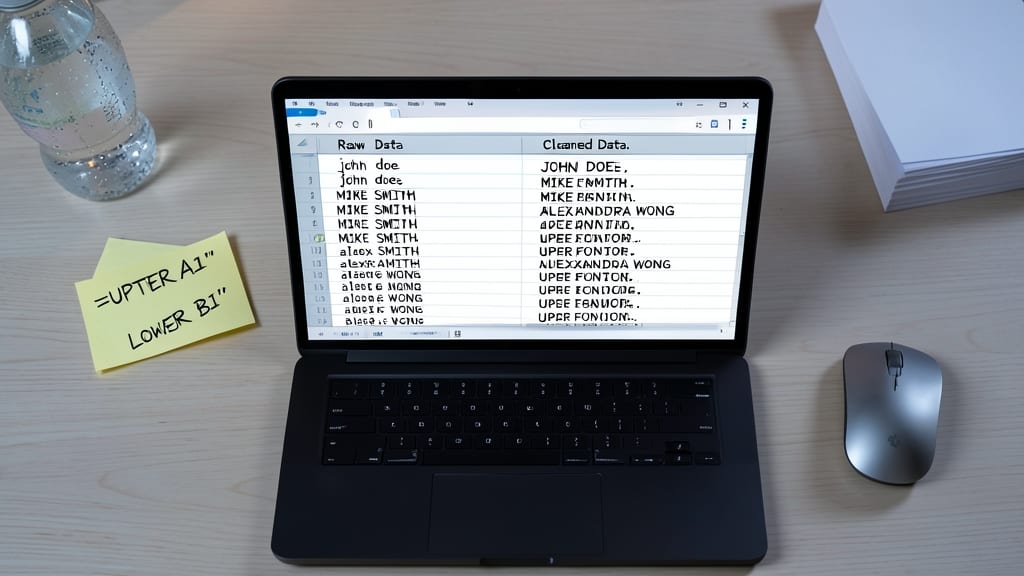
Struggling with messy text data in Excel? These 10 essential text functions will transform raw information into clean, organized datasets with minimal effort. Master these tools to save hours of manual data cleaning and boost your productivity instantly.
Concatenate Function for Merging Text Cells
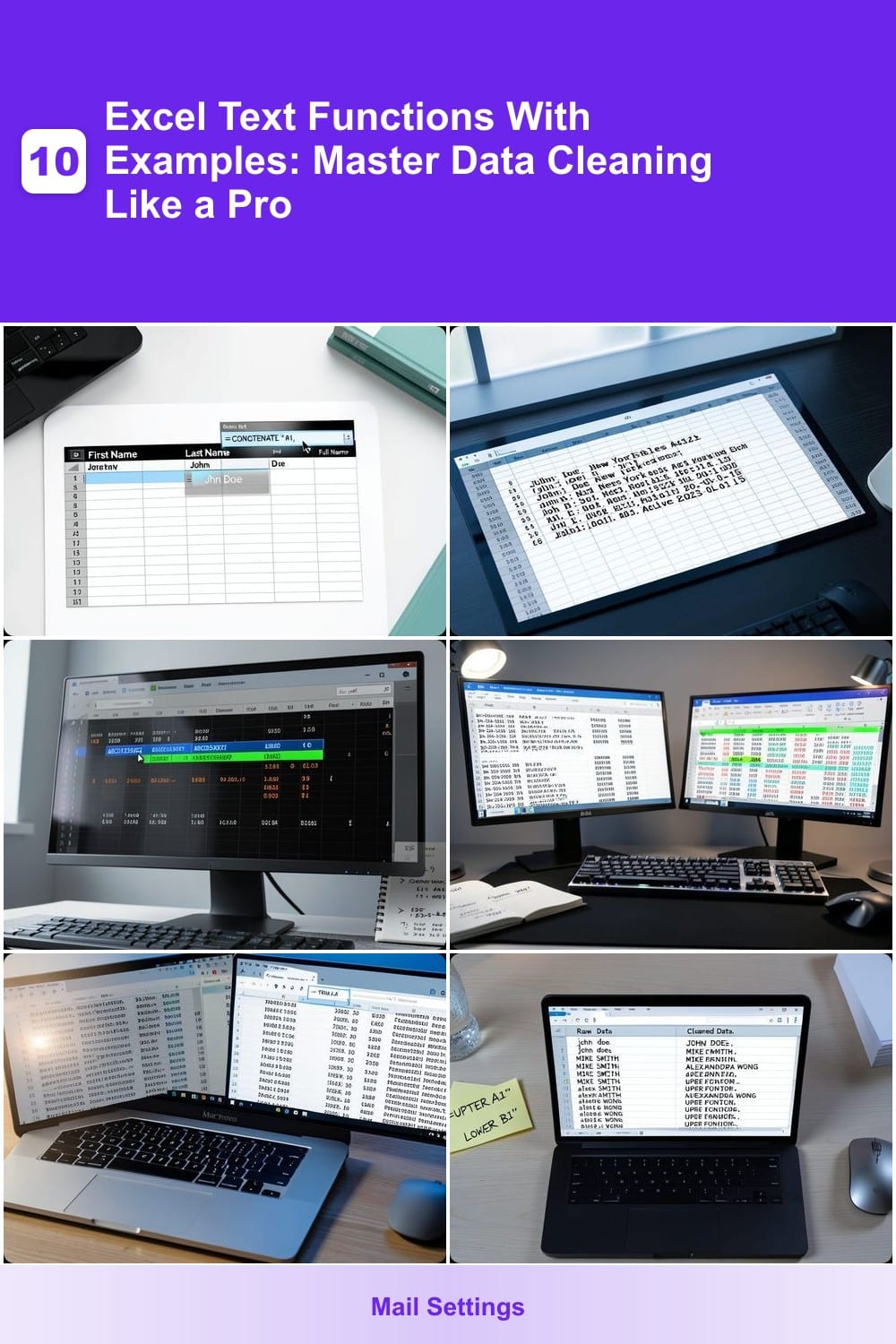
Struggling to combine first names and last names into a single cell without manual typing? The CONCATENATE function is your time-saving solution—designed to merge text from multiple columns into one clean, standardized entry with just a few clicks.
Simply use =CONCATENATE(A1, " ", B1) to combine data from cells A1 and B1 (like first and last names) with a space in between. Need more control? Try the newer TEXTJOIN function for advanced options like ignoring empty cells or adding custom delimiters. Both work instantly across entire columns, eliminating the need for copy-pasting or complex formulas.
Perfect for creating professional reports, cleaning customer databases, or standardizing product listings. Whether you're a small business owner or a data analyst, this function turns scattered data into polished, ready-to-use entries in seconds. ⚡
Text to Columns for Splitting Data

Staring at a single cell packed with comma-separated values and wondering how to split them into usable columns? The Text to Columns tool in Excel is your lifesaver—designed specifically to break apart delimited text (like CSV or tab-separated data) into organized columns with just a few clicks.
Access it via Data > Text to Columns, then choose your delimiter (comma, tab, semicolon, etc.). For example, a cell containing "123 Main St, Springfield, IL 62704" can instantly split into separate columns for street address, city, and ZIP code. It even handles custom delimiters or fixed-width data for complex layouts. Works like magic on imported datasets that arrive as one messy string.
Perfect for small business owners importing customer lists, data analysts cleaning up CSV exports, or anyone wrestling with external data sources. Say goodbye to manual copy-pasting—this tool does the heavy lifting in seconds. 💻
LEFT and RIGHT Functions for Extracting Partial Text
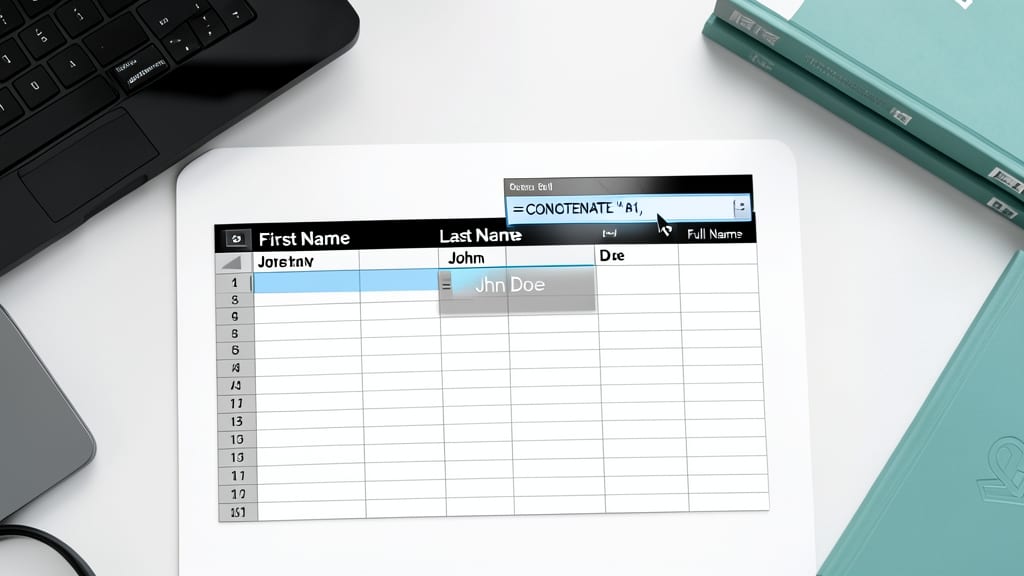
Need to pull out just the first few characters or the last part of a string? The LEFT and RIGHT functions are your go-to tools for extracting partial text with surgical precision. Whether you're isolating product codes, file extensions, or phone numbers, these functions let you specify exactly how many characters to grab from either end of a cell.
For example, =LEFT(A1,3) extracts the first 3 characters from cell A1, while =RIGHT(B1,4) pulls the last 4 characters. This is perfect for cleaning datasets where you only need specific segments—like grabbing "PDF" from "document.pdf" or the last 10 digits from a phone number. Both functions are zero-config and work instantly across any text string.
Ideal for data analysts, inventory managers, or anyone dealing with structured text, these functions save hours of manual copying. Try them on your next messy dataset and watch the clutter disappear! ✨
MID Function for Extracting Middle Text Segments

When your data hides critical info in the middle—like serial numbers, dates, or dynamic codes—MID is the function that unlocks it all. Unlike LEFT or RIGHT, which only pull from the edges, MID lets you extract any segment by specifying the exact starting position and length, making it perfect for parsing inconsistent formats.
The syntax is simple: =MID(text, startnum, numchars). For example, to pull "DOE" from "JOHN-DOE-1985", use =MID(A1, 6, 3). It’s especially useful for variable-length data, like extracting month/year from "2023-10-15" or pulling model names from product codes. Combine it with FIND to dynamically locate positions, and you’ve got a powerhouse for cleaning complex datasets.
This is the go-to tool for data analysts, inventory managers, or anyone wrestling with unstructured text—where start/end positions aren’t fixed. ⚡
TRIM Function for Removing Extra Spaces

Ever wasted hours manually fixing wonky spacing in imported datasets? The TRIM function is your secret weapon—it automatically removes extra spaces from text, including leading, trailing, and even multiple spaces between words.
With just =TRIM(A1), you can instantly fix messy data that causes sorting errors or filtering issues. It handles non-breaking spaces, tabs, and multiple spaces that often sneak in from CSV imports or copied text. Unlike manual fixes, TRIM works instantly across entire columns.
Perfect for data analysts, small business owners, or anyone dealing with imported databases or external files. Say goodbye to manual cleanup—this function does the heavy lifting in seconds. ✨
UPPER and LOWER Functions for Standardizing Text
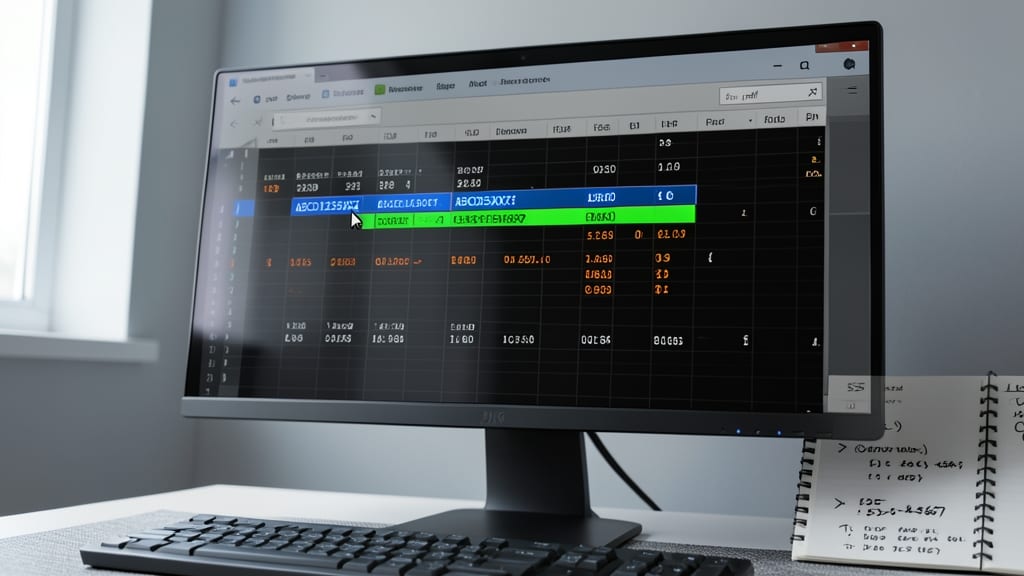
Tired of duplicate entries or sorting headaches caused by inconsistent capitalization? The UPPER and LOWER functions in Excel are your secret weapons for enforcing text uniformity in seconds.
Use UPPER to convert all text to uppercase (e.g., =UPPER(A1) turns "john doe" into "JOHN DOE"), or LOWER to force lowercase (e.g., =LOWER(B1) changes "JANE SMITH" to "jane smith"). These functions are perfect for databases where case sensitivity causes issues—like product codes, email addresses, or standardized reports. They’re also great for matching data across different sources.
Accountants standardizing invoices, marketers cleaning up customer lists, or developers preparing API data will find these functions indispensable. They’re simple yet powerful for eliminating inconsistencies before analysis or reporting. ✨
PROPER Function for Capitalizing Names
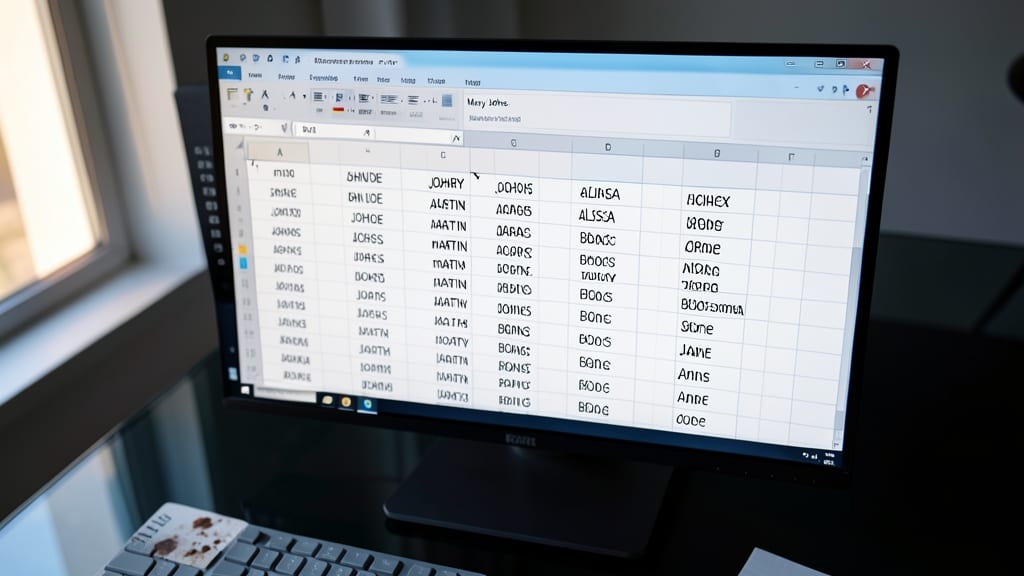
Tired of manually fixing names like "mARY jOhnS" in your customer database? The PROPER function in Excel automates proper capitalization—capitalizing the first letter of each word while converting the rest to lowercase, saving you hours of tedious editing.
With zero configuration, simply type =PROPER(A1) where A1 contains your messy text. It handles names, titles, and even multi-word phrases flawlessly. For example, "john doe, m.d." becomes "John Doe, M.D." instantly. Works seamlessly with other functions like CONCATENATE for polished reports.
Perfect for HR departments, sales teams, or anyone managing professional datasets where consistent formatting is non-negotiable. ⚡
SUBSTITUTE Function for Replacing Text

Tired of manually fixing typos, outdated abbreviations, or inconsistent symbols in your data? The SUBSTITUTE function is your secret weapon for automated text replacements—no copy-pasting required.
With just four simple arguments (oldtext, newtext, instance, and texttosearch), you can replace specific words, symbols, or even the first/last occurrence of a pattern. For example, swap "&" with "and" in product descriptions, remove "old" from outdated product names, or standardize "USA" to "United States" across datasets. It even handles wildcards (like *) for broader replacements.
Perfect for marketers cleaning up ad copy, data analysts standardizing reports, or small business owners fixing customer records. Try it once, and you’ll wonder how you ever edited text manually. ✨
FIND and SEARCH Functions for Locating Text

Need to pinpoint where specific text lives in your data? The FIND and SEARCH functions are your secret weapons for locating text positions with surgical precision. While FIND demands exact matches (including case sensitivity), SEARCH is your wildcard ally—ignoring case and handling partial matches effortlessly.
Use FIND("Excel",A1) to return the exact position (like 8) of "Excel" in cell A1, but switch to SEARCH("excel",A1) to catch variations like "Excel," "EXCEL," or even "Microsoft Excel." Both return error #VALUE! if text isn’t found, but you can nest them in IFERROR for graceful handling. Wildcards like ? (single character) or * (multiple characters) in SEARCH unlock advanced pattern matching.
Data analysts love these for extracting substrings dynamically, while developers use them to validate text patterns in logs or reports. Perfect for when you need to know where text lives—not just what it contains. ✨
CLEAN Function for Removing Non-Printable Characters
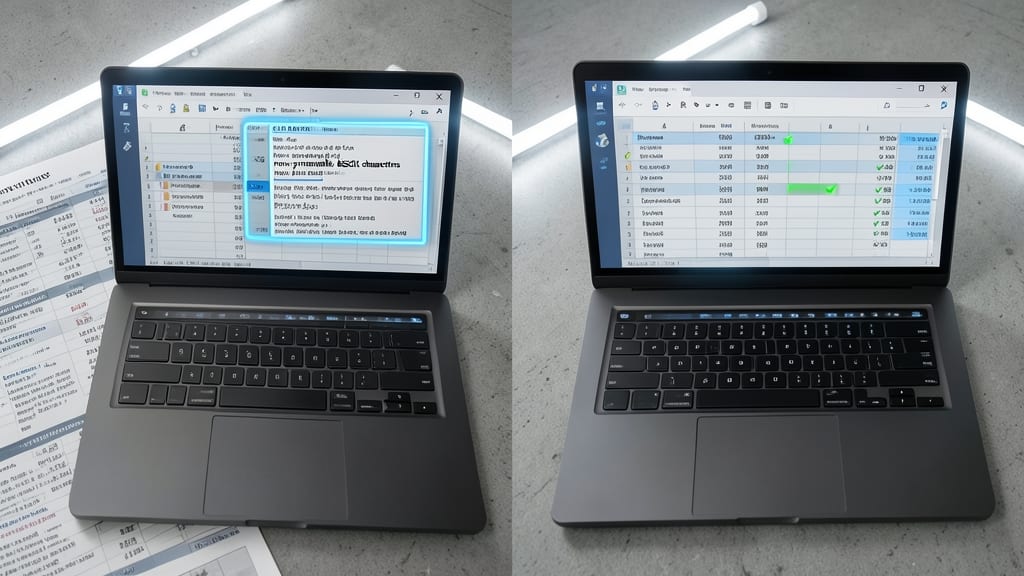
When imported data looks clean but refuses to sort or filter correctly, Excel’s CLEAN function is your secret weapon. Unlike TRIM or SUBSTITUTE, it specifically targets non-printable characters—like ASCII codes, line breaks, or hidden symbols—that corrupt datasets without visible signs.
The function uses ASCII codes 0-31 (excluding 9 for tabs) to strip invisible clutter, making it perfect for legacy datasets or files copied from older systems. Simply type =CLEAN(A1) in a cell, and it instantly removes those pesky hidden characters that cause sorting headaches or formula errors.
Data analysts and IT teams dealing with imported CSV files or historical records will find this function indispensable. It’s the final step in your text-cleaning arsenal when other methods fail to fix the underlying corruption. ✨